Work
Offers
Proposals are a Keruj tool in which the cost of materials and works for an order is recorded
It can be created both within a project or opportunities, and separately, without association
Its purpose:
forming a clear budget by adding works and materials
preparing and agreeing on conditions with the client before starting production
creating several calculation options (for example, basic and extended)
providing the team with agreed financial terms
converting into financial and warehouse documents
comparison of planned and actual costs and profitability analysis
Location
"Proposals" are located on the left navigation panel, in the "Work" section

The list of proposals is displayed in a tabular format. Its view can be changed according to your own criteria using filters, columns, and other tools
Creation
You can create a new proposal by clicking "+" on the navigation panel or the "+Create" button on the main page of the module

Form for creating a proposal:
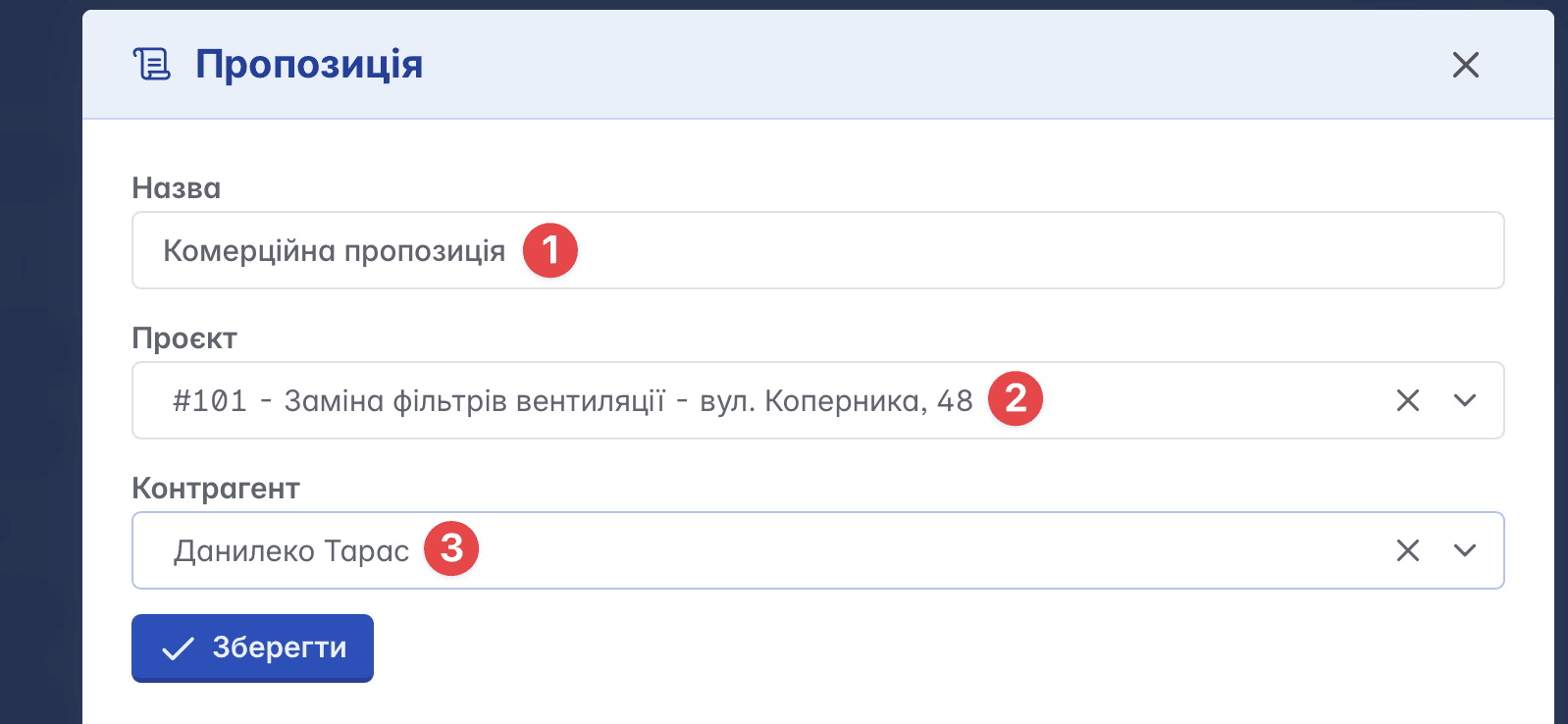
Name - arbitrary name
Project - if the proposal belongs to a specific project, it can be selected from the list (field is optional)
Counterparty - customer/client, recipient of the proposal
Structure
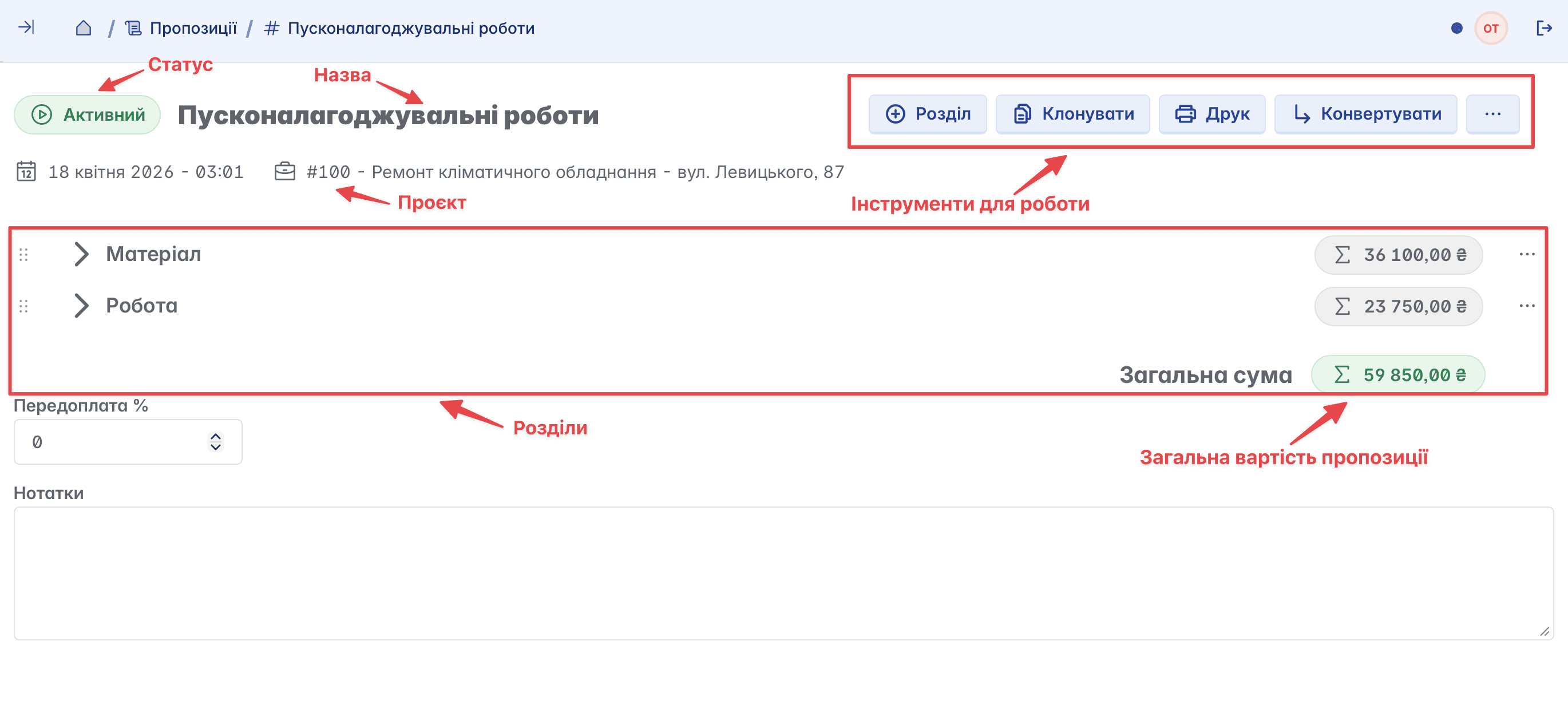
The main page of the proposal contains the status, name, project information (if any), and general tools for work, with which you can clone, edit, print, convert the proposal into a document, or delete it. The main element of a proposal is the "Section"
Creating a section
Sections can be outer-divided by item type (for example, work, materials, equipment rental, etc.). You can add an empty section, create a new one
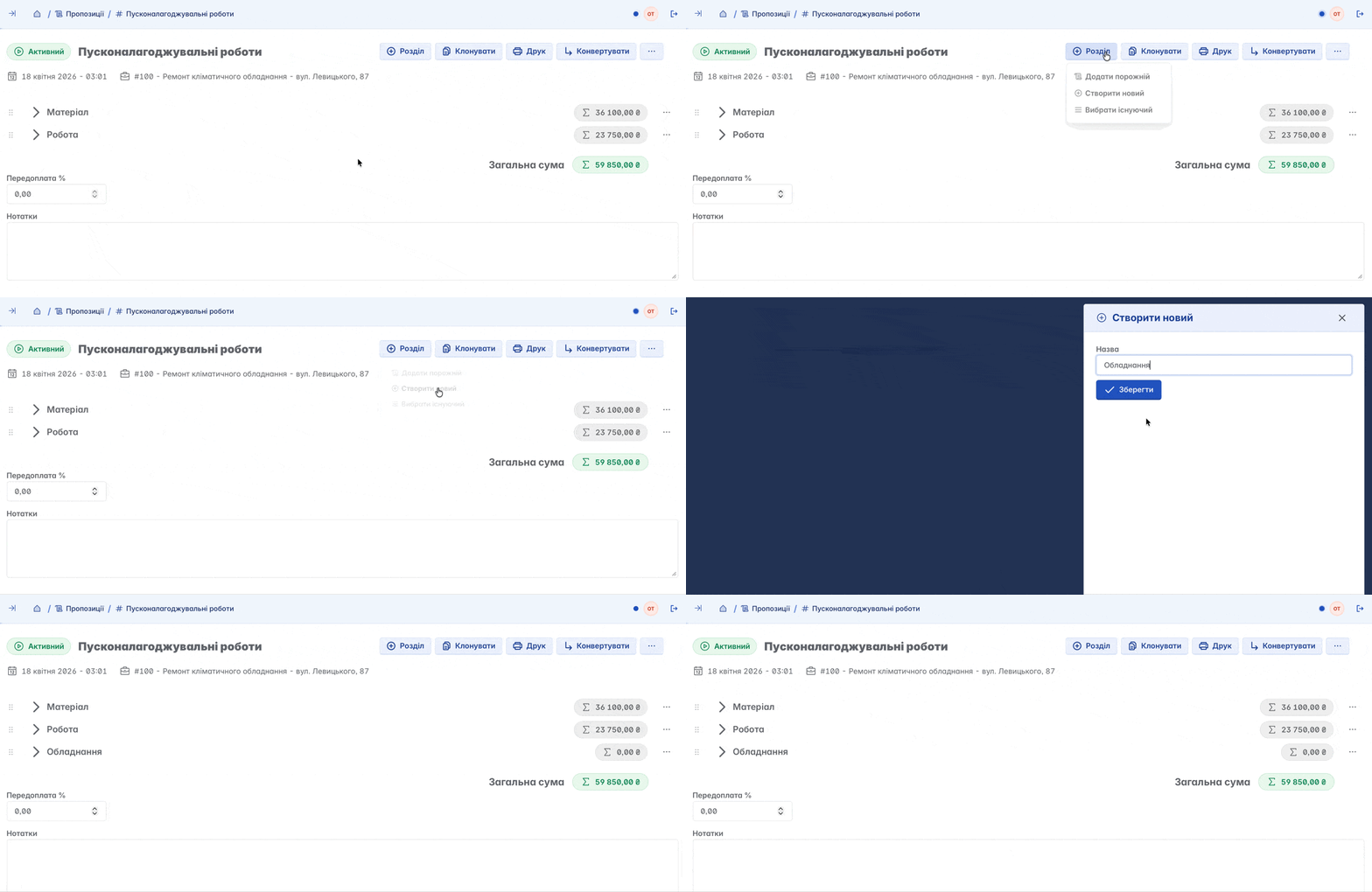
or select an existing one

In its structure, a section is similar to a standard Keruj document: it contains typical columns and display modes
Editing a section
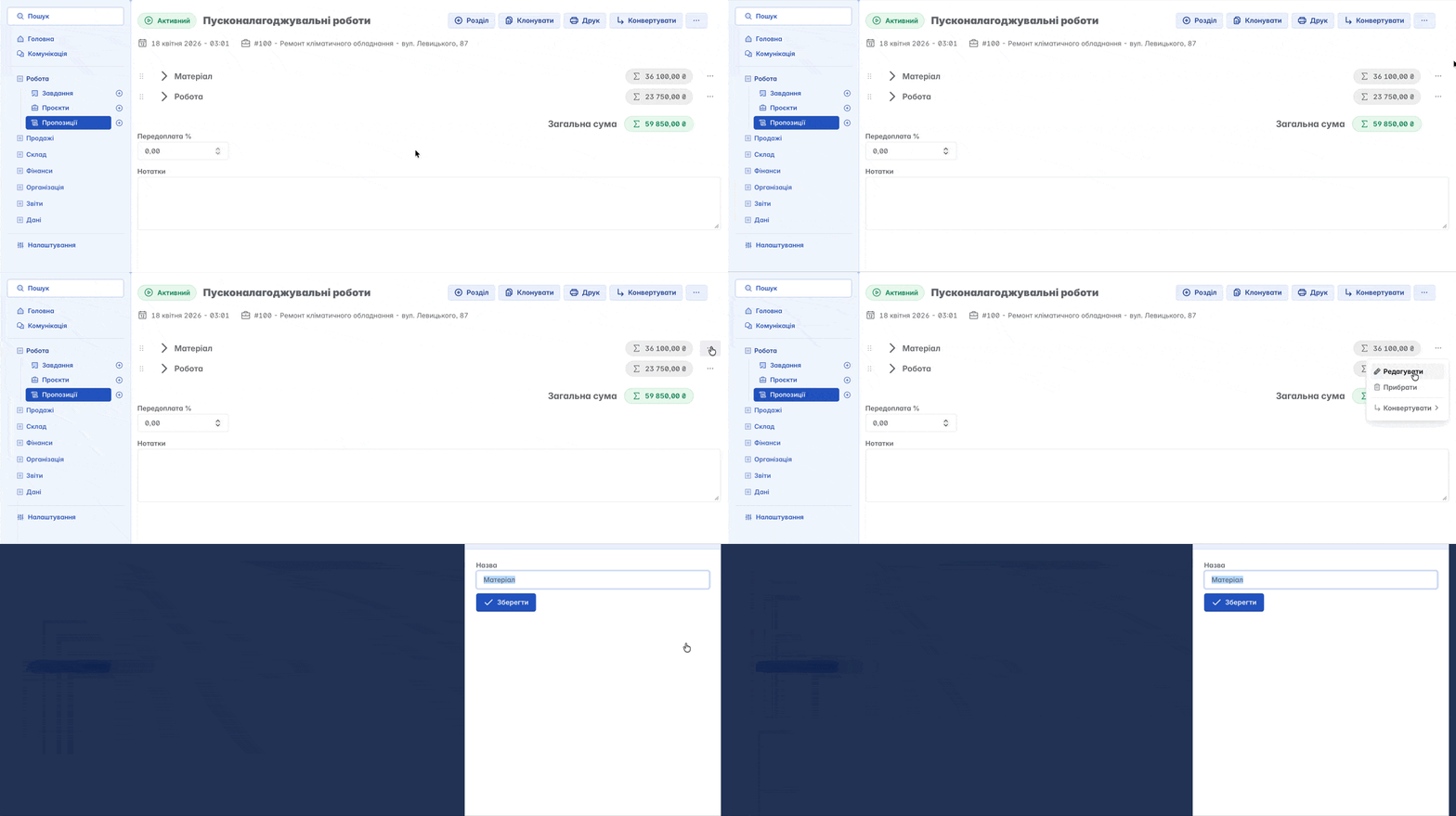
The name of the section can always be changed
Adding inventory
To add inventory to a section, open the required section and go to the "Product Selection" tool

Converting a section
The created section can be immediately converted into the required document. Depending on your settings, it can be an "Invoicing" or "Sale of goods and services"

The document is created automatically and already contains the added inventory. You only have to fill in general fields such as "Counterparty", "From warehouse", etc.
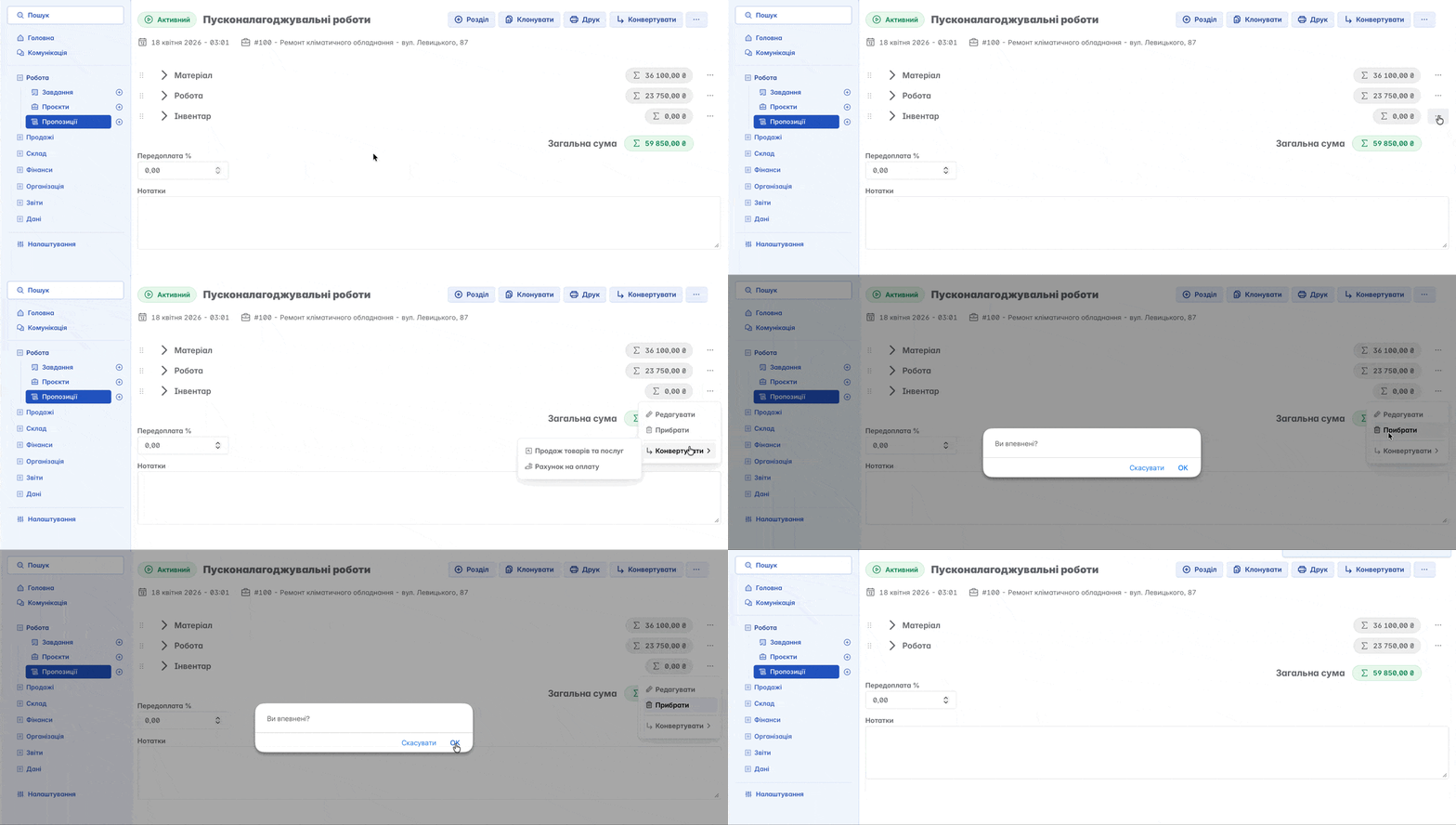
Deleting a section
If the section is no longer relevant, you can delete it
Task in the proposal
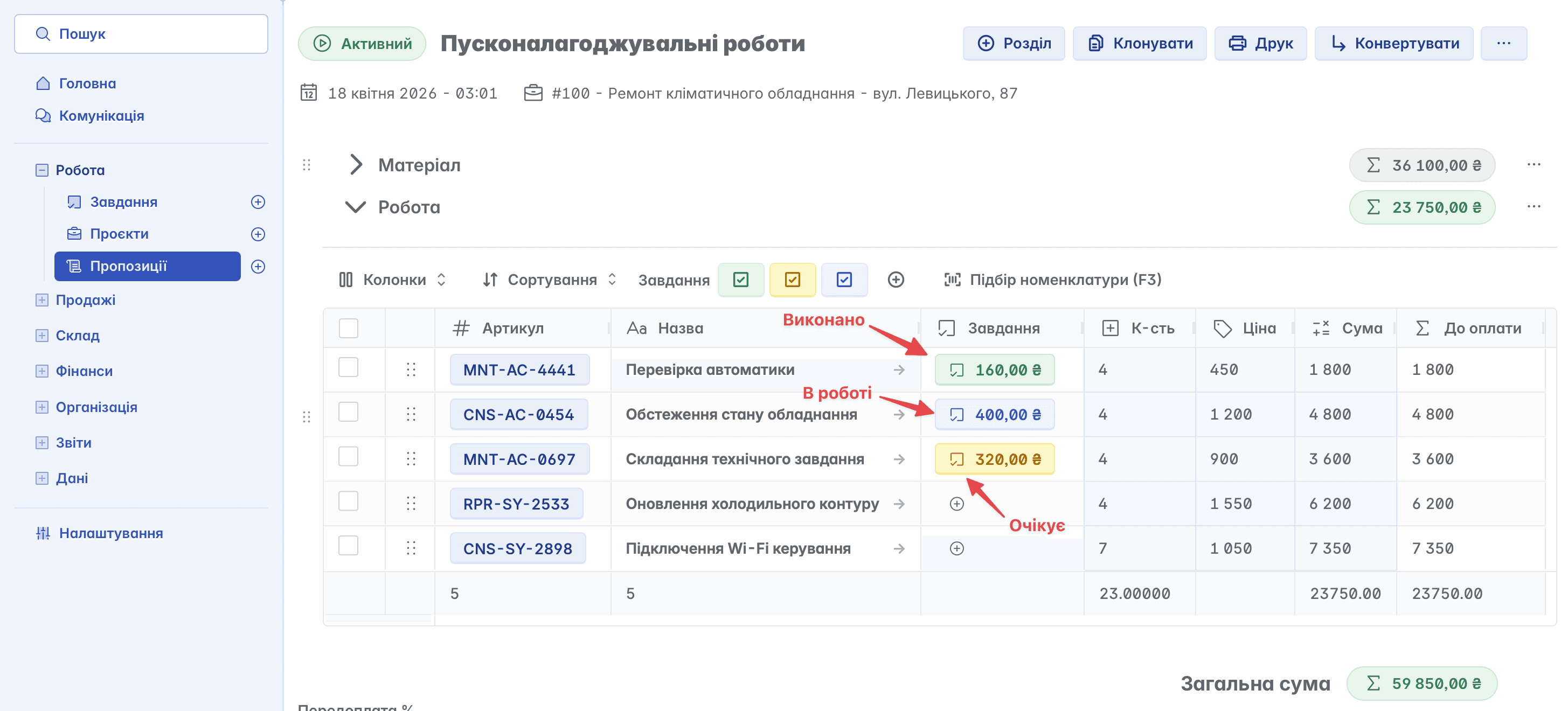
In the proposal, you can create tasks for employees. For example, for ordering goods or preparing documentation. Tasks can be created both for the section as a whole and for individual items

If active tasks are created, this is immediately reflected in the proposal, taking into account their implementation status, as well as indicating the amount of reward
Cloning
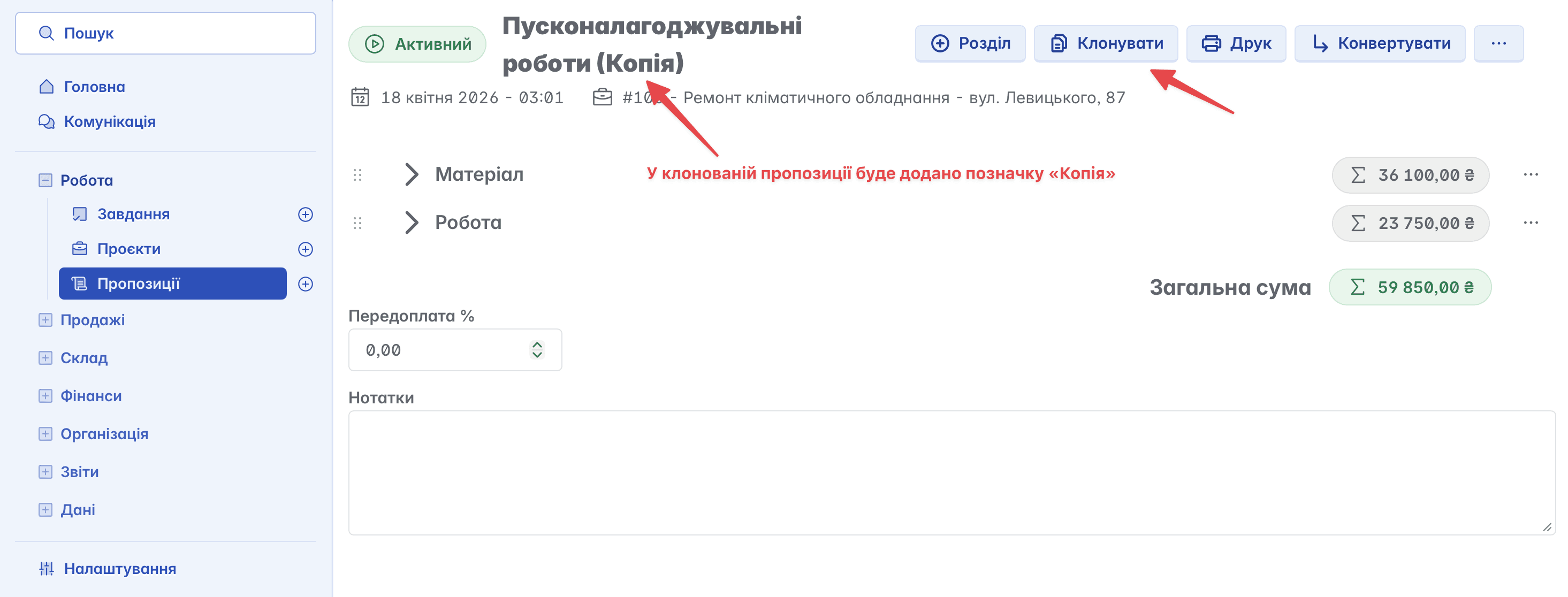
To create an identical proposal, use the "Clone" function. All data, except for tasks, will be transferred to "Copy"
Editing a proposal
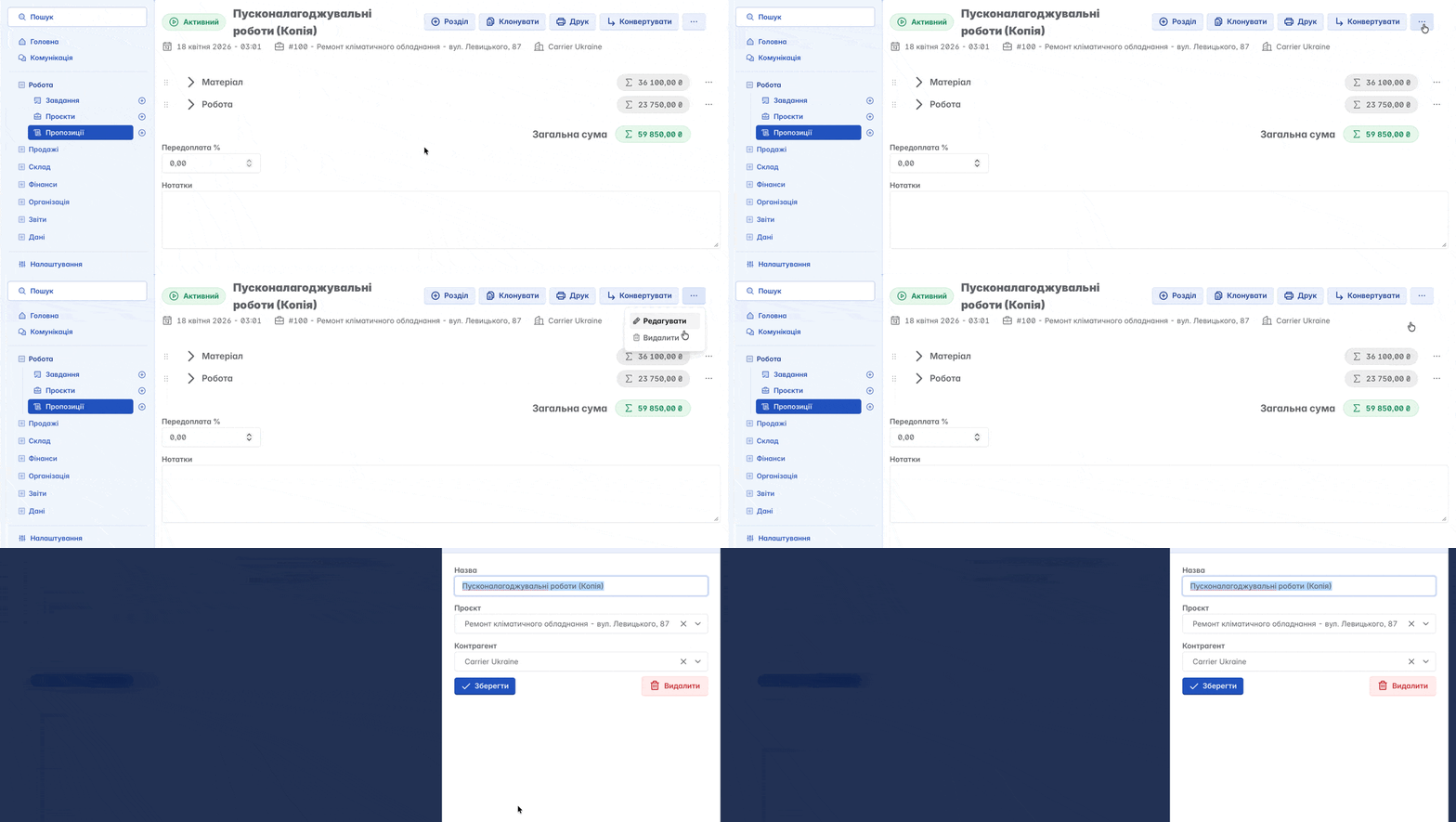
General information (name, project, counterparty) which is added during the creation or cloning of a proposal can be changed
Converting a proposal
Like a section, a proposal can also be converted into a document. The main difference is that when converting the entire proposal, all inventory is combined in one document — both products and services, that is, all sections and amounts together (they can be manually divided)
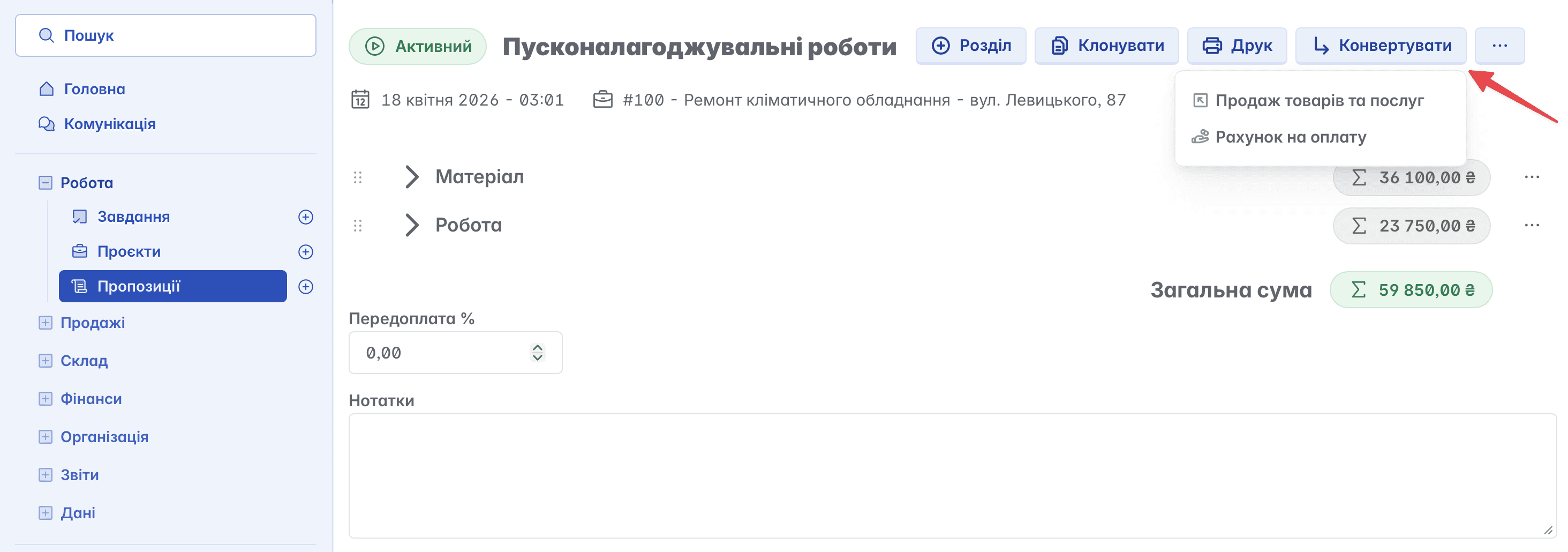
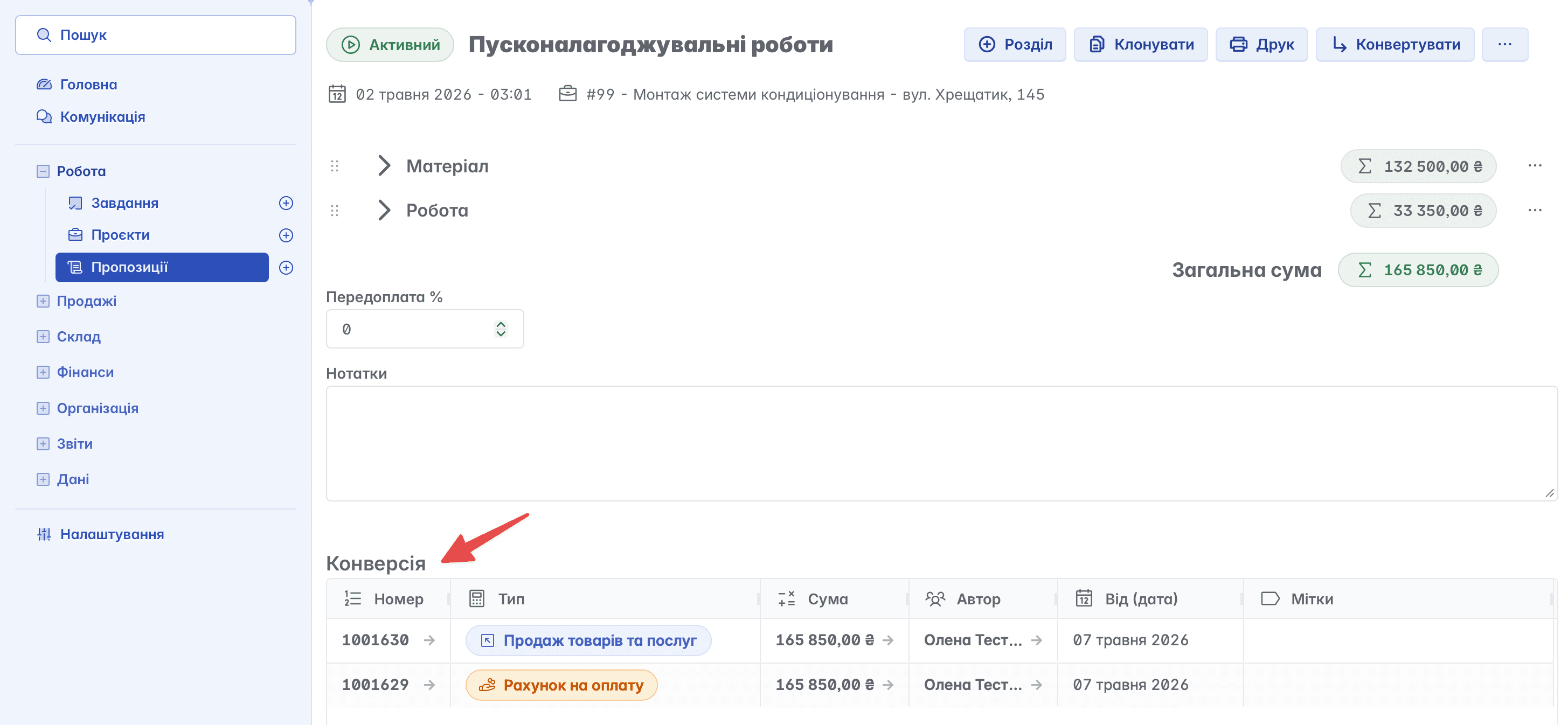
All documents created on the basis of the proposal are displayed in the "Conversion" field
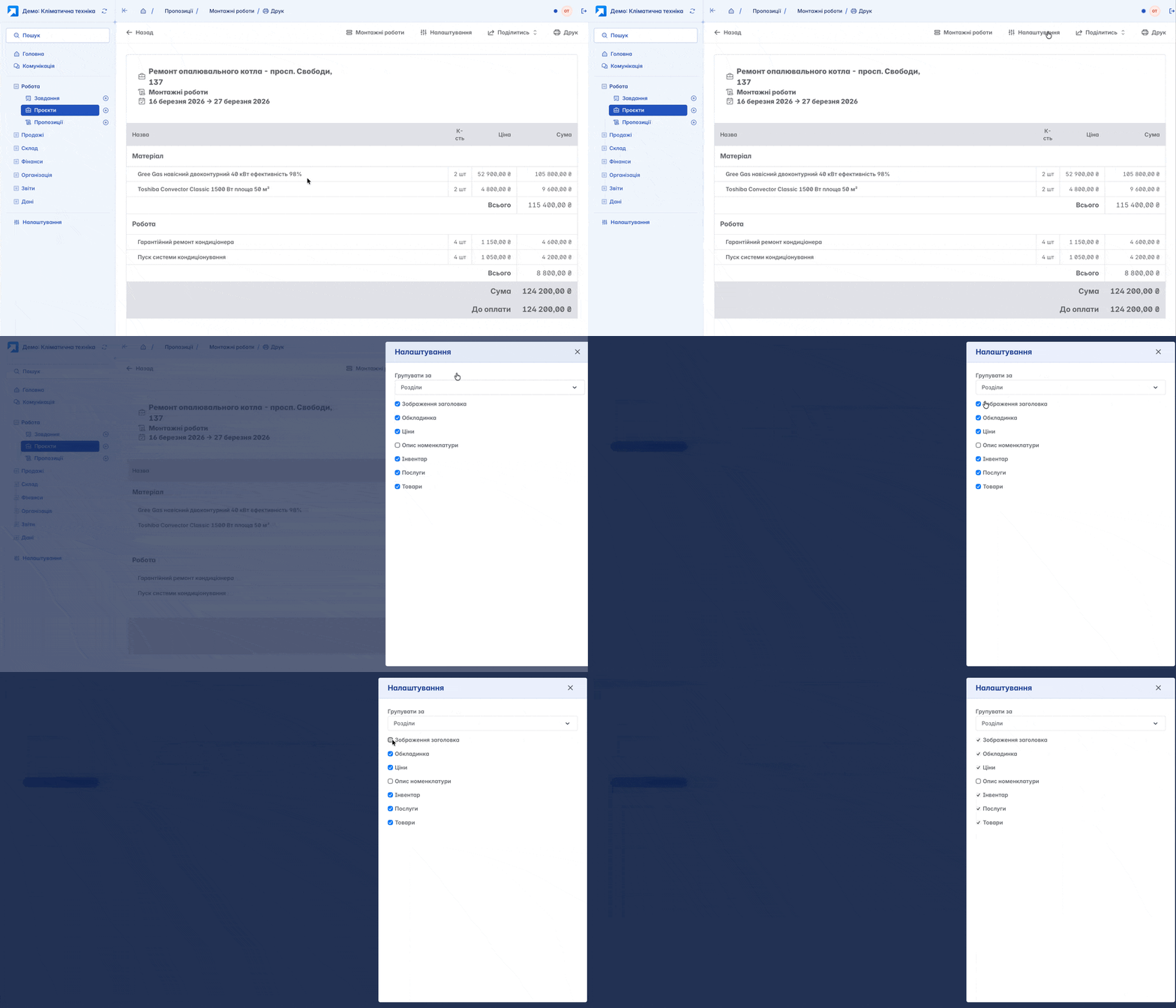
A finished proposal can be easily printed or saved in PDF format

You can independently configure the fields displayed in the printed form of the proposal
Share
To give external users (for example, the customer) access to the proposal for a certain period, use the "Share" function

After generation, you can send a short link, and the proposal will be available for viewing on any device, even if the recipient does not have access to your portal in Keruj

The link validity period is selected during creation (2 or 8 hours). After the expiration date, it automatically becomes unavailable or can be deleted manually
Deleting a proposal
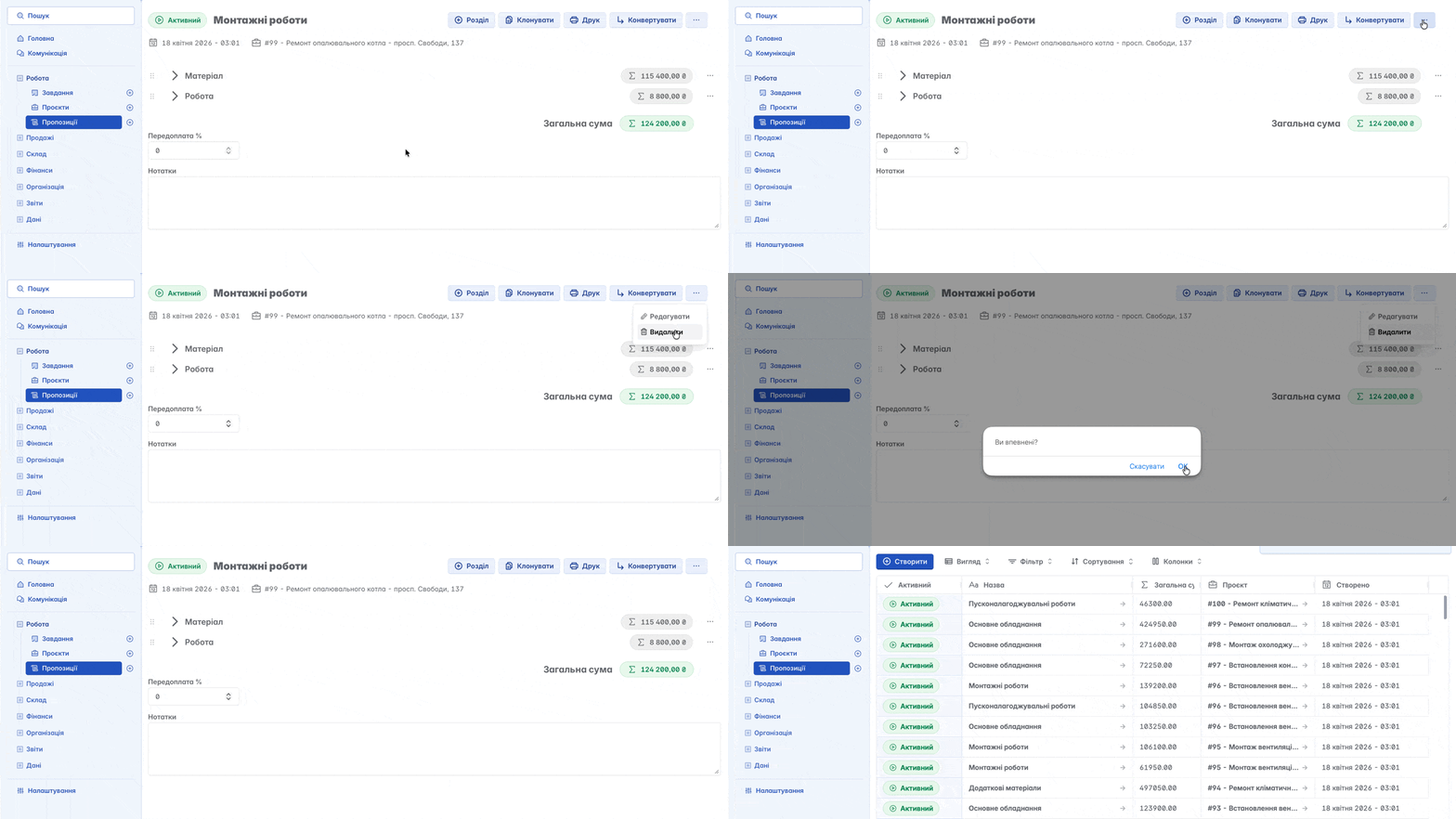
If necessary, any proposal can be deleted if the user has configured the appropriate access rights
Related articles