Projects are the main management element in Keruj, which combines tasks, documents, communications, finances, and participants around a common goal. It helps to systematize workflows, control performance, and see the big picture of a customer or business transaction
Its purpose:
centralization of all related processes and documents
control of stages, statuses, and execution progress
budget planning and cost control
organization of teamwork and task assignment
prompt response to delays and changes in work
Location
"Projects" are located in the navigation pane on the left, under "Work"
The project list is displayed in a tabular format. Its view can be customized using filters, columns, and other tools
Creation
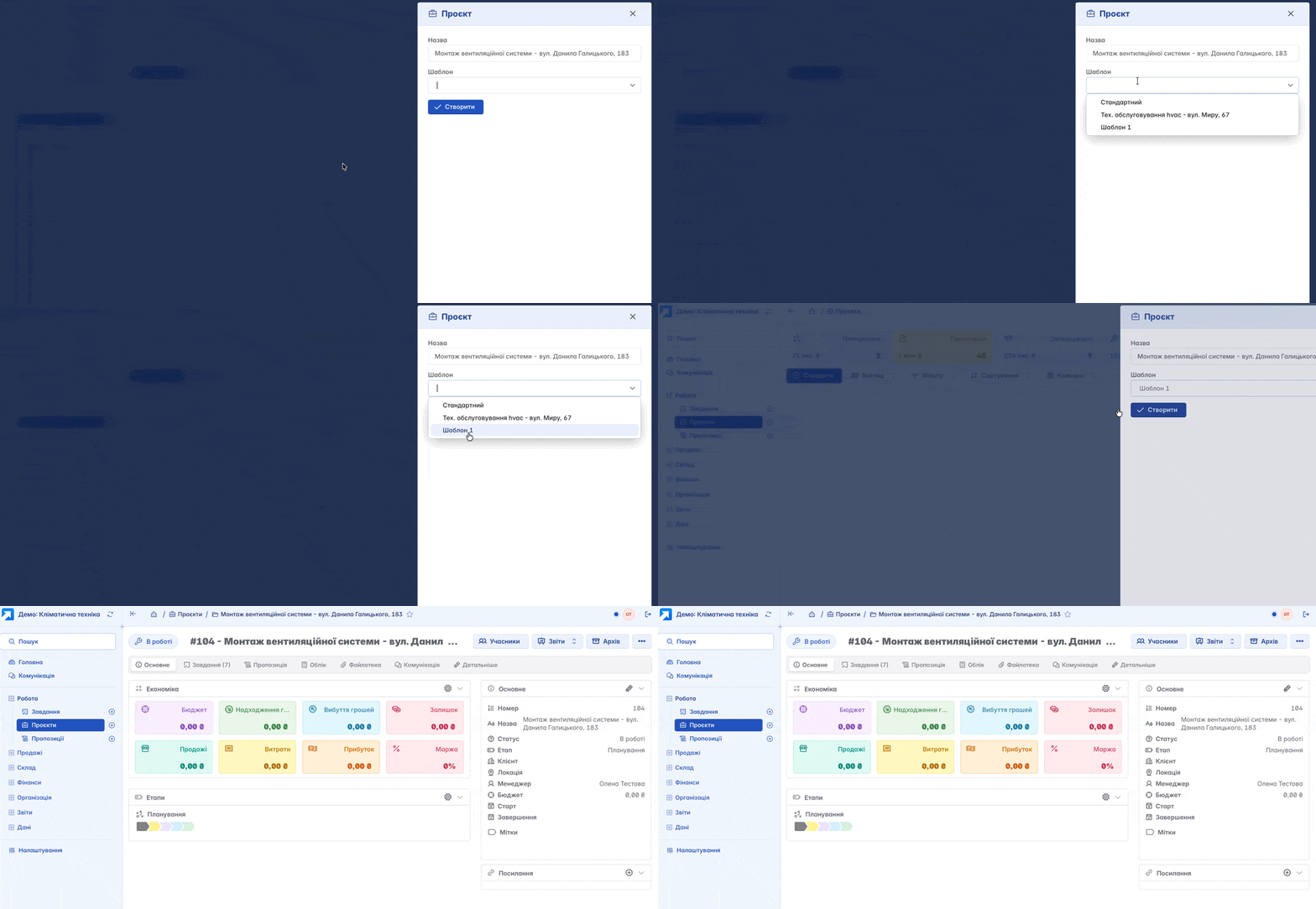
You can create a new "Project" by clicking "+" in the navigation panel or the "+Create" button on the main page of the module
In the form, specify the project name in a free format (for example, "Installation of ventilation system - 183 Danylo Halytskyi St.")
If you have many projects of the same type (with the same type of work or tasks), you can create a template based on an existing project and use it when creating new ones
During data import from a template, stages, tasks, and custom fields are transferred to the new project
Record Structure
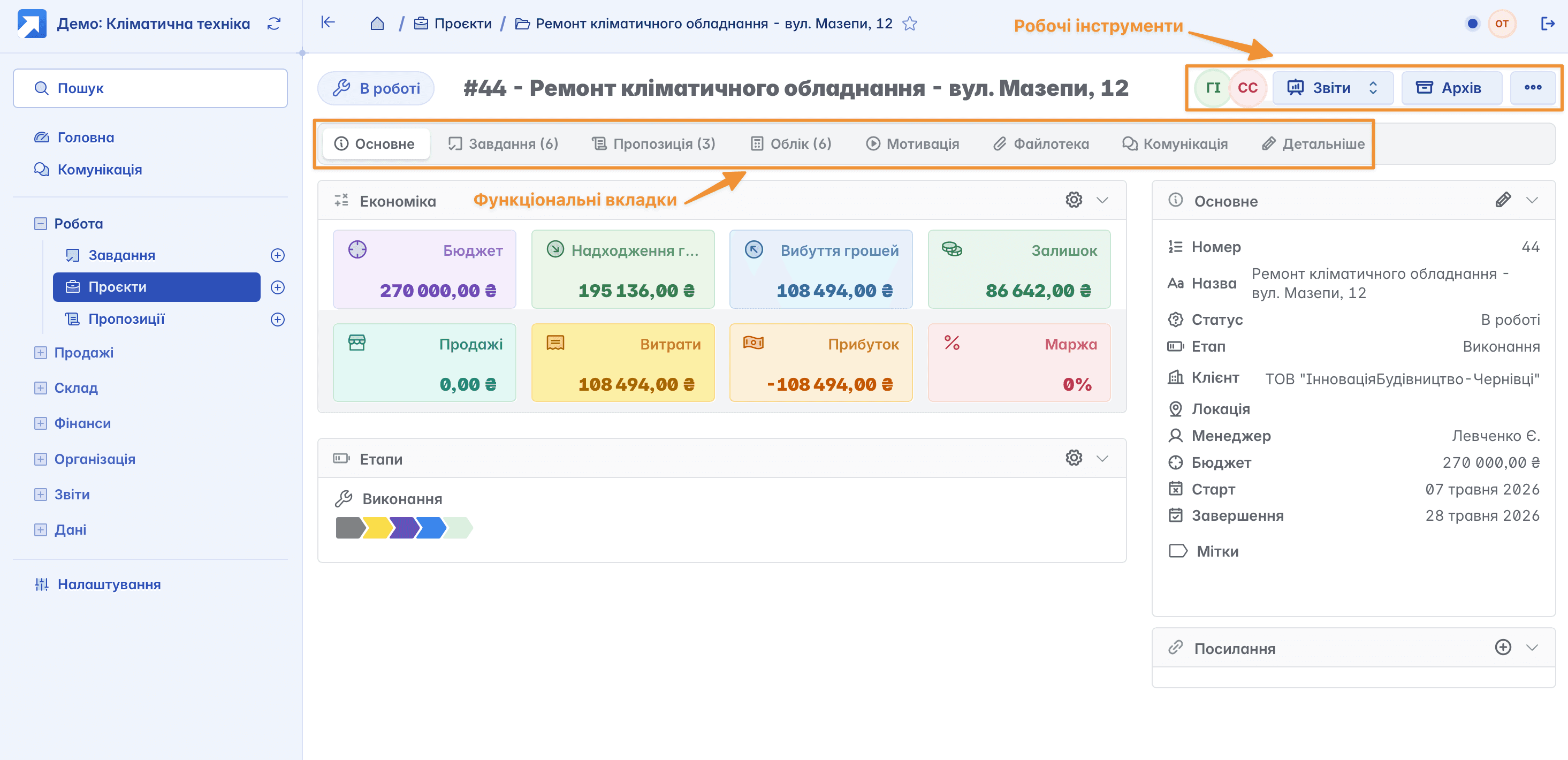
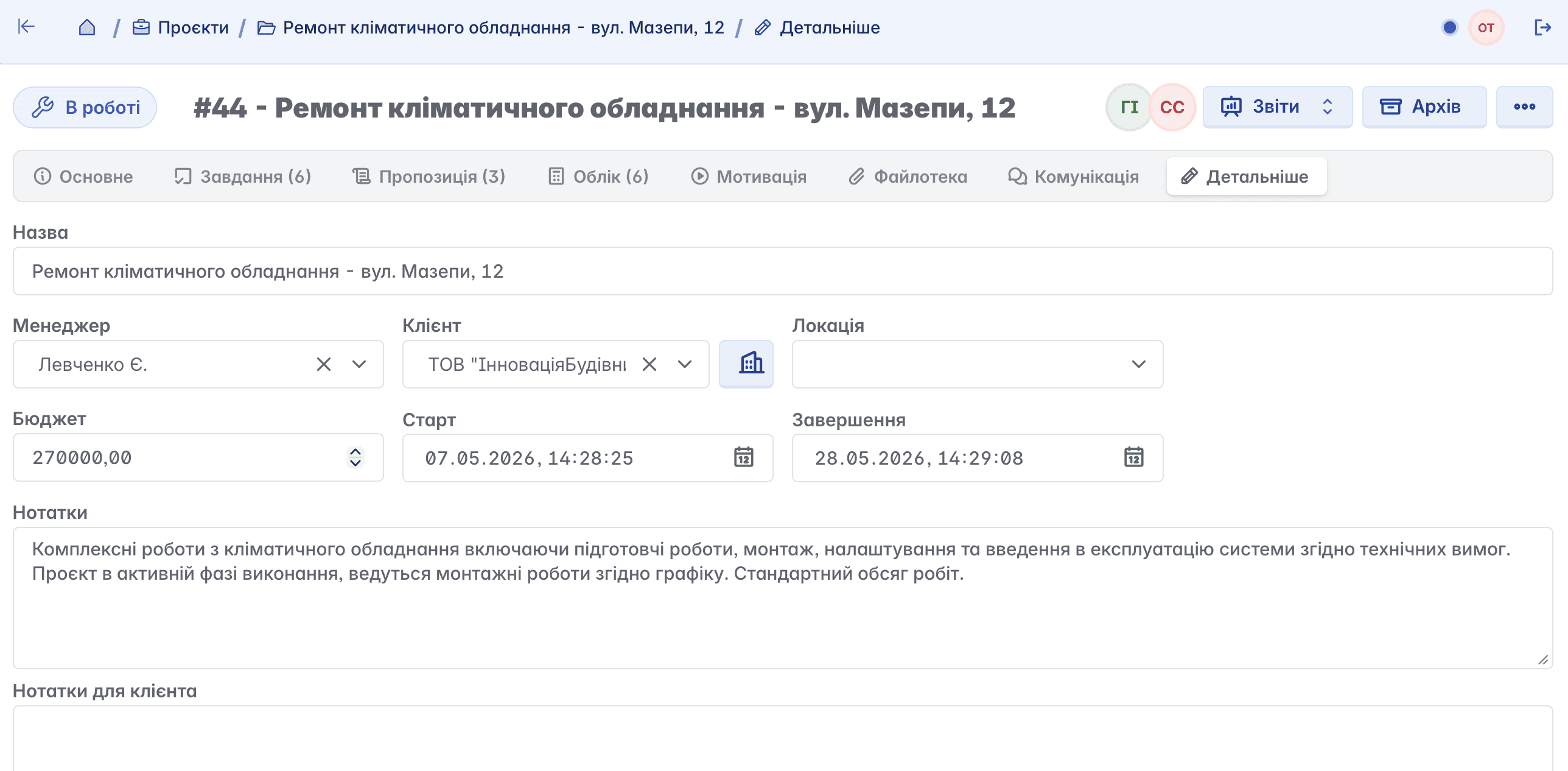
The main page of the project contains a number of tabs located in the top menu and working tools in the upper right part of the page
It should be noted that the user can customize the project card look and the set of active tabs in the "Settings" of their Keruj space, in the "Features" block
Here you can enable or disable the required tabs, select document types to work with the project, define available reports to run directly from the project, and configure default properties
General
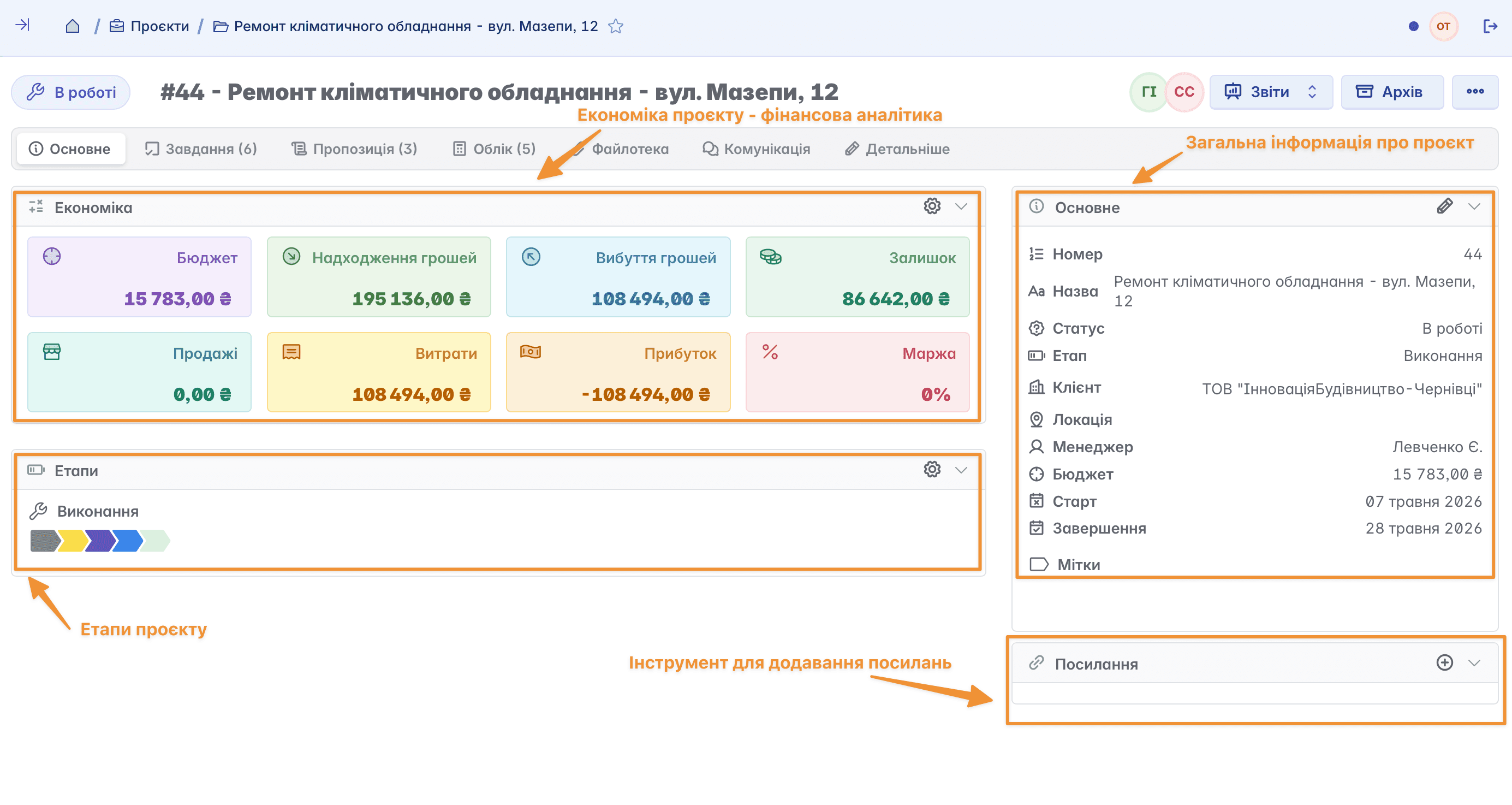
The main project page displays basic information entered during its creation, general financial analysis, and project implementation stages
Project Economics
Project economics are formed based on documents created within the project. In the settings, you can choose the documents and their statuses that will take part in the analytics yourself
Project Stages
These are sequential phases of work execution that a project passes through from start to finish. They help control implementation progress, determine the current state of the project, and react timely to delays or issues
You can select stages from the suggested list and click "Add" or configure your own according to your business needs by going to "More stage settings"
Creating a New Stage
To create a new stage, on the "Project Stages" directory settings page, click the "Add" button
In the stage creation form:
Specify the name
Choose an icon to be displayed before the name (icon names are in English)
Select a color from the suggested list (color names are in English)
Tasks in Projects
This is a tool that helps outline the work process on a project, distribute responsibility among participants, and structure work execution into logical stages
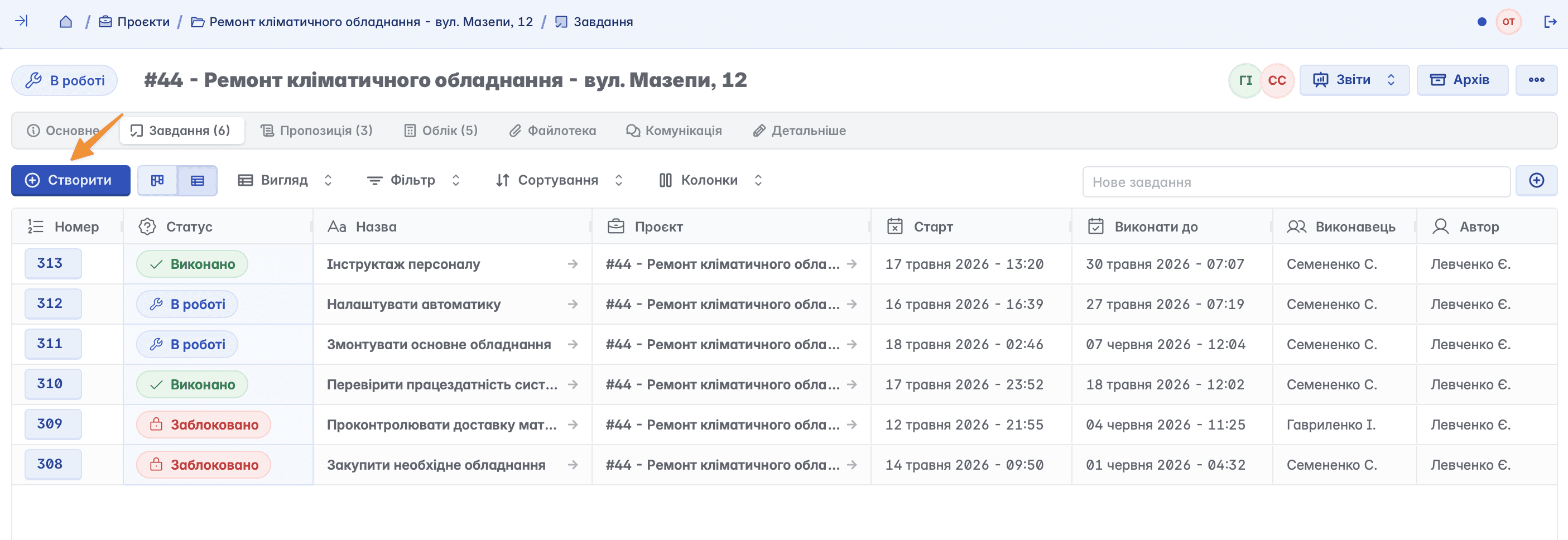
Using this feature, you can create tasks inside the project by clicking the "Create" button, as well as track their progress
The task dashboard can be displayed as a list or columns according to statuses. Tasks can be dragged between columns, simultaneously changing their status automatically
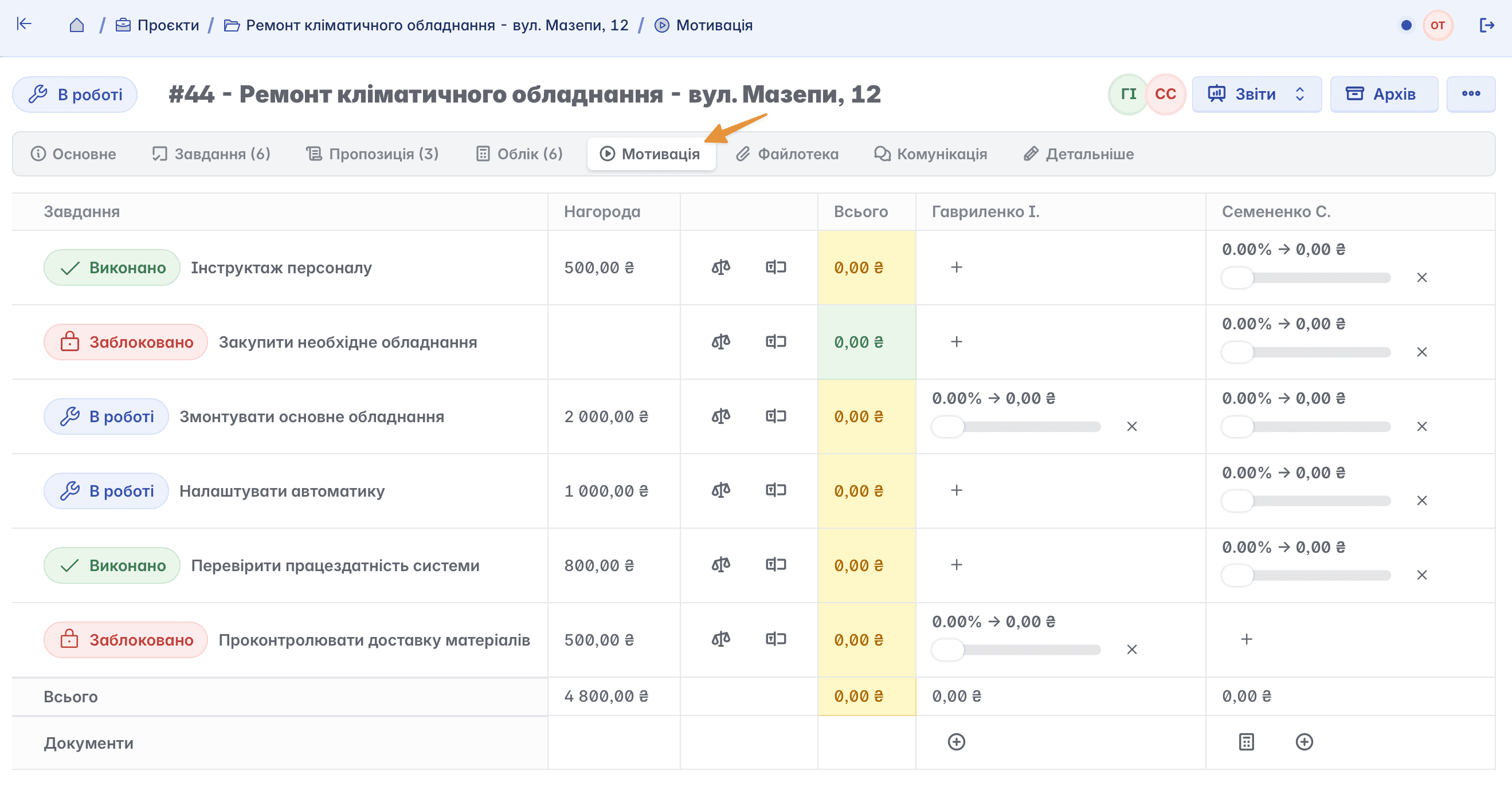
Motivation in Tasks
If the "Motivation" option is enabled in the task features, the tab of the same name will be available in the project card. It is designed to distribute rewards to employees for completing tasks
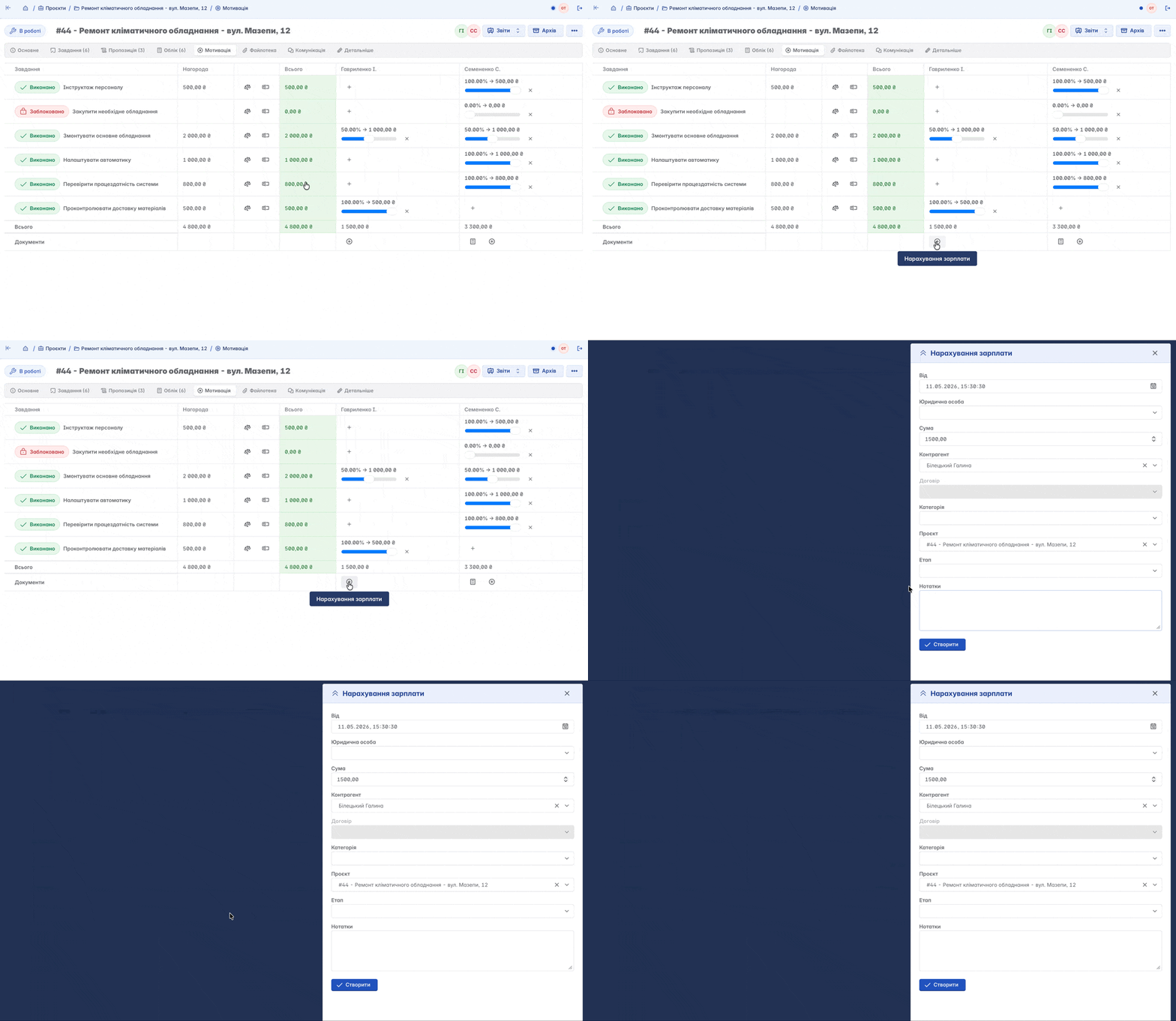
The distribution of earned rewards can be done manually or using functional buttons. If multiple assignees are set for a task, this tool allows you to distribute the reward among them
When calculating the final amount of motivation, you can immediately create a "Payroll Calculation" document. Once created, it will automatically appear in the "Accounting" tab among other project documents
Proposal
A document containing the value, volume, and scope of work or goods that the company proposes to perform or provide within a specific project
Proposal is the basis for agreeing on the cost and scope of work with the client. It is closely linked to budgeting and project planning
Within a single project, you can create multiple proposals, and after approval, decide which ones to include in the project budget and which ones not to
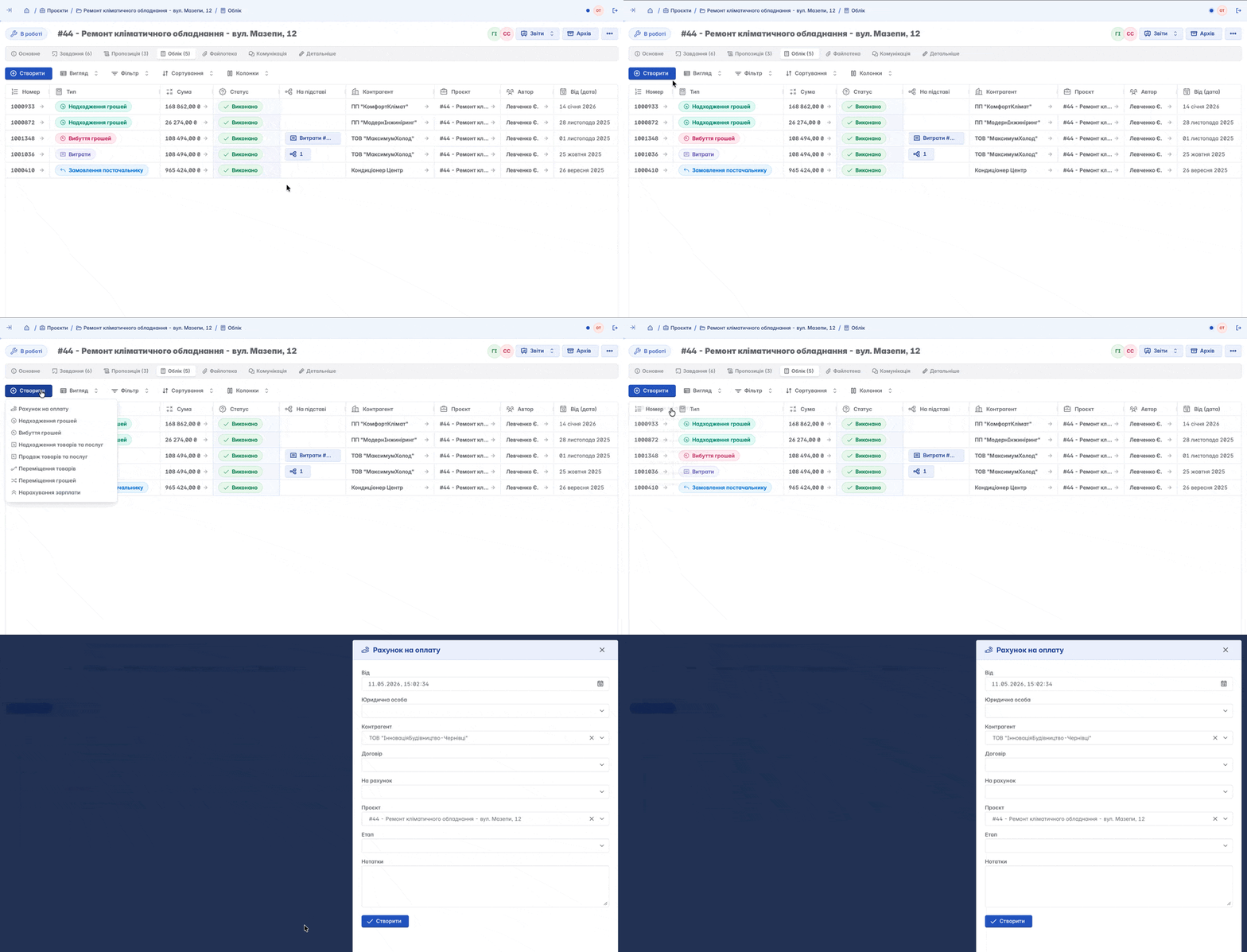
Accounting
The tab that contains all documents belonging to the project. Here you can "Create" a new document or view those already generated based on it
File Manager
A tab for storing, organizing, and viewing all files related to a specific project. File Manager is an archive of documents, drawings, photos, specifications, and other important materials belonging to the project
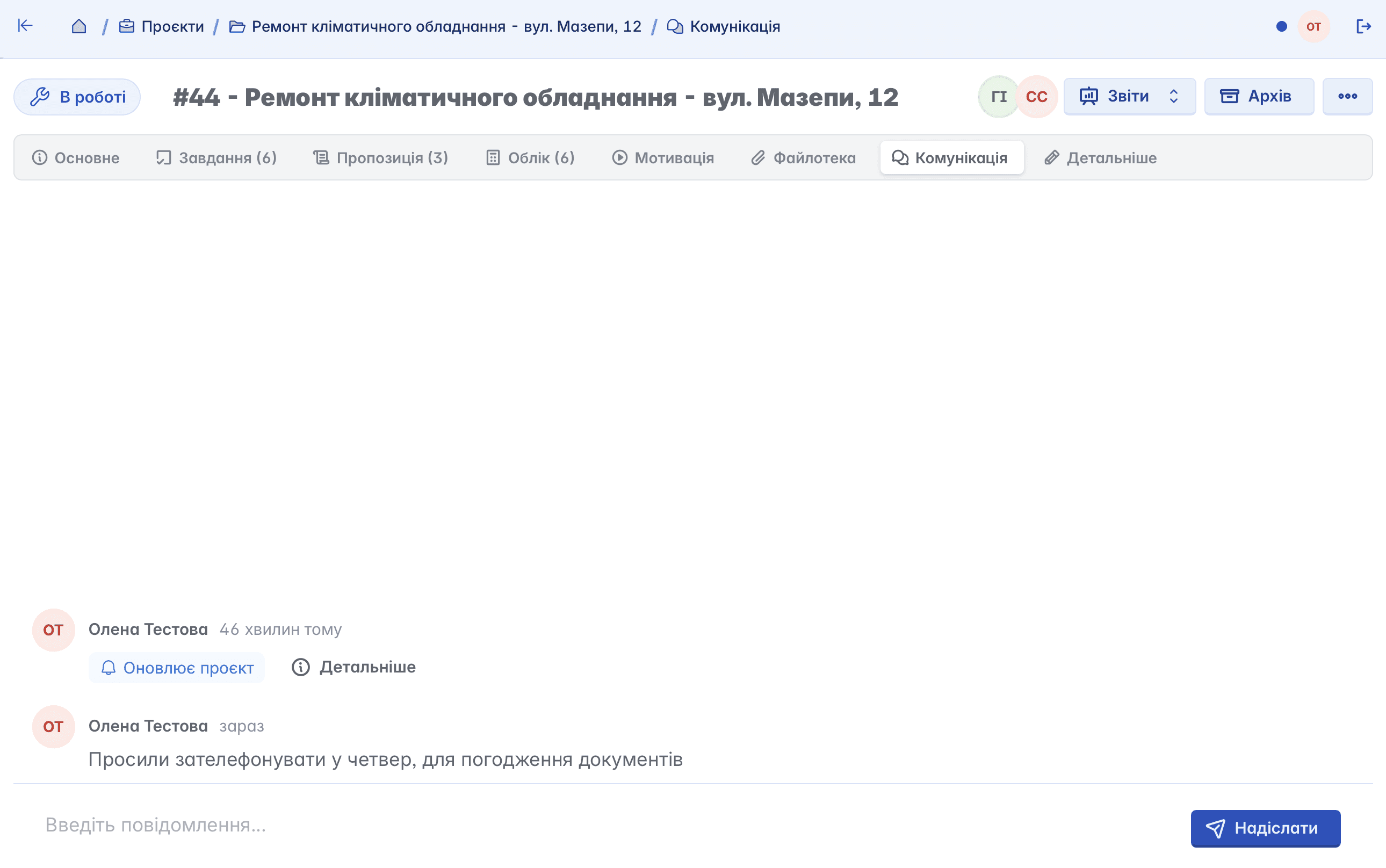
Communication
A full history of changes made and information shared among project participants. This is a centralized place where messages, notes, comments, reminders, and call logs related to a specific project are kept
Details
A tool for making changes to general info about the project. Here you can edit data, adjust deadlines, add notes, and other updates
Adding Participants
Participants are company employees who are granted rights to access specific project information. Here you can determine who exactly will participate in the work on the project. The user who created the project automatically becomes its first participant
When multiple participants are assigned to a project, their initials are displayed in the upper right part of the page
Project Reports
The "Reports" feature allows you to view detailed analytics on projects
The types of reports that can be run for the project are configured in the "Features" tab of the service
Deleting a Project
Deleting a project is not possible. If a project is inactive, suspended, or no longer relevant, but it is important to preserve all entered data and processes, you can move it to the "Archive"