Tips and tricks
Working with tables and views
In Keruj, almost all information is displayed in a tabular format. This is a convenient and flexible way of working with structured data
The information contained in the table fields corresponds to the form fields when creating a record (document, item, counterparty, etc.)
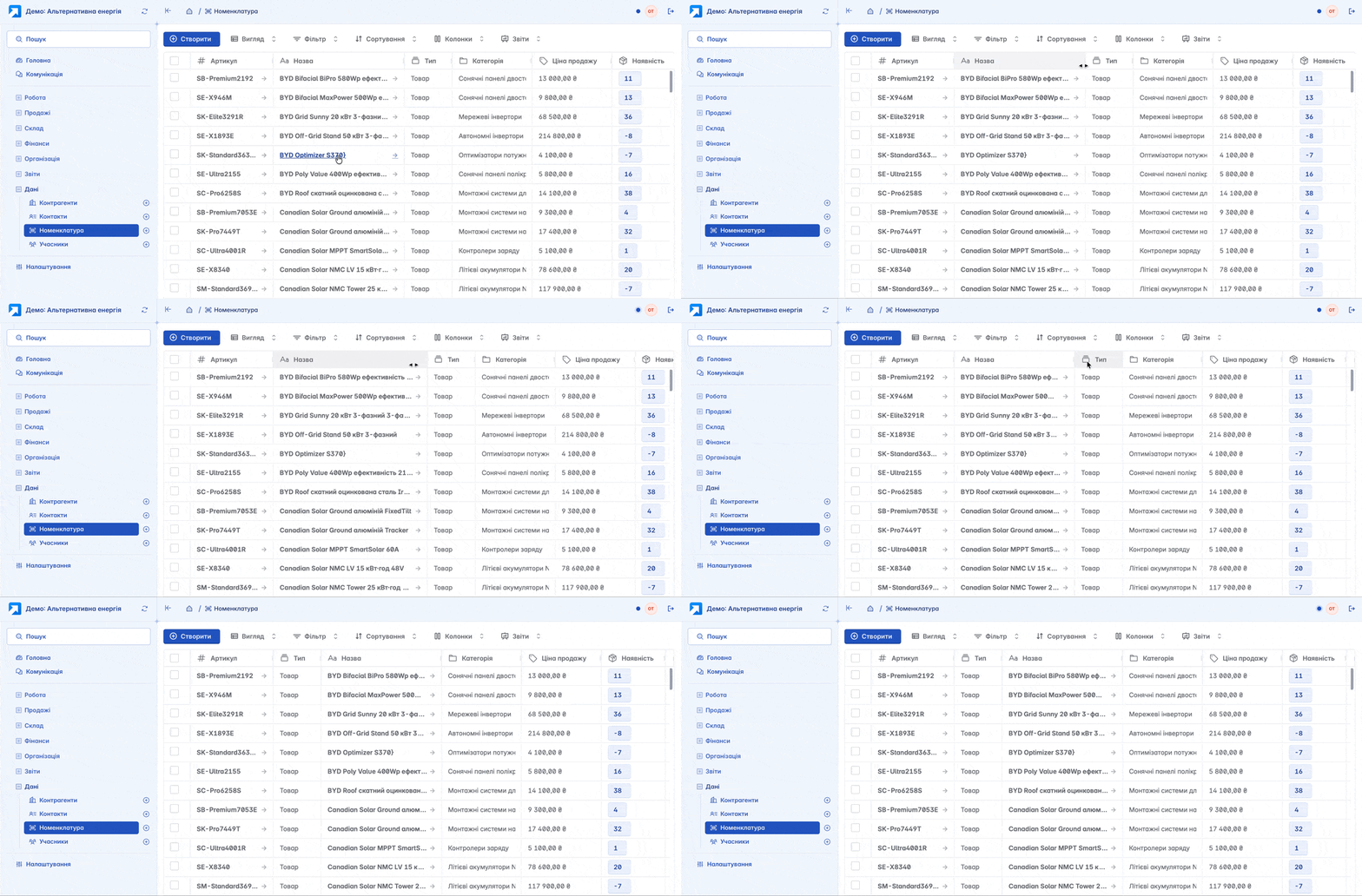
You can customize the column order, width (by dragging them with your mouse cursor), and the overall view of the table using the tools located at the top of the table
View
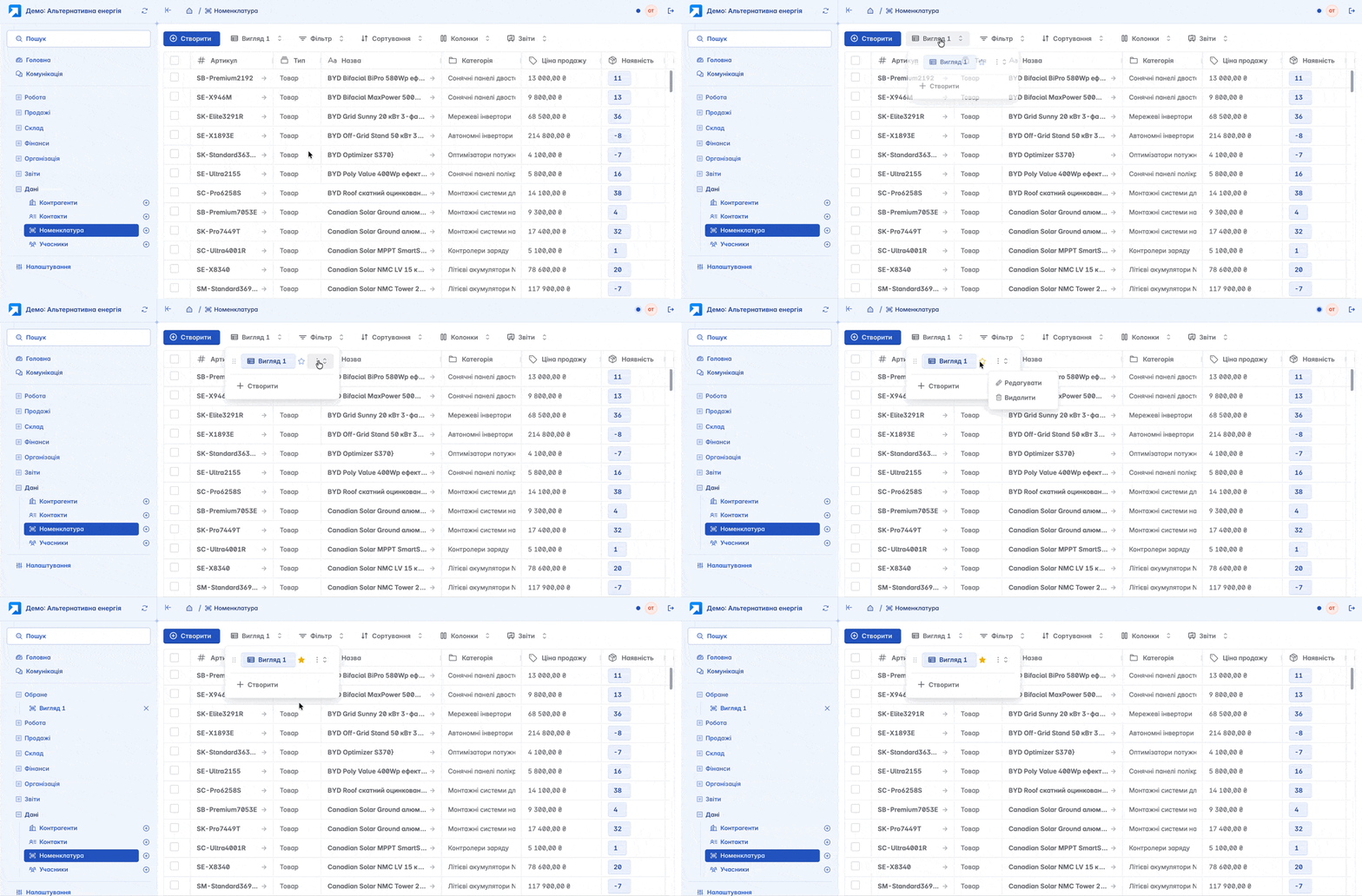
This is a feature that allows you to save your personal table settings (columns, filters, sorting, etc.)
To create a view, you need to select the desired filters, click "+Create", specify the name in the corresponding form field, and click "Save"

The saved view will be displayed in the list of views. You can modify, delete, or add it to "Favorites" on the sidebar control panel
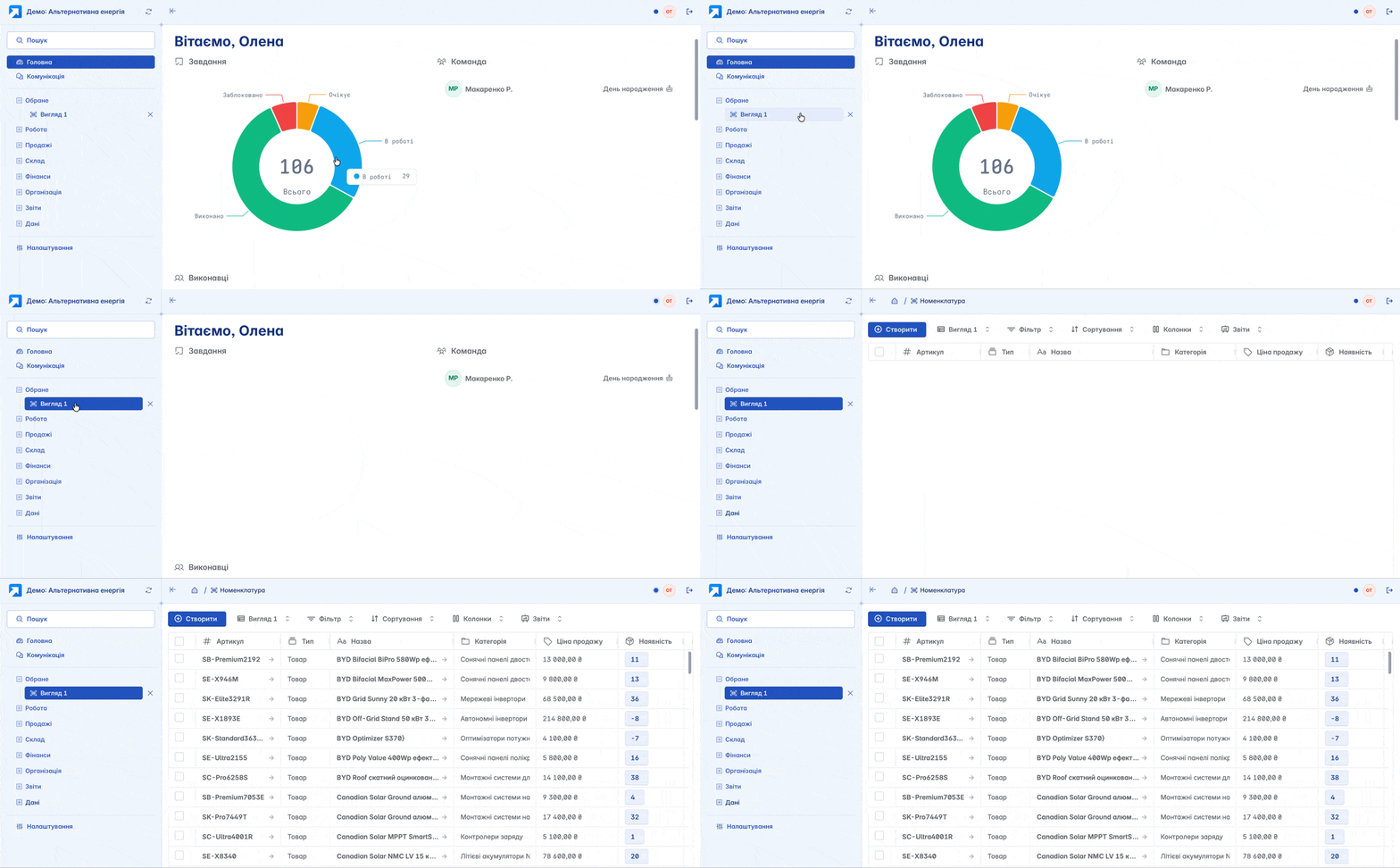
After adding the view to "Favorites", you will be automatically redirected to the page with the created view in the corresponding module when navigating. For example, if the view was saved for items, the item page with the corresponding view will open. This feature is also available for other modules and documents
Filter
Used to search for records by the required fields, according to the data entered in the records. Additionally, using the filter, you can display records that have been moved to the "Archive"

Sorting
Changing the data display order by the columns and directions you need (ascending or descending). In Keruj, sorting can be performed across multiple columns simultaneously

Columns
This tool allows you to choose exactly which columns you want to see and in what sequence

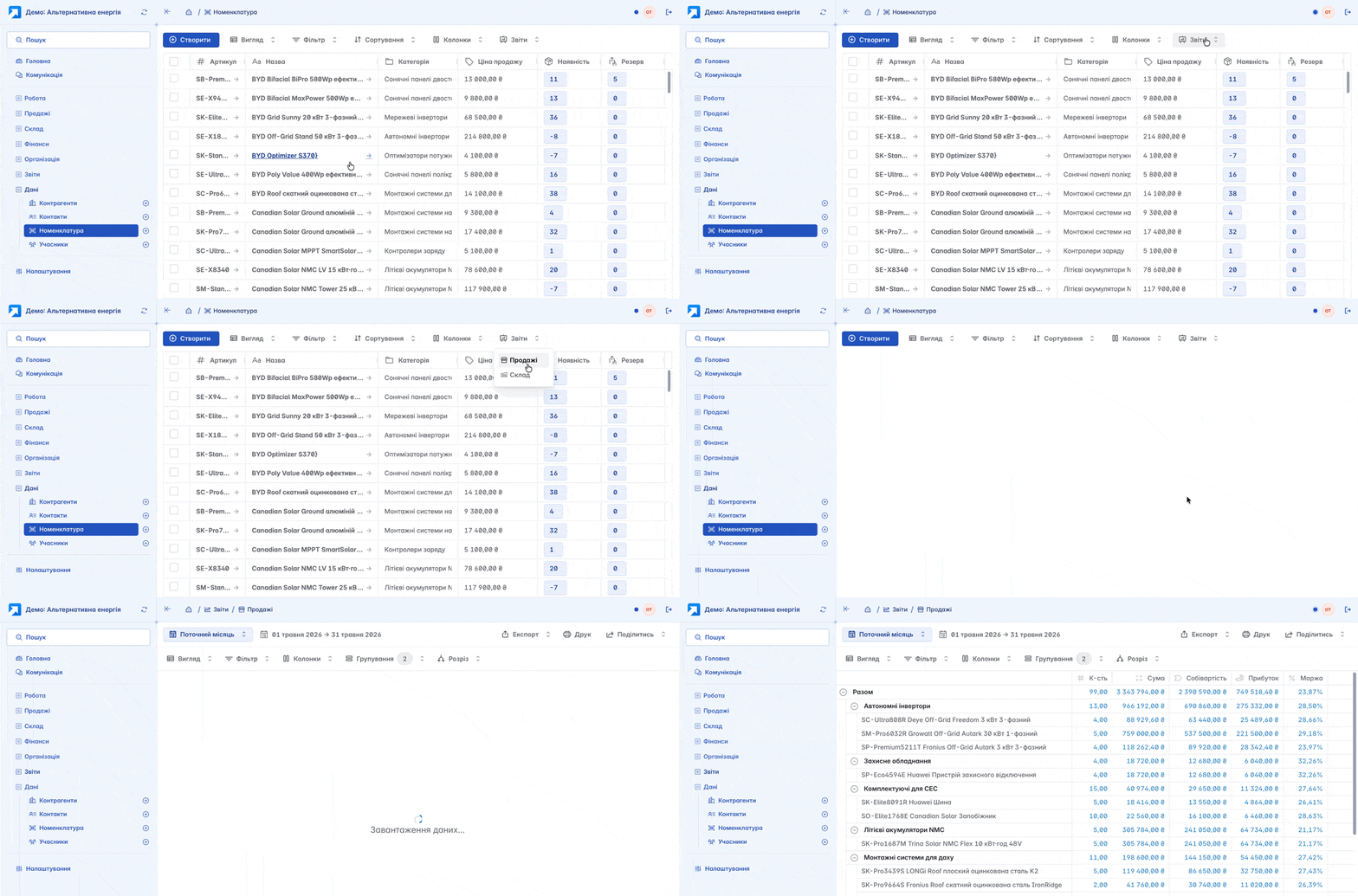
Reports
Access to analytics, reports, for the corresponding section (for example, if the section is "Items", then sales and inventory reports will be available)
Related articles