Work
Task
After reading this article, you will get answers to the following questions:
What are tasks and why are they needed in Keruj?
Where and how to create a task?
How to work with tasks?
How to edit tasks?
How to delete tasks?
What is a task in Keruj
A task is your main tool for managing personal and team affairs in Keruj. It allows you to set goals, control the execution process, record responsible persons, and analyze results
Where can I create a task
The "Tasks" section is located in the main menu on the left. Here you can view the full picture of planned, active, completed, and overdue tasks
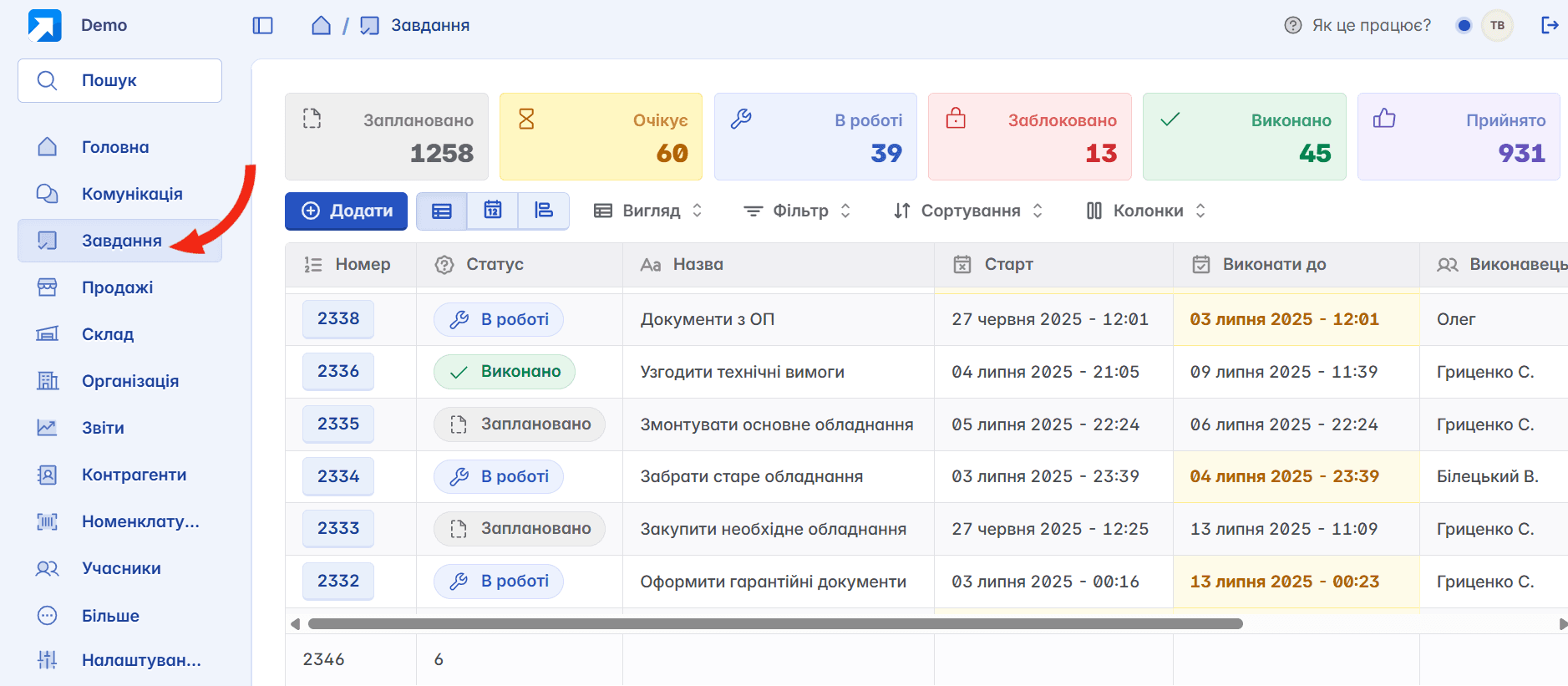
All created tasks are displayed in a table form on the main page. You can customize the look of the table yourself using filters or switch to other display modes - "Calendar" or "Performers"
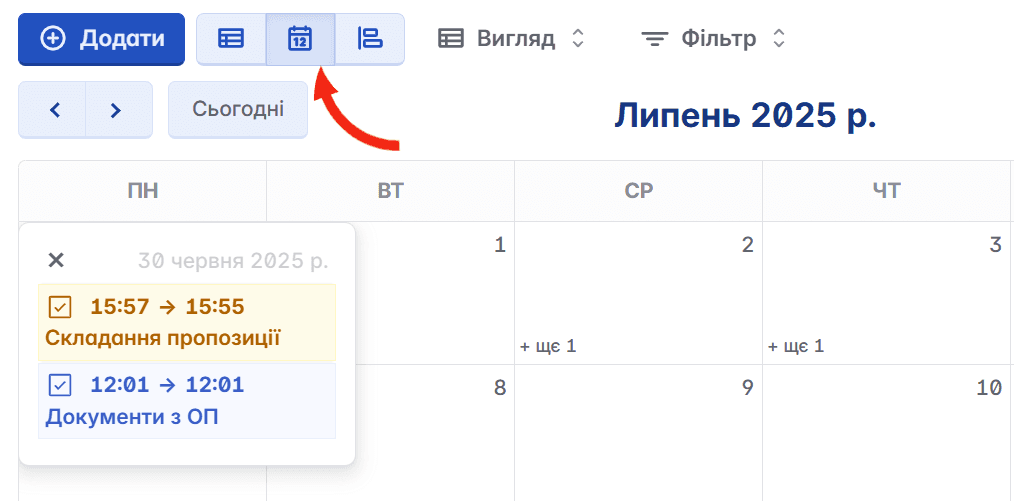
How to add a new task?

To add a new task, click the "+Add" button, which is located in the upper left part of the page
After that, the task creation form will open, consisting of four main blocks
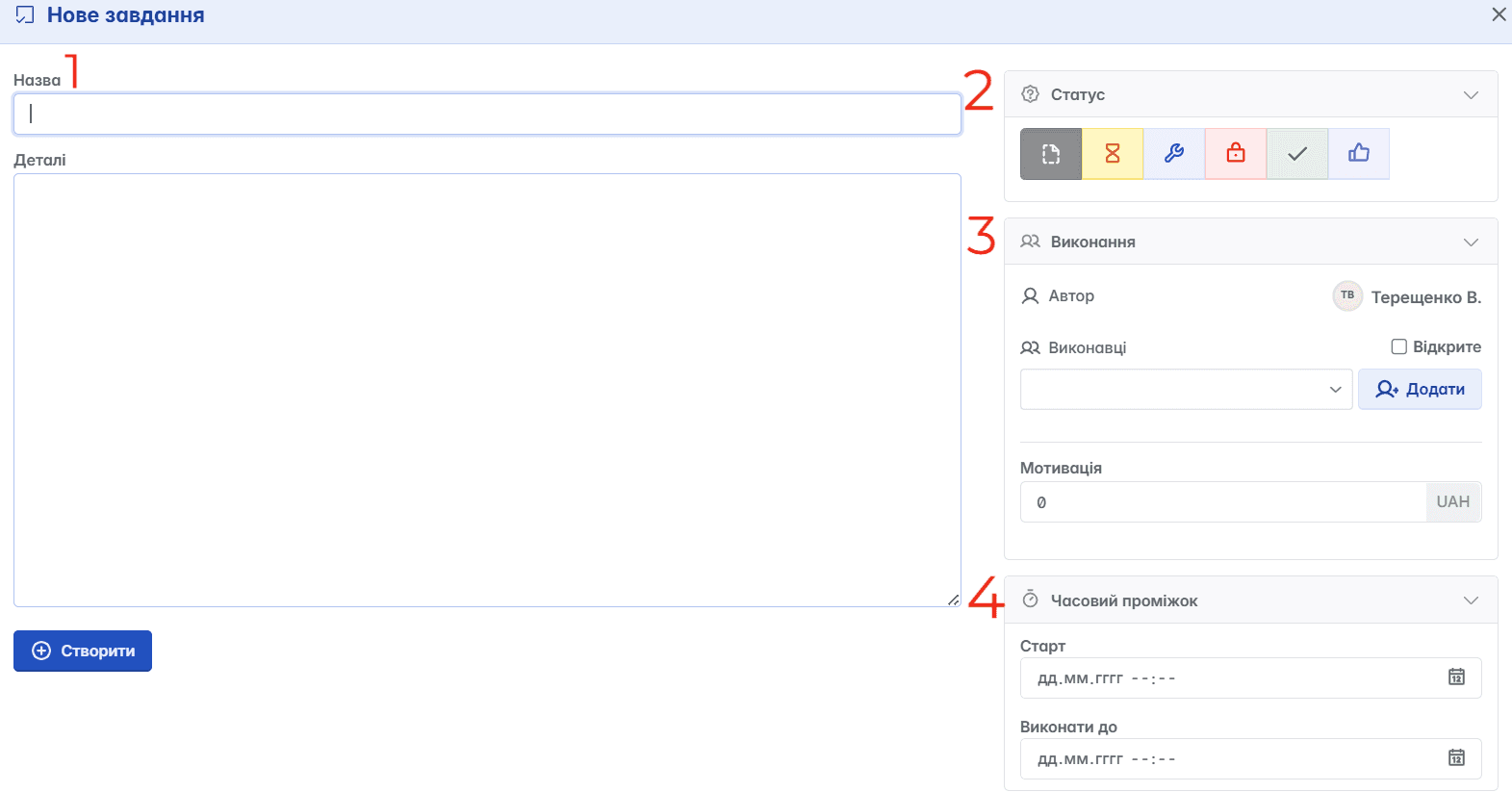
Title - briefly describe the essence of the task (for example: "Agree on technical requirements", "Pay the invoice", "Purchase equipment", etc.). In the "Details" field, you can add notes or other important information not provided in the form fields.
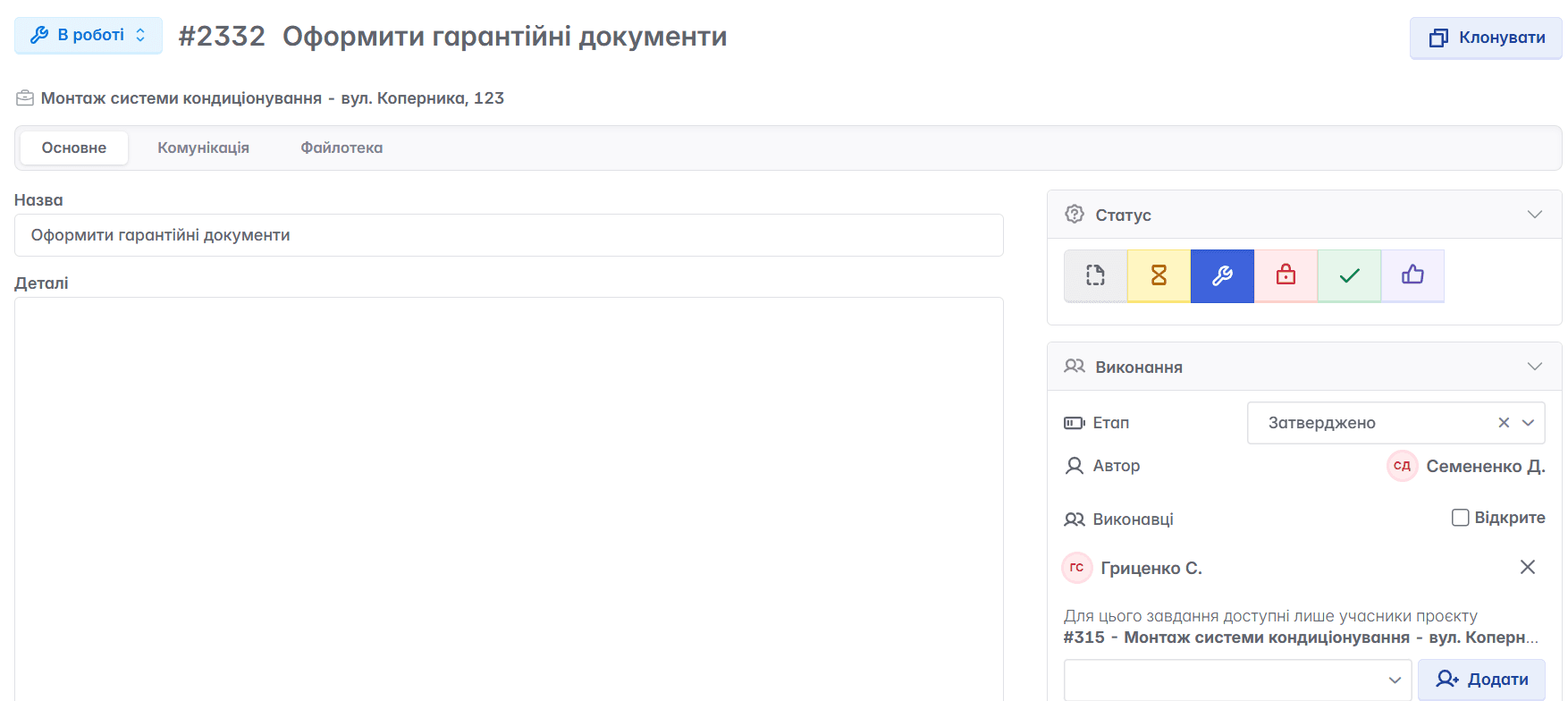
Status - one of the most important tools in working with tasks. It is the status that determines the execution state of the task. The performer changes the status independently according to the work done. Only 6 statuses are available for tasks in Keruj

Planned - the task does not require immediate execution, but it is important not to forget about it
Pending - all issues and terms are agreed upon, the task is waiting to start execution
In progress - the performer has started executing the task
Blocked - objective difficulties in execution arose (e.g., lack of resources, external circumstances, etc.)
Completed - the task is completed by the performer
Accepted - the result is checked and accepted by the author of the task. This status is available only to the author and is used to control execution quality and record the completion of work
Execution - contains information about the author and the performer of the task. The author is determined automatically - this is the current user. You can also add one or more performers. If you check the "Open" box, participants (employees) will be able to assign themselves as performers of this task
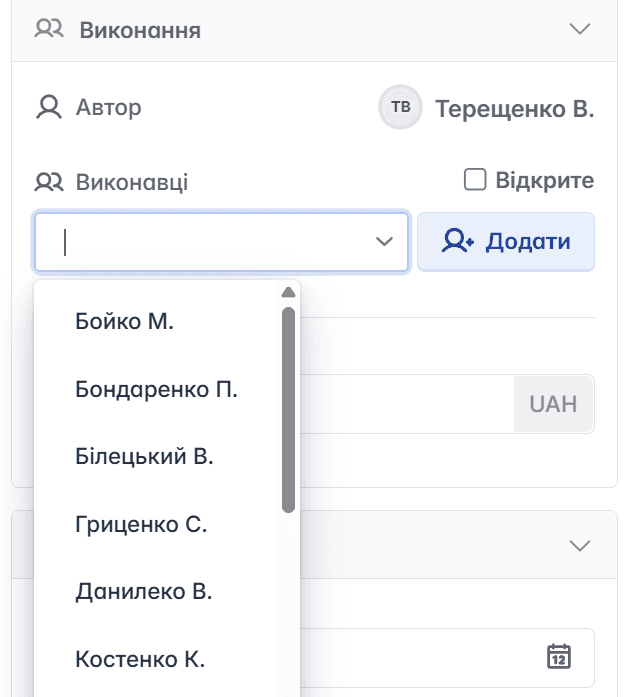
If the execution of the task involves a monetary reward, you can state the motivation amount when creating the task
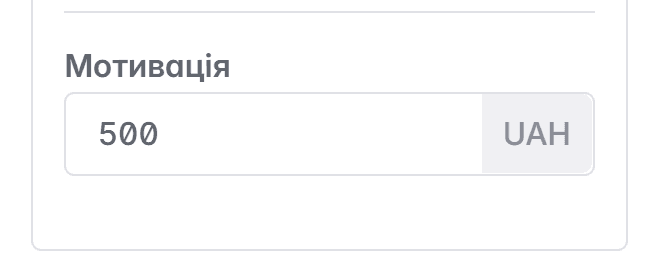
After its completion, you will have the opportunity to create a compensation accrual in one click, which will generate organizational expenses. For final settlement with the performer, you will only need to create a document "Money outflow"

Time span - an important tool for controlling the execution of work. You set a time span (date, hour, minute) for the task execution, and Keruj will not let you forget about it
For example, if your task's status is "Pending", and according to the set time span the task should have already been "In progress", the delay will be immediately highlighted in yellow in the general list of tasks

The task author and performer will receive a notification in "Communications" about the need to start work
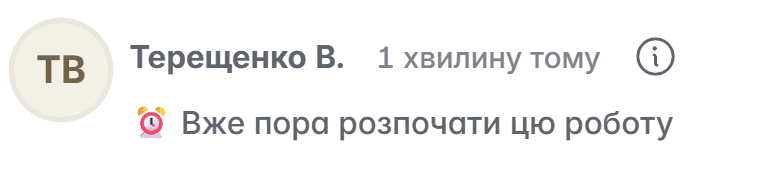
In addition to the time span for performing the work, you can set a reminder with a precise date and time
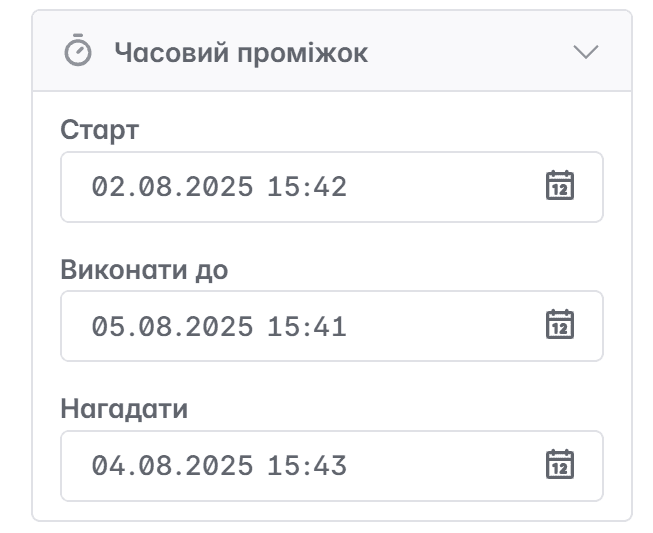
To save all the entered data in the fields and complete the process of creating a new task, click the "Create" button
How to edit tasks
To make changes to a task, click on its number in the general list
After that, a form similar to the task creation form will be displayed, where you can make changes in the corresponding fields, change time spans or performers, add notes, etc.
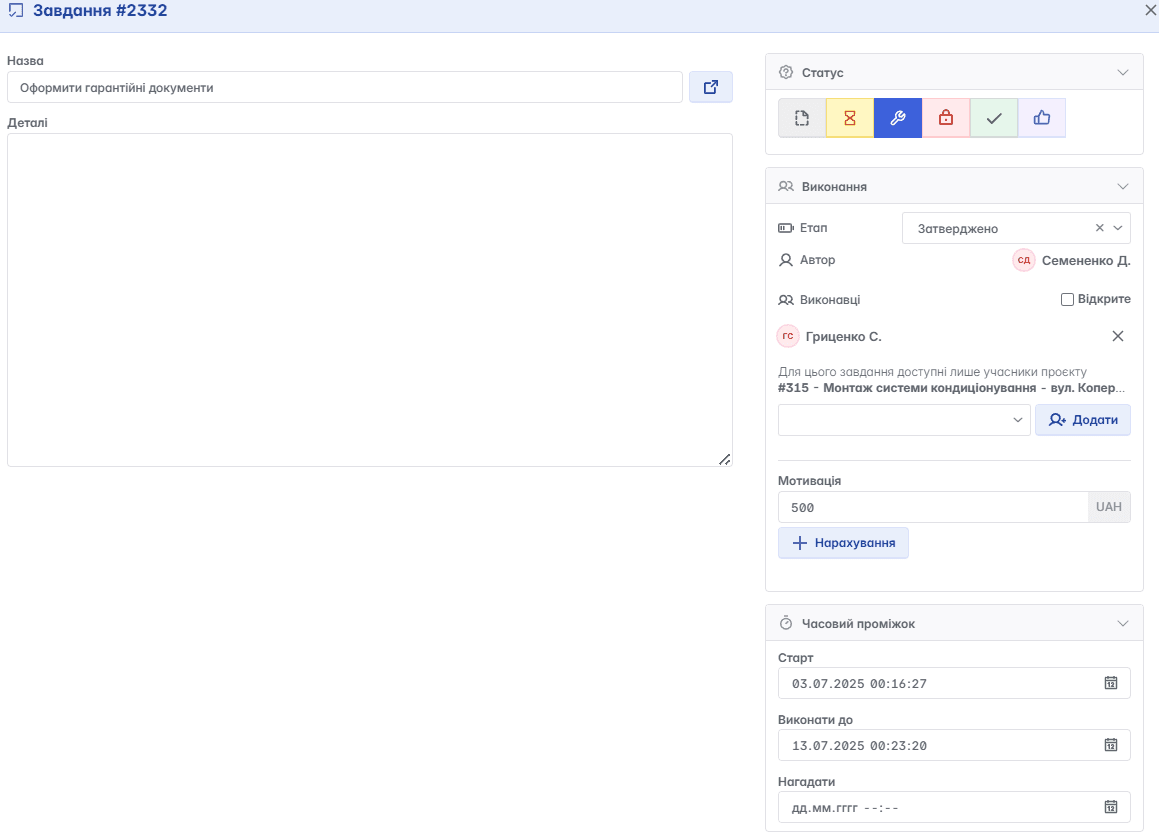
How to open a task card
To go to a task card, click on its name in the general list
By opening the task card, you can make changes to general information, view communication regarding the task, add a file library if necessary, change status or performers, and clone the task
How to delete tasks
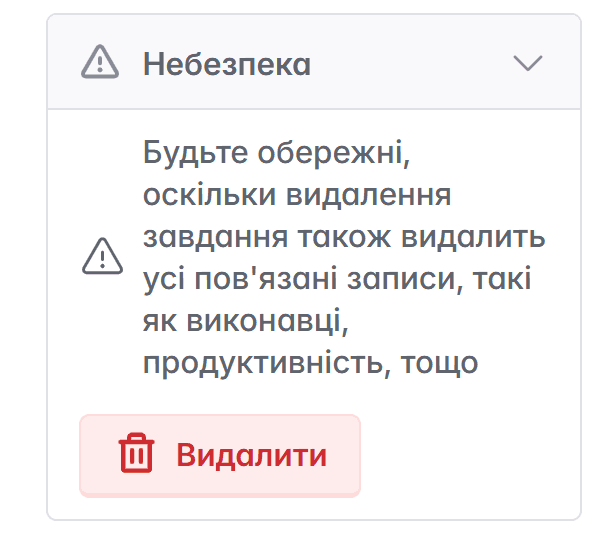
To delete a task, click on the "Danger" field (the field following the "Time span" field) in the editing form or in the task card, and confirm the action
Related articles