A member is a user, a person who is granted access to work in Keruj. In simple terms, it is you and your employees
Location
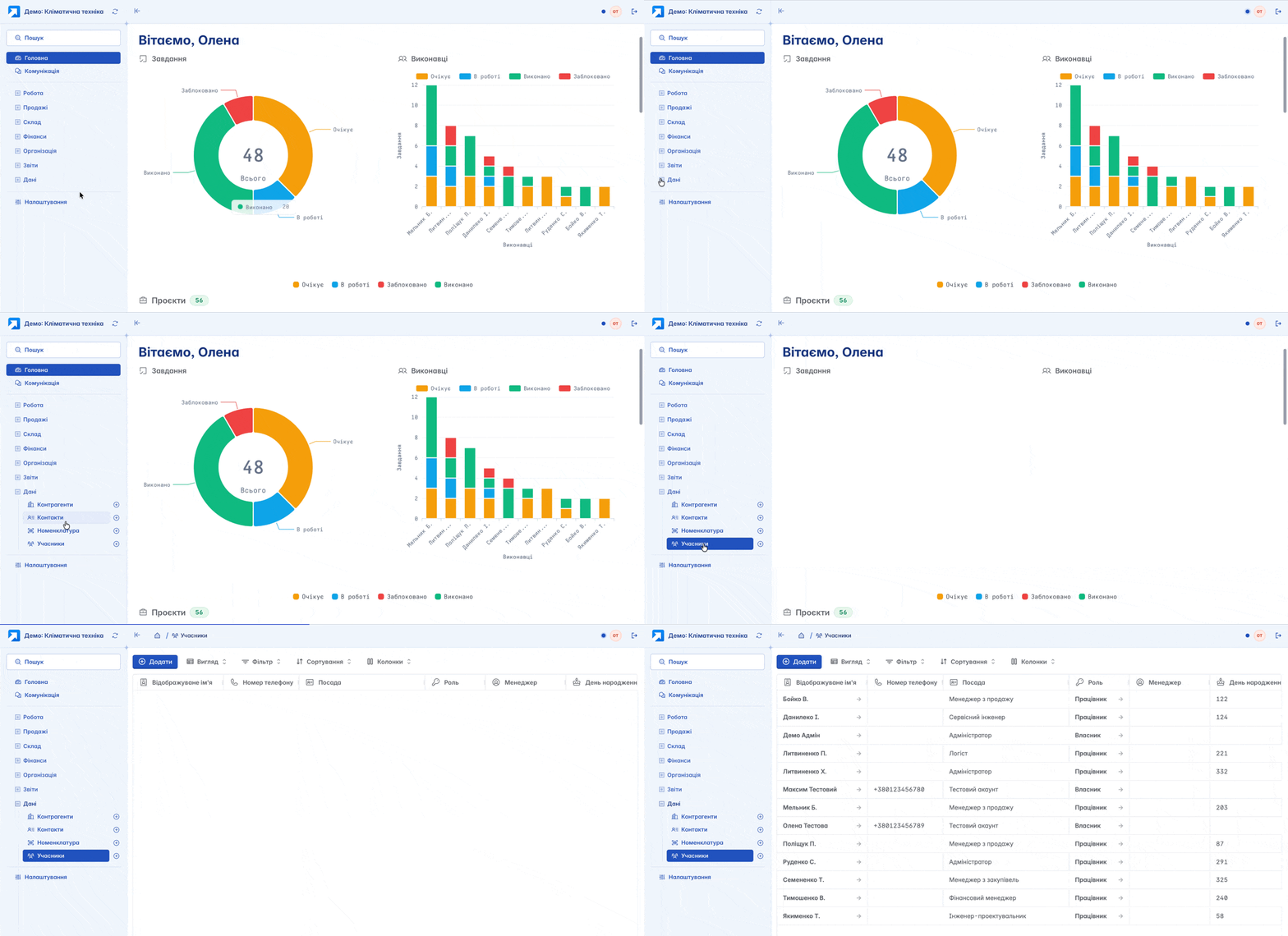
"Members" are located on the left navigation panel, in the "Data" section
The list of members is displayed in a table format. Its view can be customized according to your own criteria by using filters, columns, and other tools
Creation
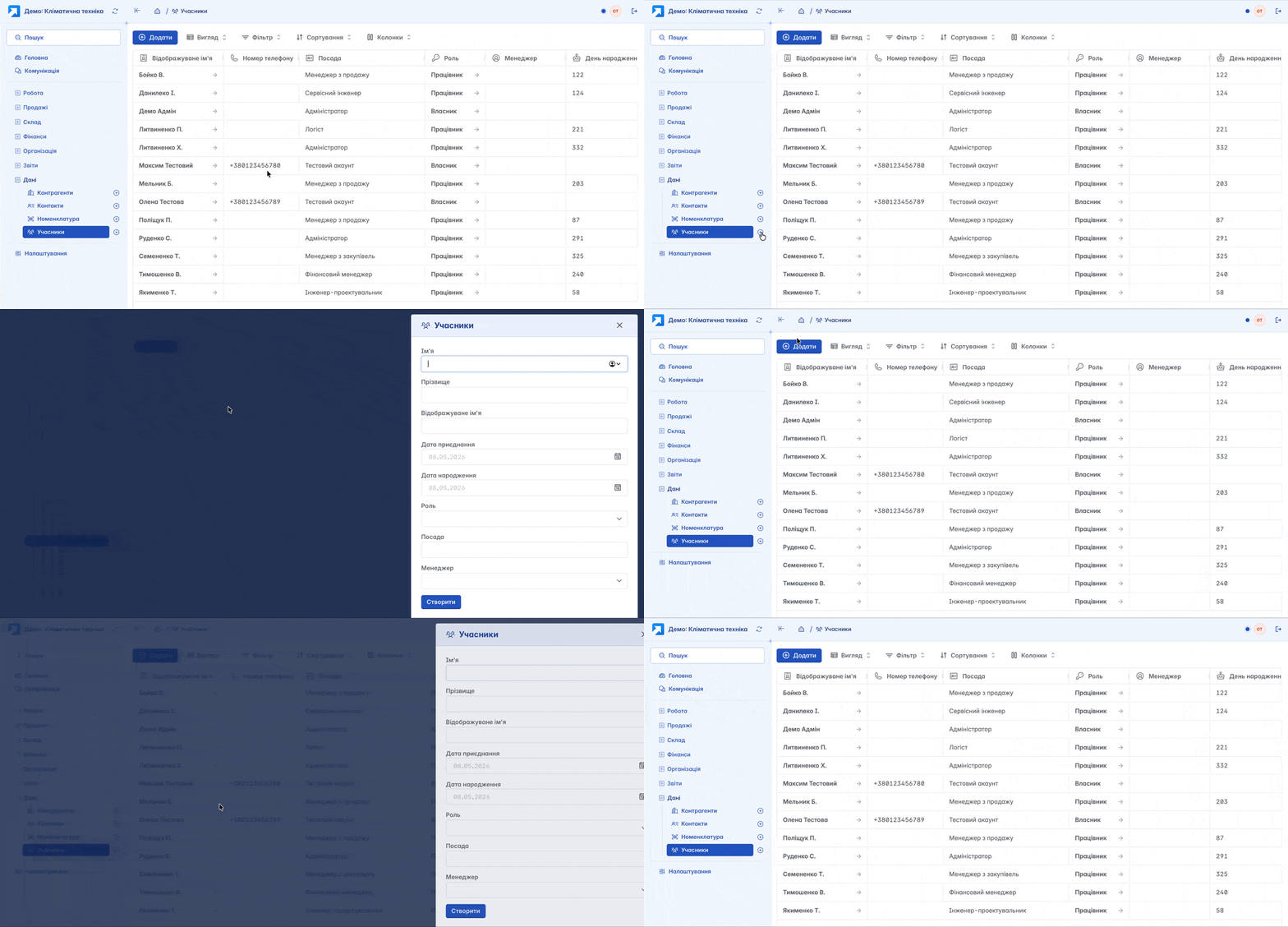
You can create a new member by clicking "+" on the navigation panel or the "+Add" button on the module's main page
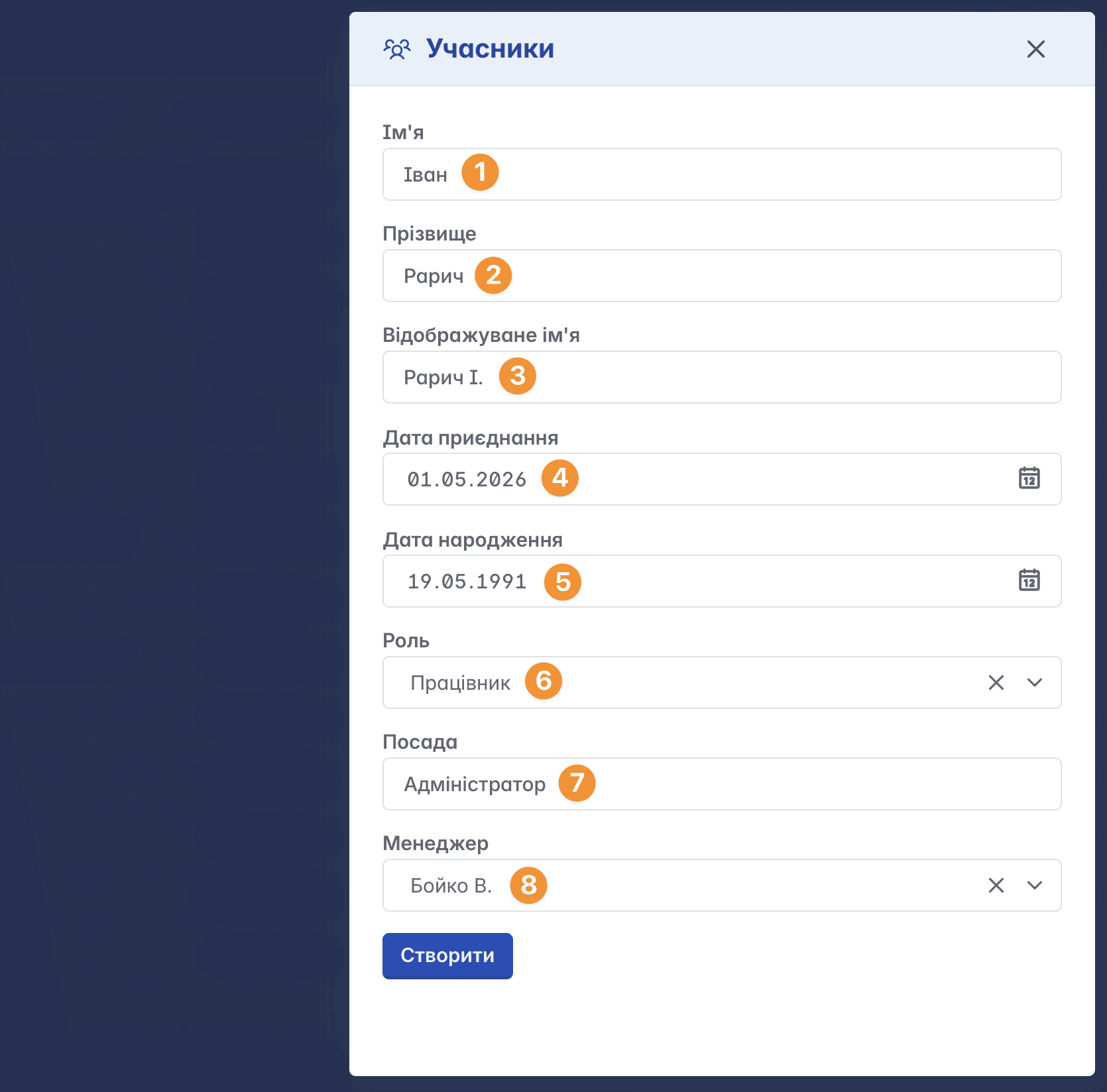
Form for creating a member:
First name - the user's full first name according to identity documents
Last name - the user's last name according to identity documents
Display name - the user name that will be displayed in Keruj. The value does not have to match official data (for example, Vasyl - Vasya)
Joining date - this is the date of employment of the employee
Date of birth - employee's date of birth
Role - defines the level of access to the space according to the function performed by the employee in the company. Three roles are available: employee, manager, and owner, but you can create your own unique roles in Keruj
Position - the employee's job title in your company (e.g., sales representative, cashier, administrator, etc.)
Manager - senior supervisor (field is optional)
Member card
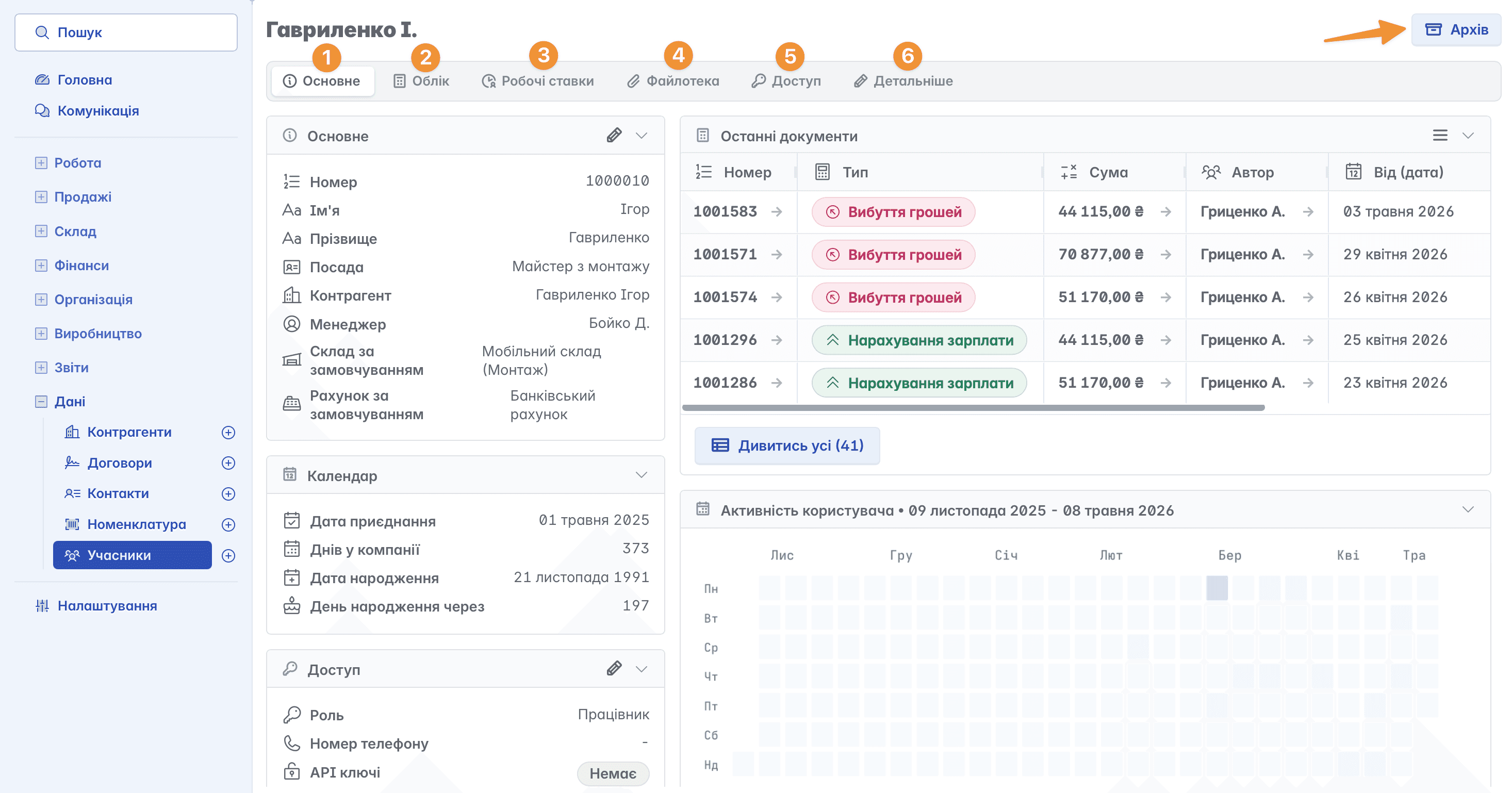
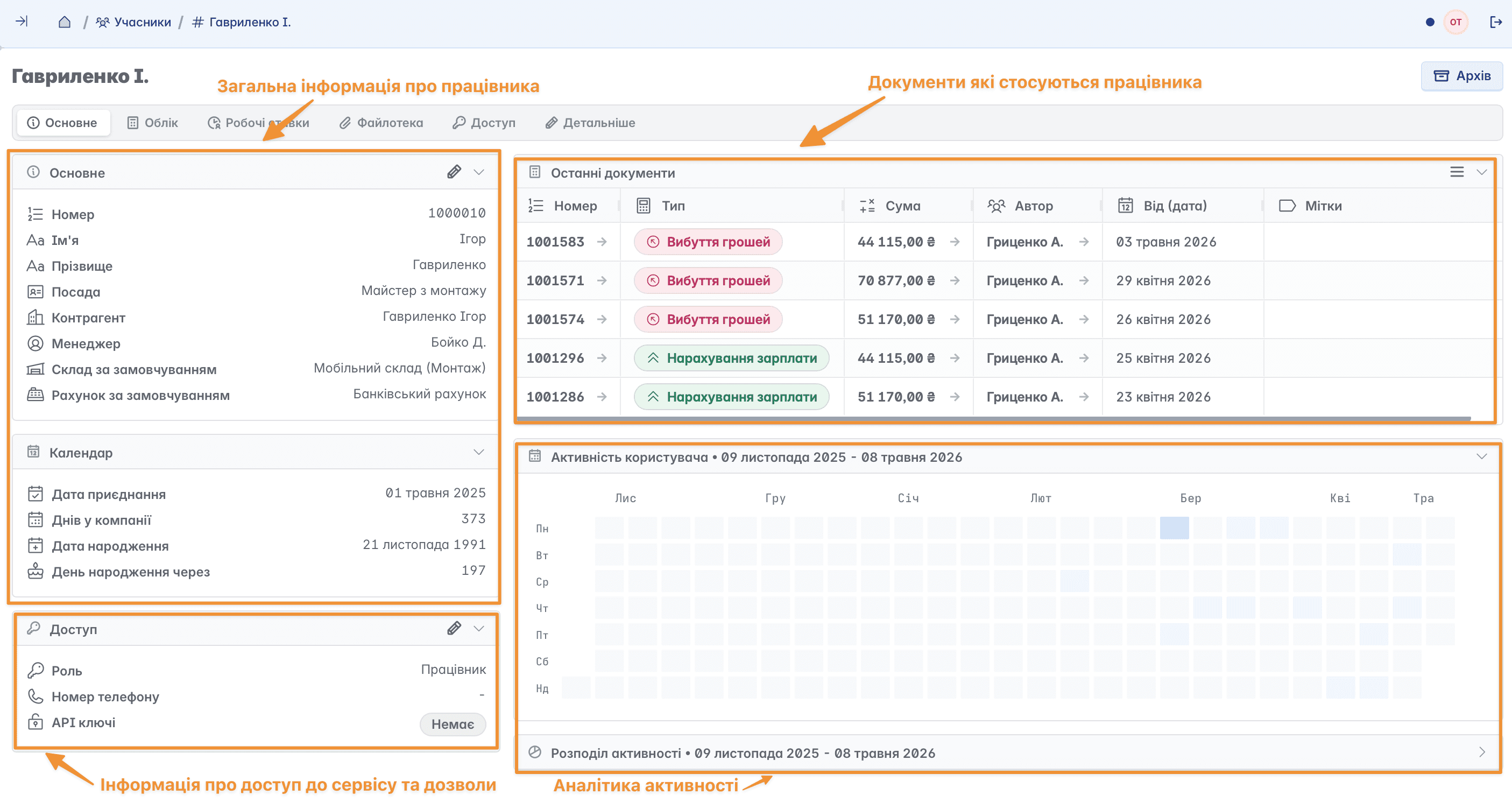
The member card contains a number of tabs located in the top menu, which form the main page of the record, and a functional "Archive" button in the top right part of the page
General
The main page containing full information about the selected member: their personal data, position, role, manager, latest documents, and general activity analytics
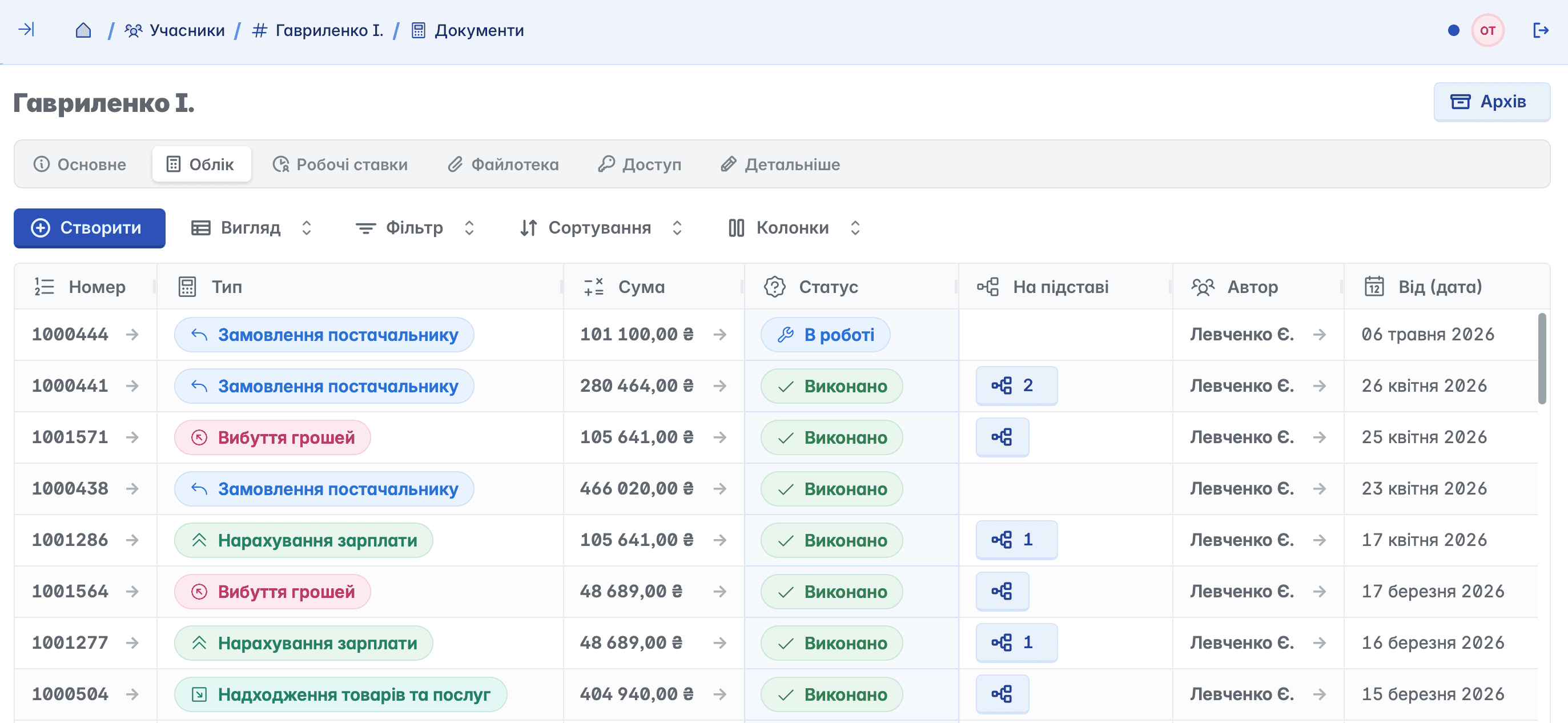
Accounting
Data on financial operations. You can view all documents relating to or created by the member
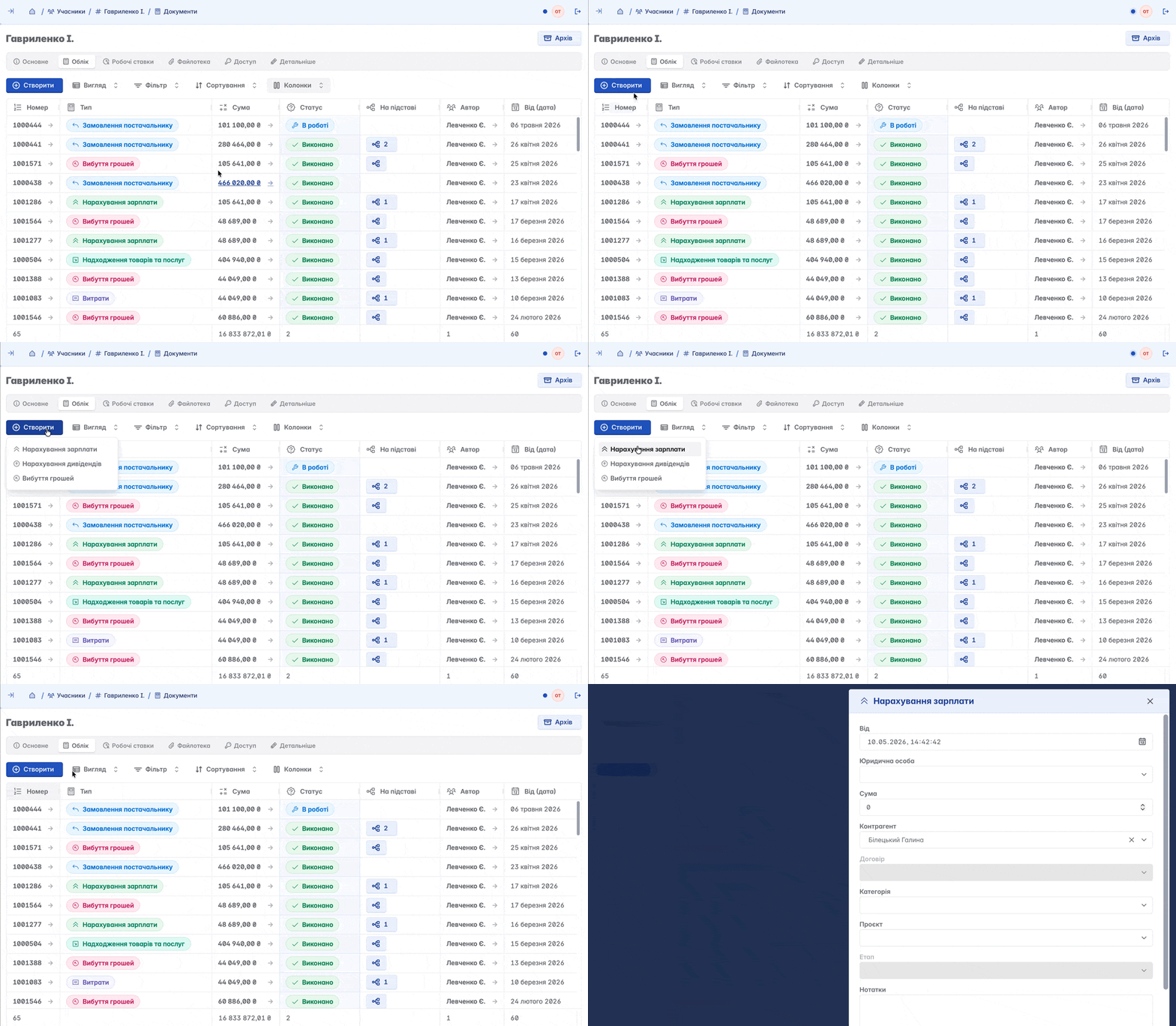
Available documents are displayed in a table format. In addition to viewing, you can create a new document by clicking the "+Create" button
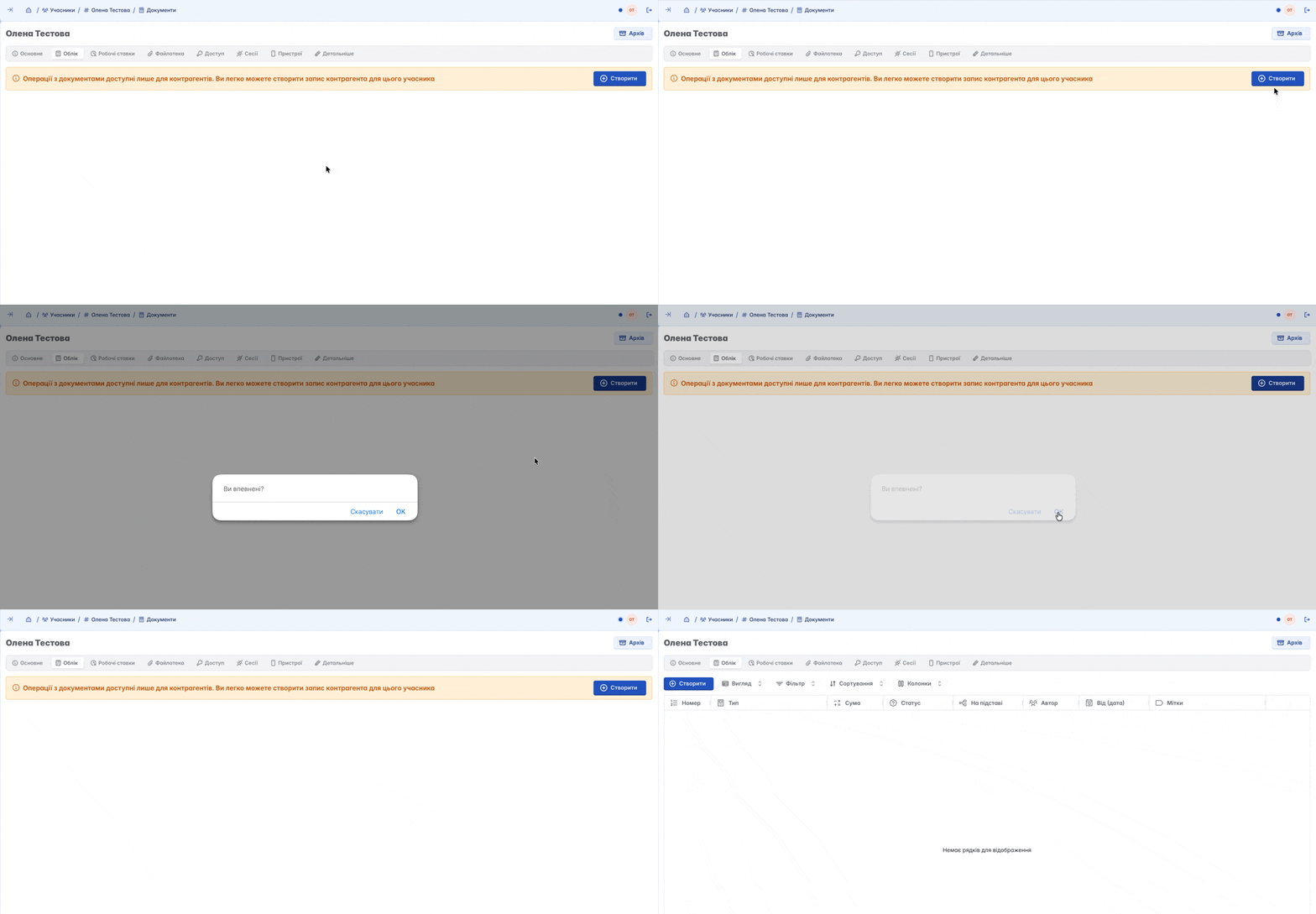
Please note: operations with documents are available only for counterparties. You can create a counterparty-employee for a member in one click. To do this, click the "+Create" button
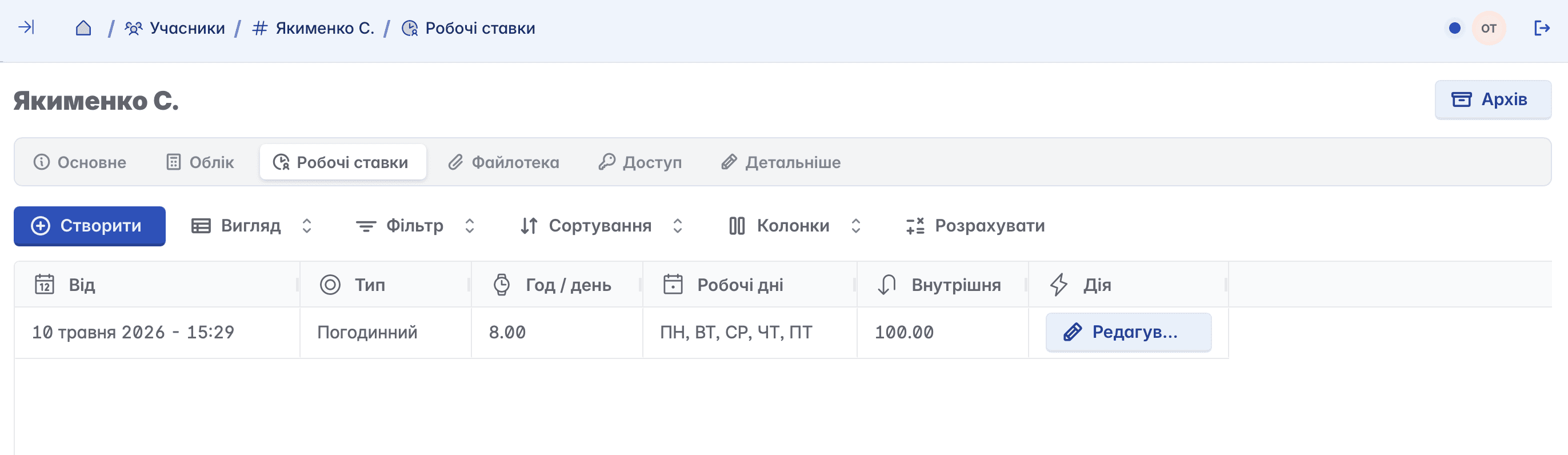
Labor rates
A tool for setting the employee's labor cost for correct payroll calculation
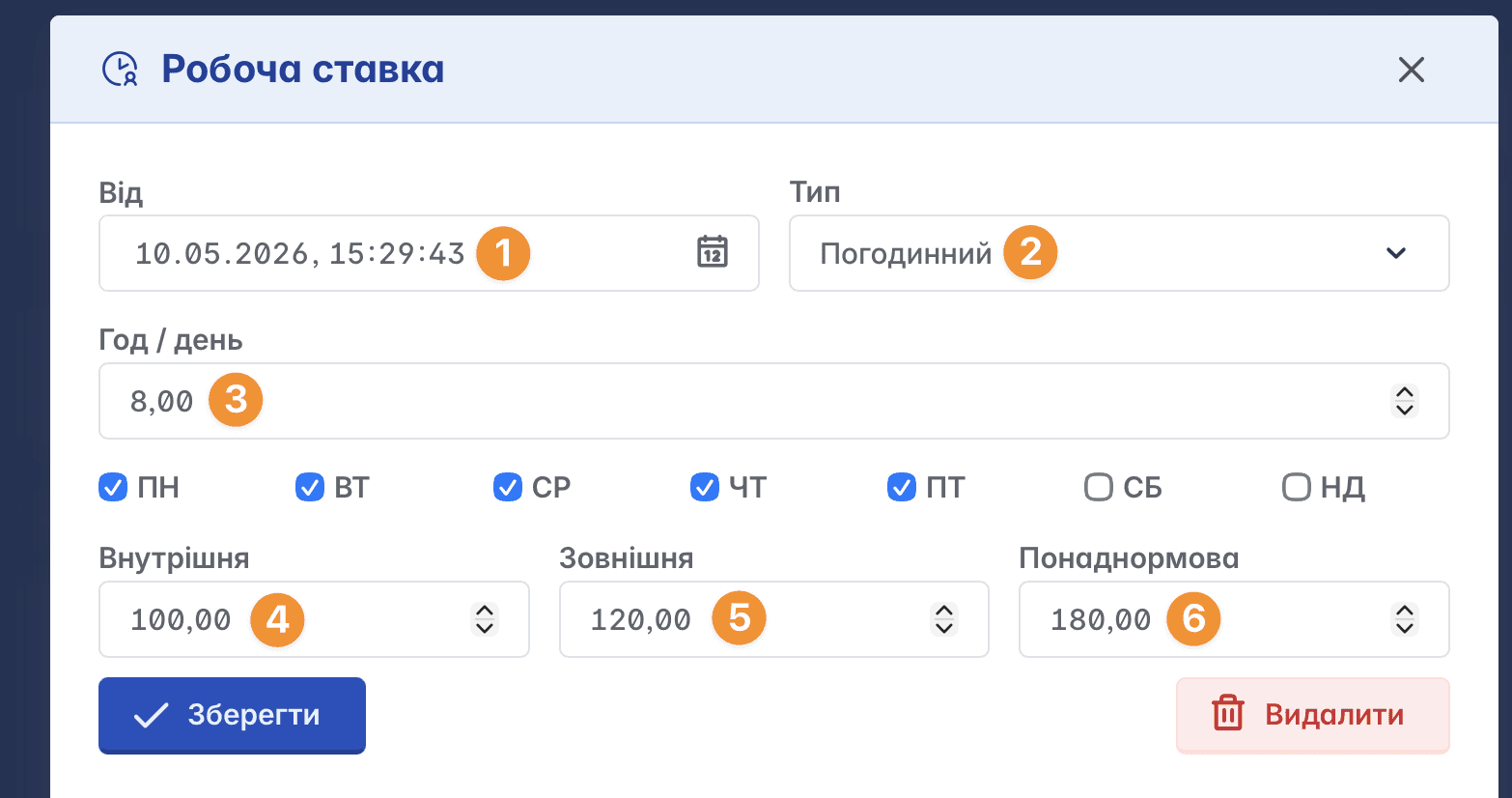
Labor rate settings
From - the date of adding the employee's rate record
Type - method of payroll calculation. Can be hourly or monthly
Hour/day - duration of the working day/week
Internal - rate for performing work within the enterprise
External - rate for performing field work
Overtime - rate for performing overtime work
In addition to adjusting the length of the working day and the size of wage rates, you can define individual working days for the employee. There can be several records of labor rates, which allows them to be analyzed and compared with each other
File library
Archive of uploaded files or images, used for storing scans of documents and other important files related to the member
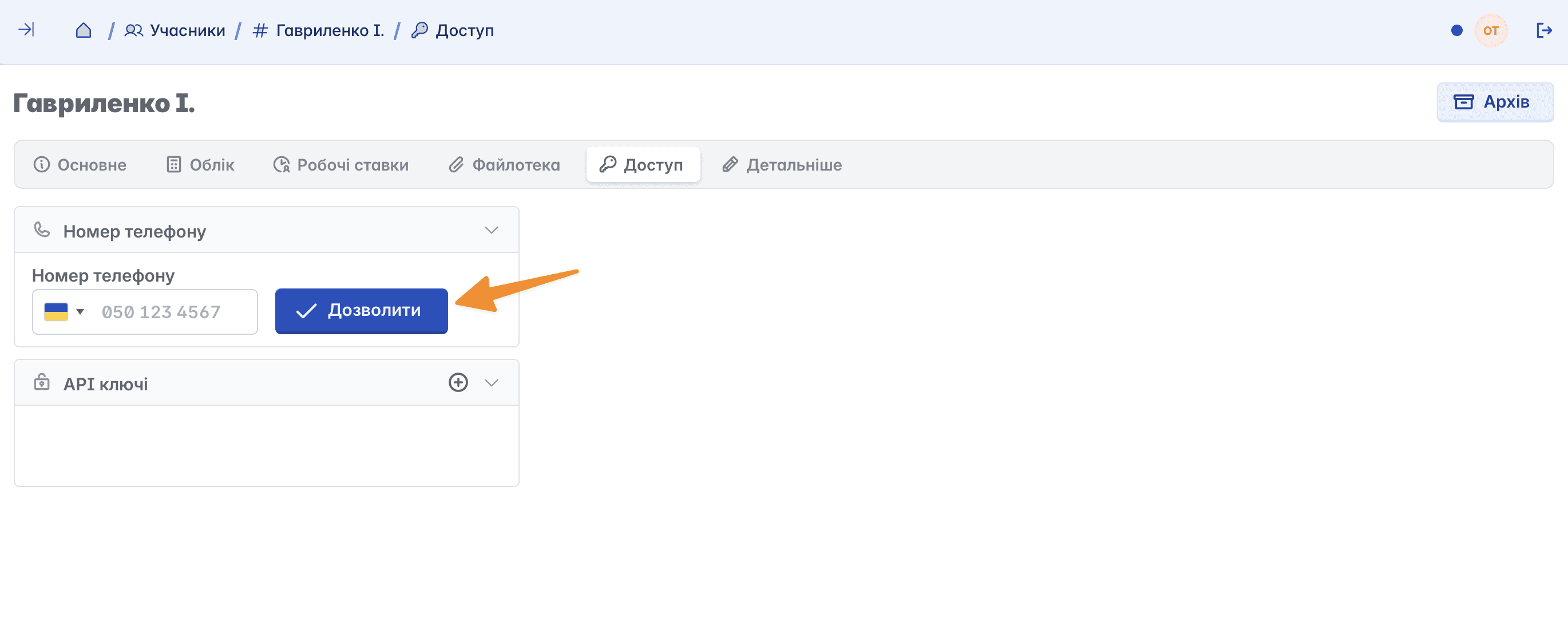
Access
A tool for configuring employee access to your Keruj portal
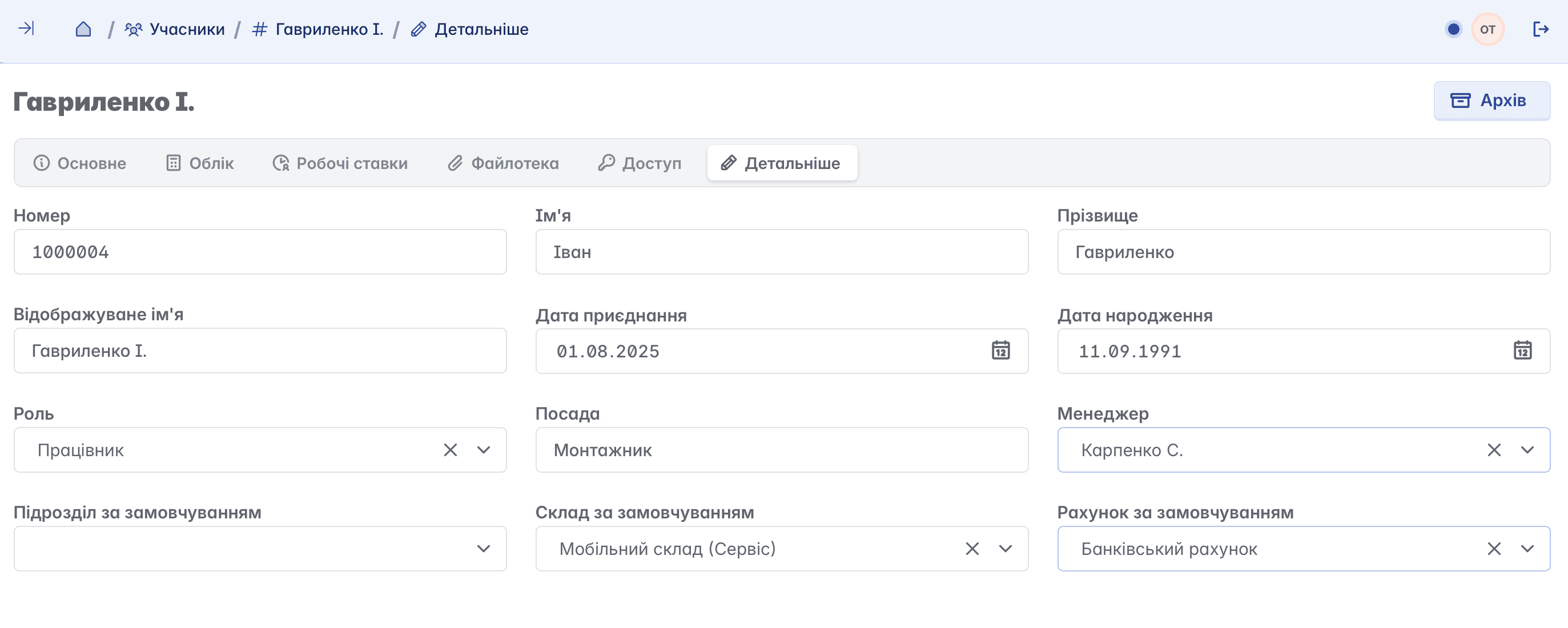
Details
A tab for editing or adding basic information about the member. Here you can change personal data, position, role, assign a warehouse, department, assignee, and account to the member
Granting access to a member
To grant access to a new member, under the "Access" tab, enter the member's phone number and click the "Allow" button
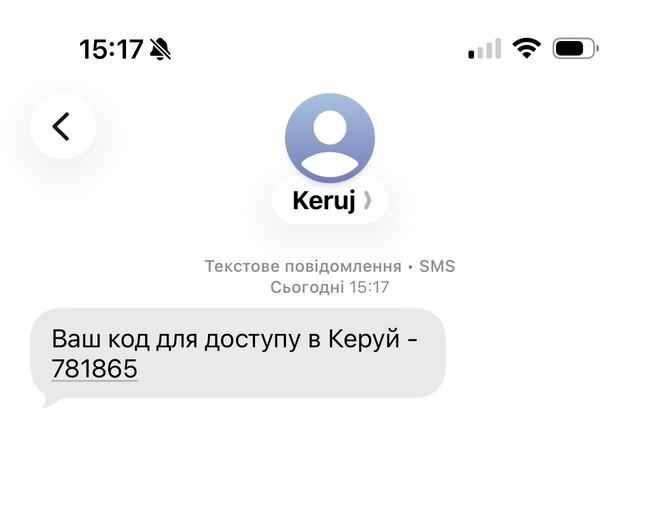
The invited user will receive an SMS message on their device with access information and an active link to your Keruj portal
The data and modules available to the user depend on the role and access permissions granted to them when creating the record
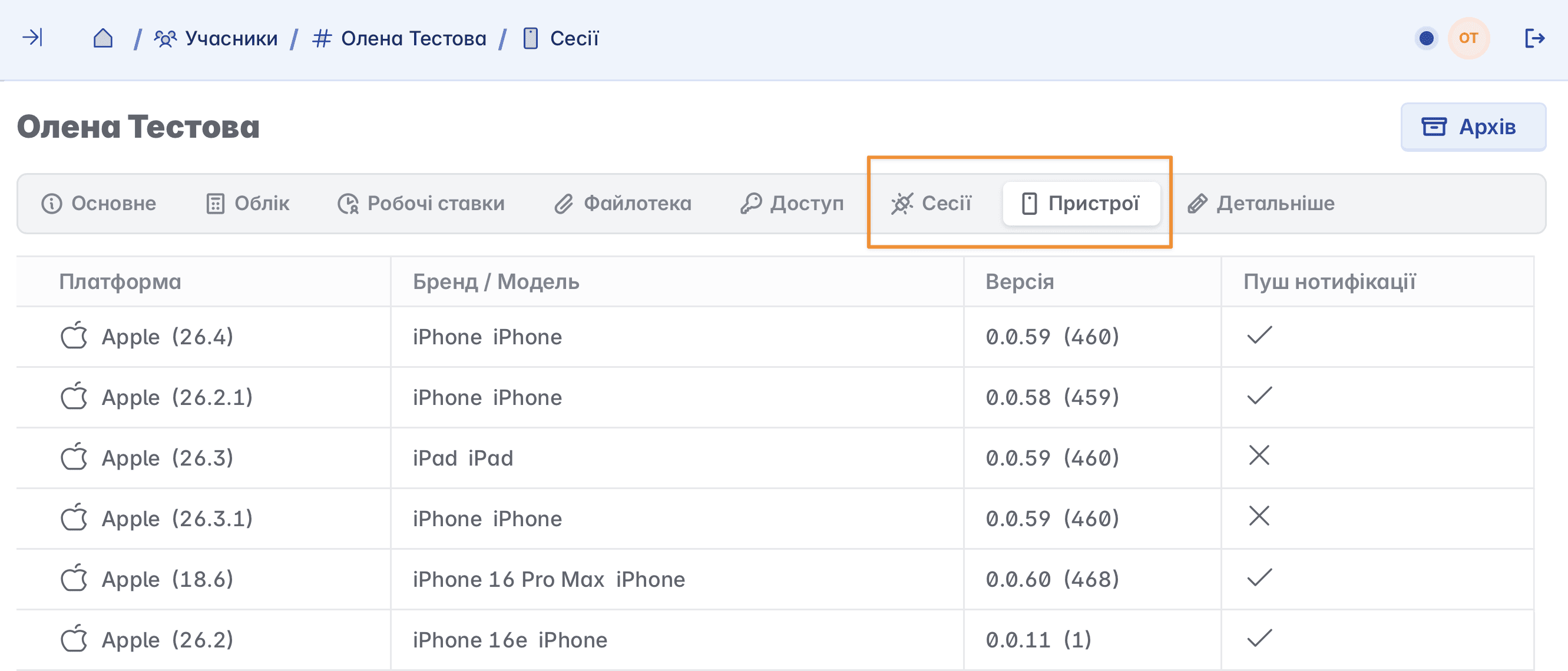
For users who have access to the portal, two additional tabs, "Sessions" and "Devices", are automatically activated in their card. Thanks to them, you can track the duration of active sessions of a member in the portal, as well as view the devices from which authorization was executed
API key
For developers, it is possible to generate a key for access via our public API
Member authorization
In Keruj, each user has a login and password to enter. The login is the user's phone number, and the password is generated by the service at each authorization. After entering the phone number, the invited user will receive an SMS message with a one-time password to enter
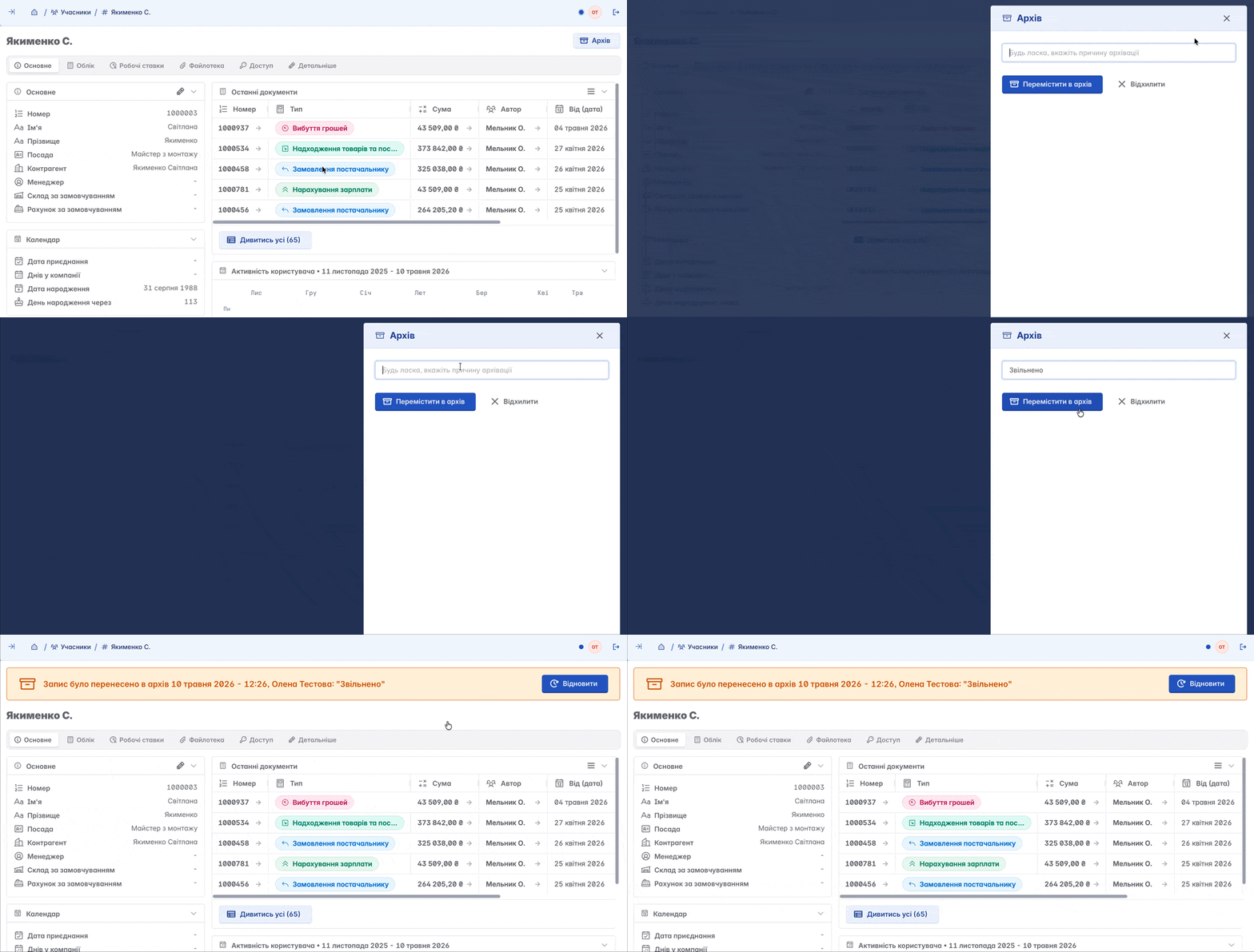
Deleting a member
A member cannot be deleted - they can only be moved to the archive. Thanks to this, you will not lose important information and will be able to view or restore it at any time