Getting started
Contacts
Contacts are the database of contact persons for all your counterparties in Keruj. The section is used to store and quickly access contact information of clients, suppliers, and partners of the company
Their purpose:
store contact details
specify job titles and affiliation to a counterparty
quickly find the necessary contacts
use contacts in work with documents and communication
maintain a single up-to-date database of contact persons
Location
"Contacts" are located on the left navigation panel, in the "Data" section
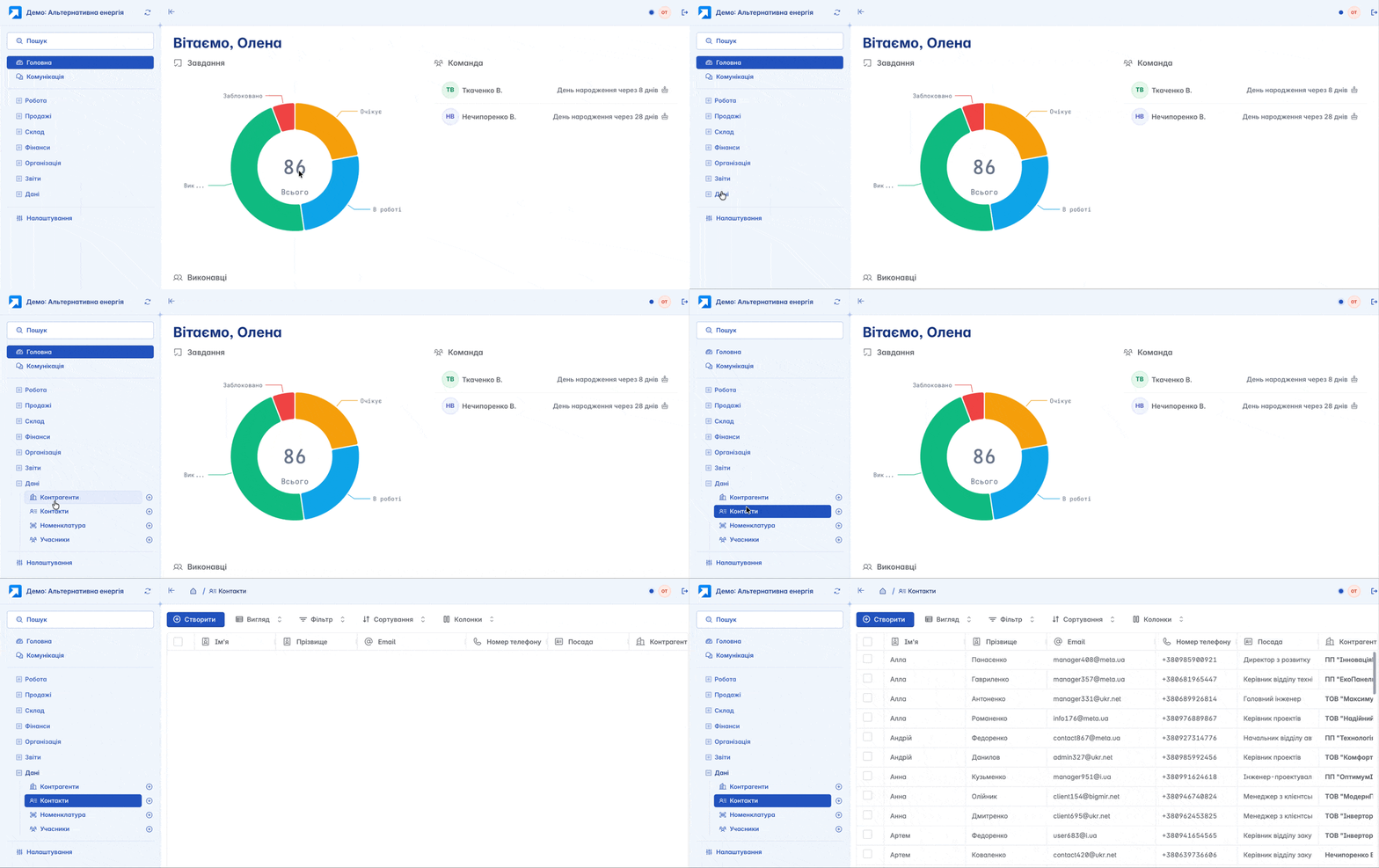
The contact list is displayed in a table format. Its view can be changed according to your own criteria using filters, columns, and other tools
Creation
You can create a new contact by clicking "+" on the navigation panel or the "+Create" button on the main page of the module
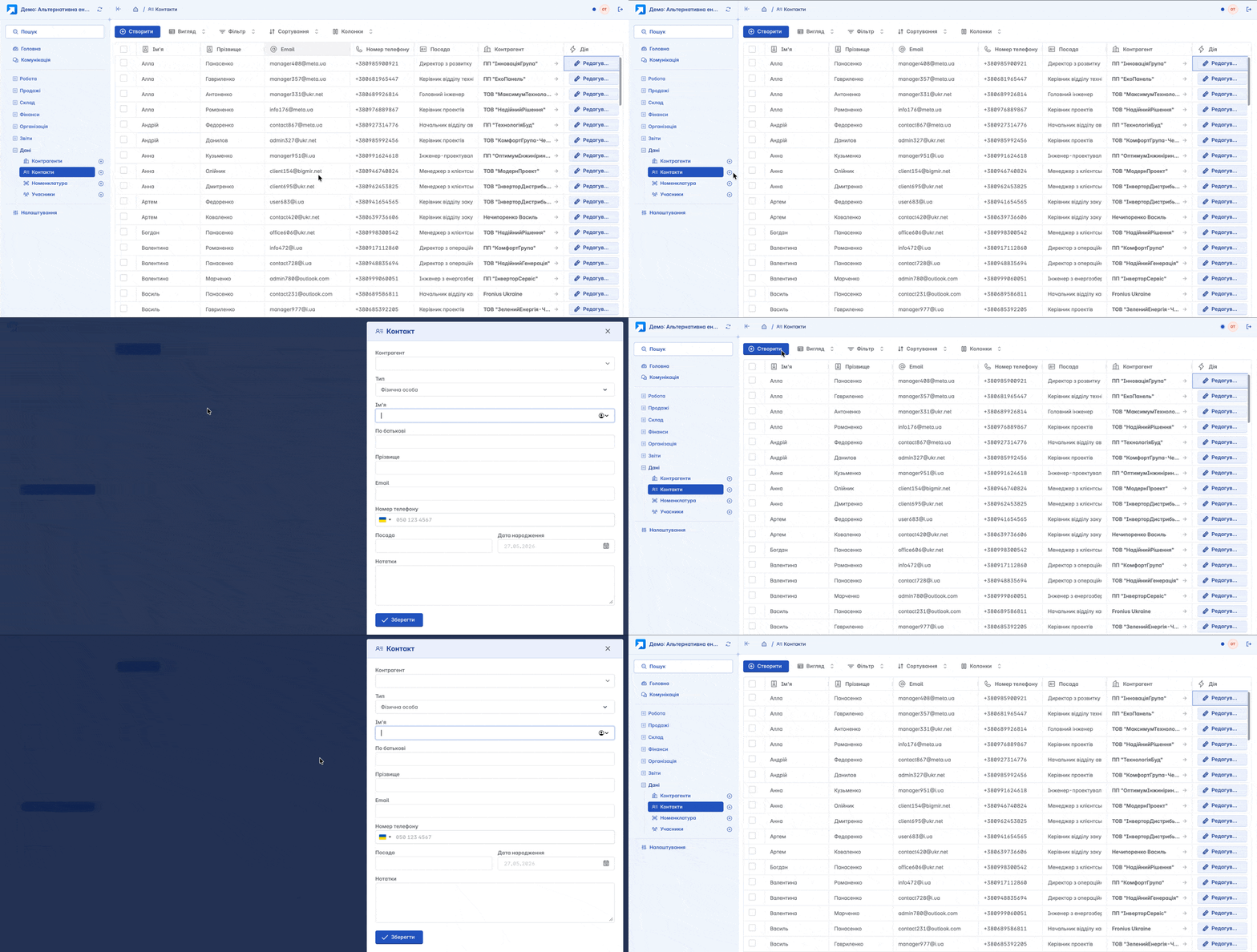
Form for creating a contact:
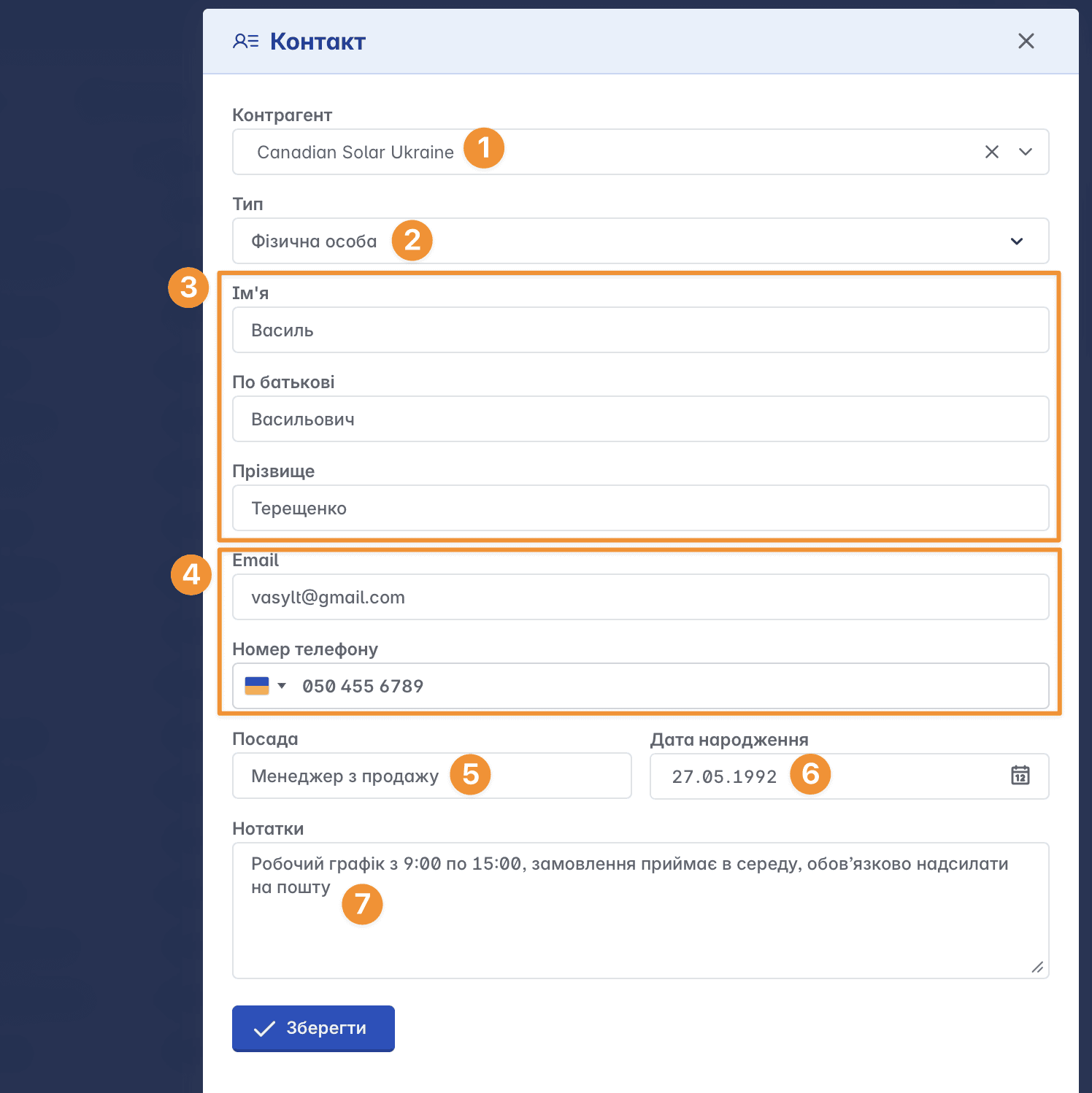
Counterparty - selecting a counterparty from the list of existing ones to which this contact belongs
Type - defining the type of contact: an individual or a contact of a legal entity
Full Name - personal information of the contact person
Contact information - phone number, email address
Job Title - the name of the position held by the contact person
Date of birth - the contact's date of birth
Notes - additional information or comments regarding the contact
Not all fields are mandatory, but the more complete the contact card is, the more useful this data will be for your company during work and communication
Editing a contact
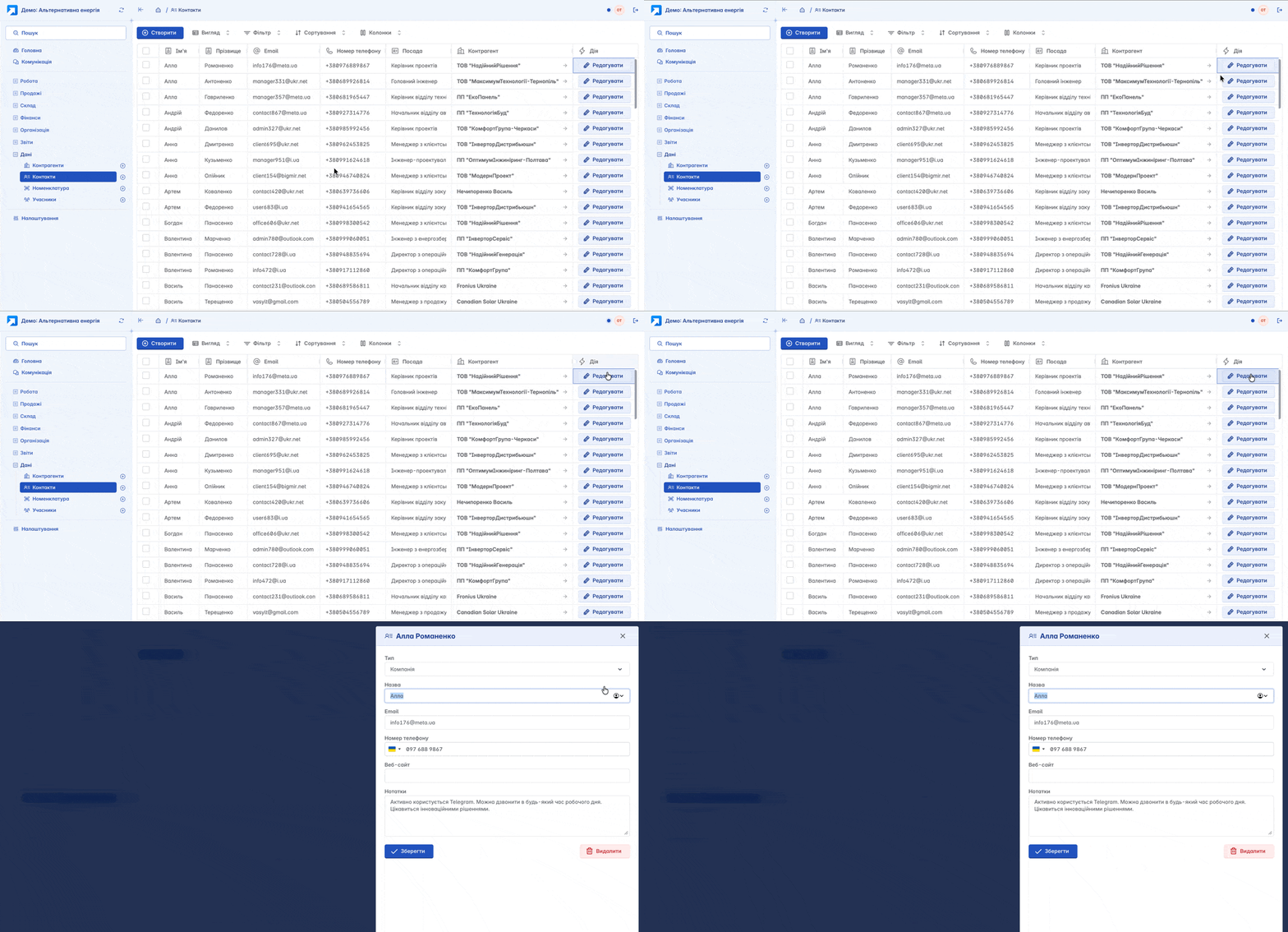
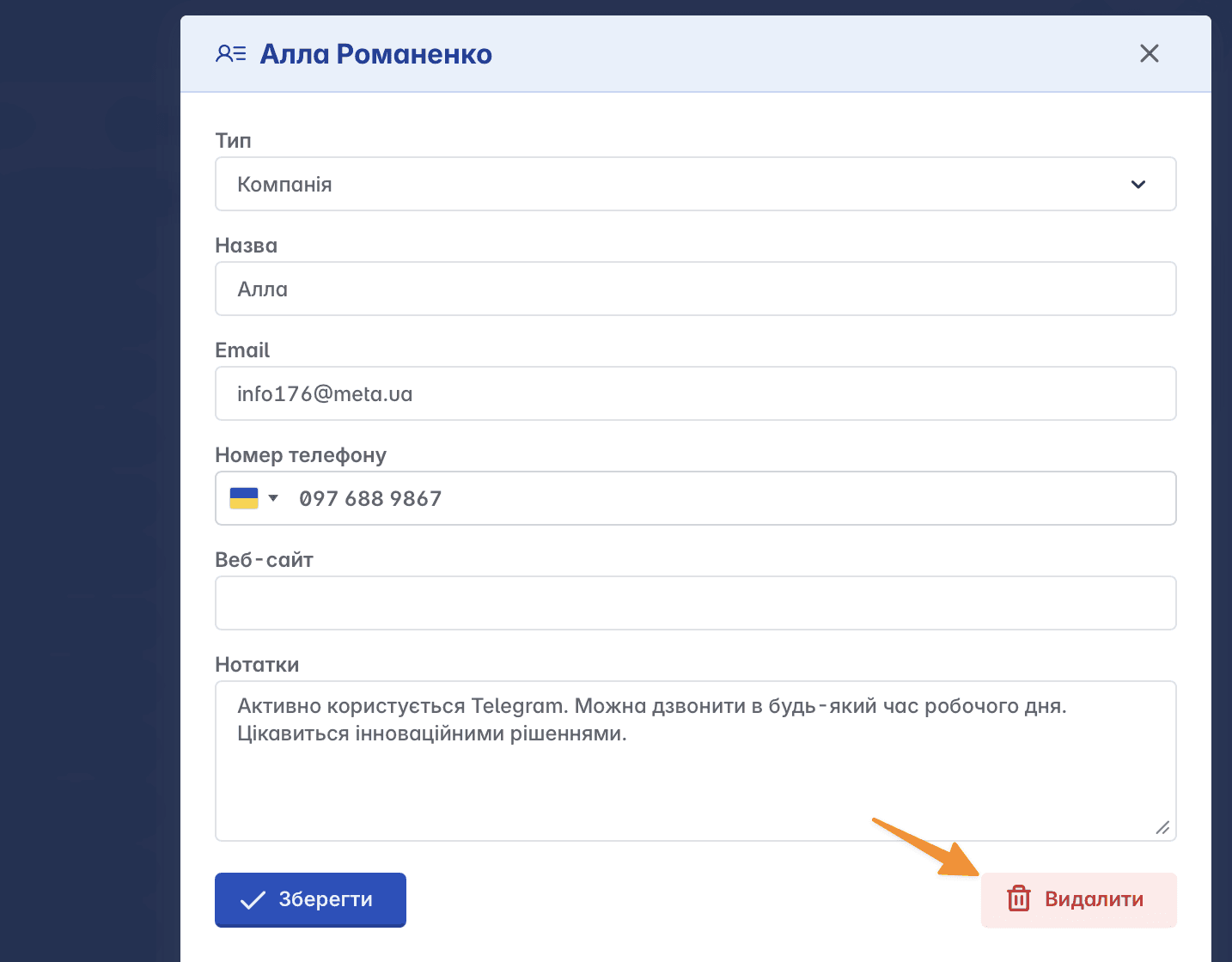
Some fields, including Full Name, contact information, and notes, can be modified in the contact card directly on the module page
To edit, click the "Edit" button at the end of the corresponding row in the "Action" column
Deleting a contact
In the contact editing form, a deletion function is also available. If you have the appropriate access rights, you can delete outdated or mistakenly created contacts
Contacts in counterparties
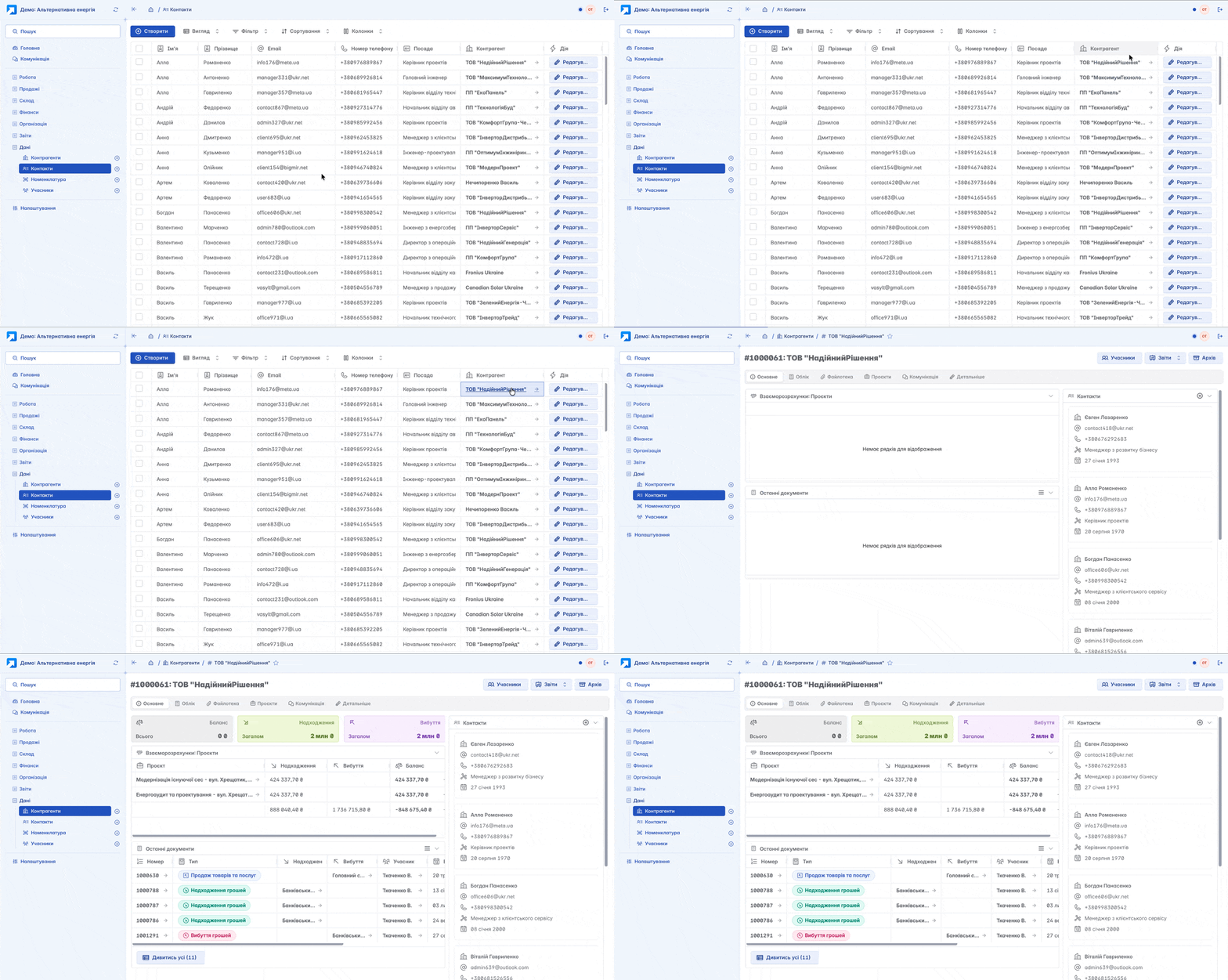
By clicking on a counterparty in the corresponding column, you will automatically go to its card, which will display all contacts associated specifically with this counterparty
Related articles