Counterparties is a Keruj module that stores information about all clients, suppliers, and other partners with whom the company interacts
Its purpose:
maintaining a single database of clients and partners
storing contact, legal, and commercial data
quick insertion of counterparties into documents (sales, purchases, projects)
accounting for mutual settlements and cooperation history
avoiding duplication and organizing the client base
Location
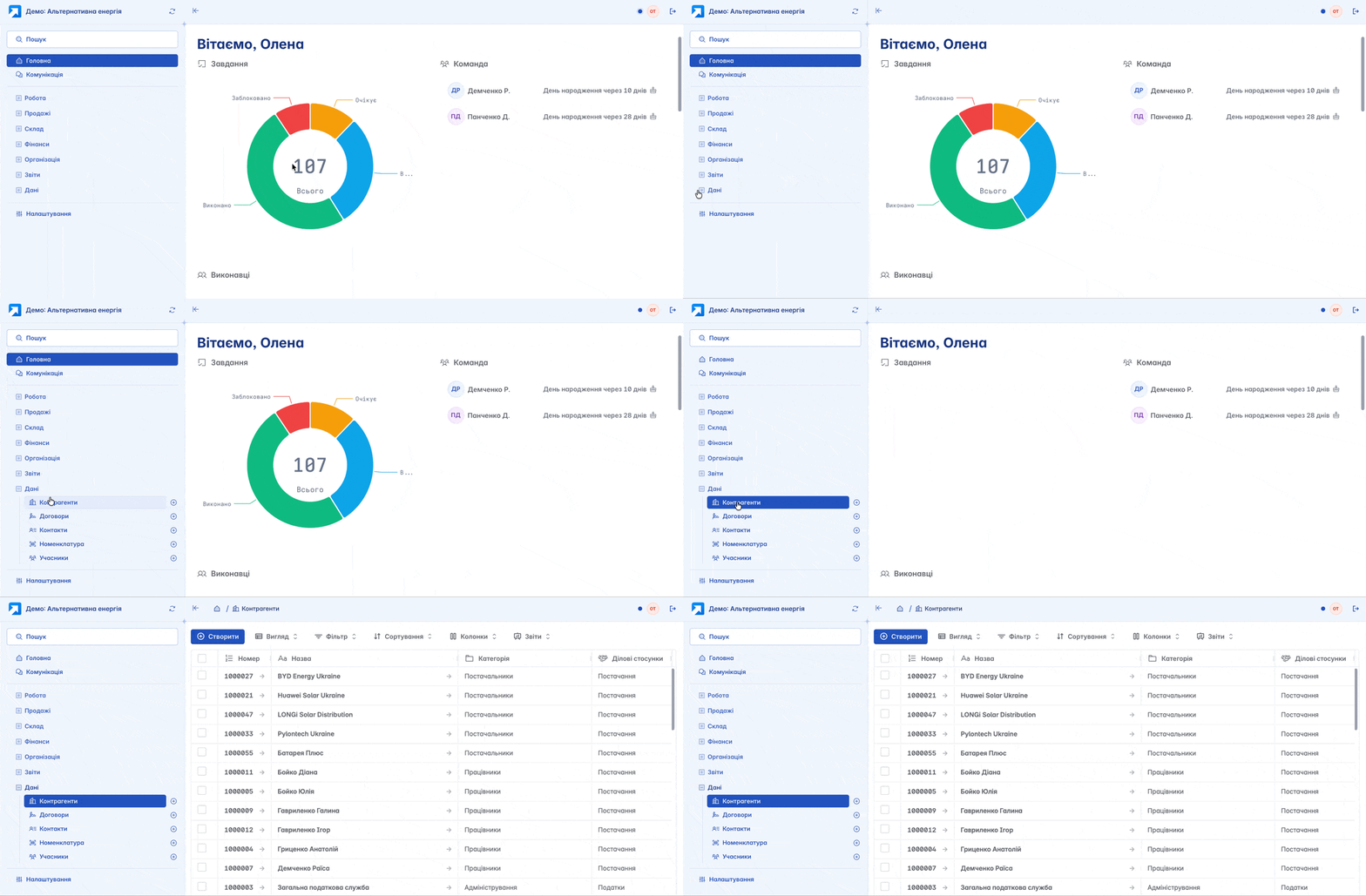
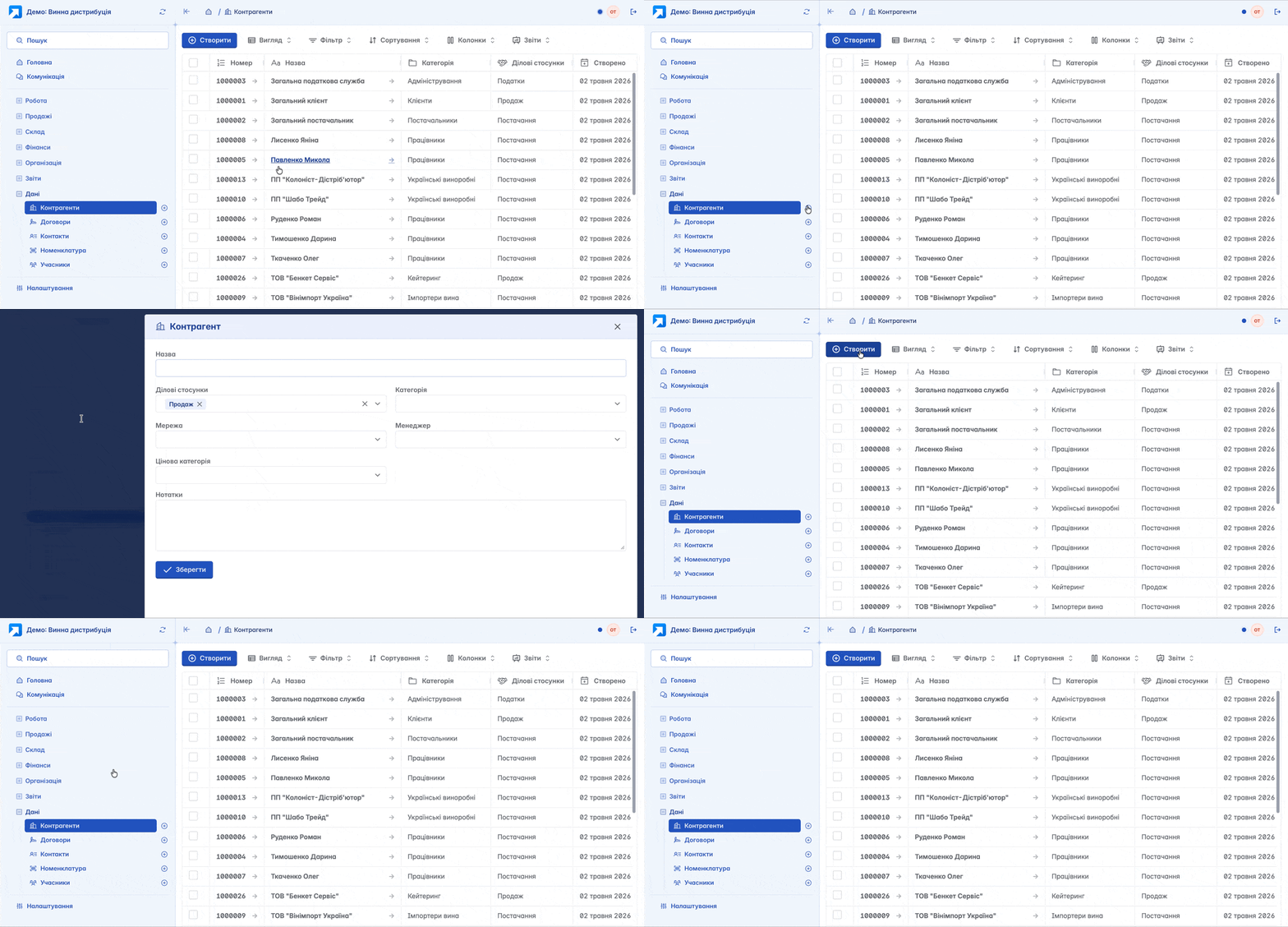
"Counterparties" are located in the navigation bar on the left, under the "Data" section
The list of counterparties is displayed in a table format. Its view can be customized according to your criteria using filters, columns, and other tools
Creation
You can create a new counterparty by clicking "+" in the navigation bar or the "+Create" button on the module's home page
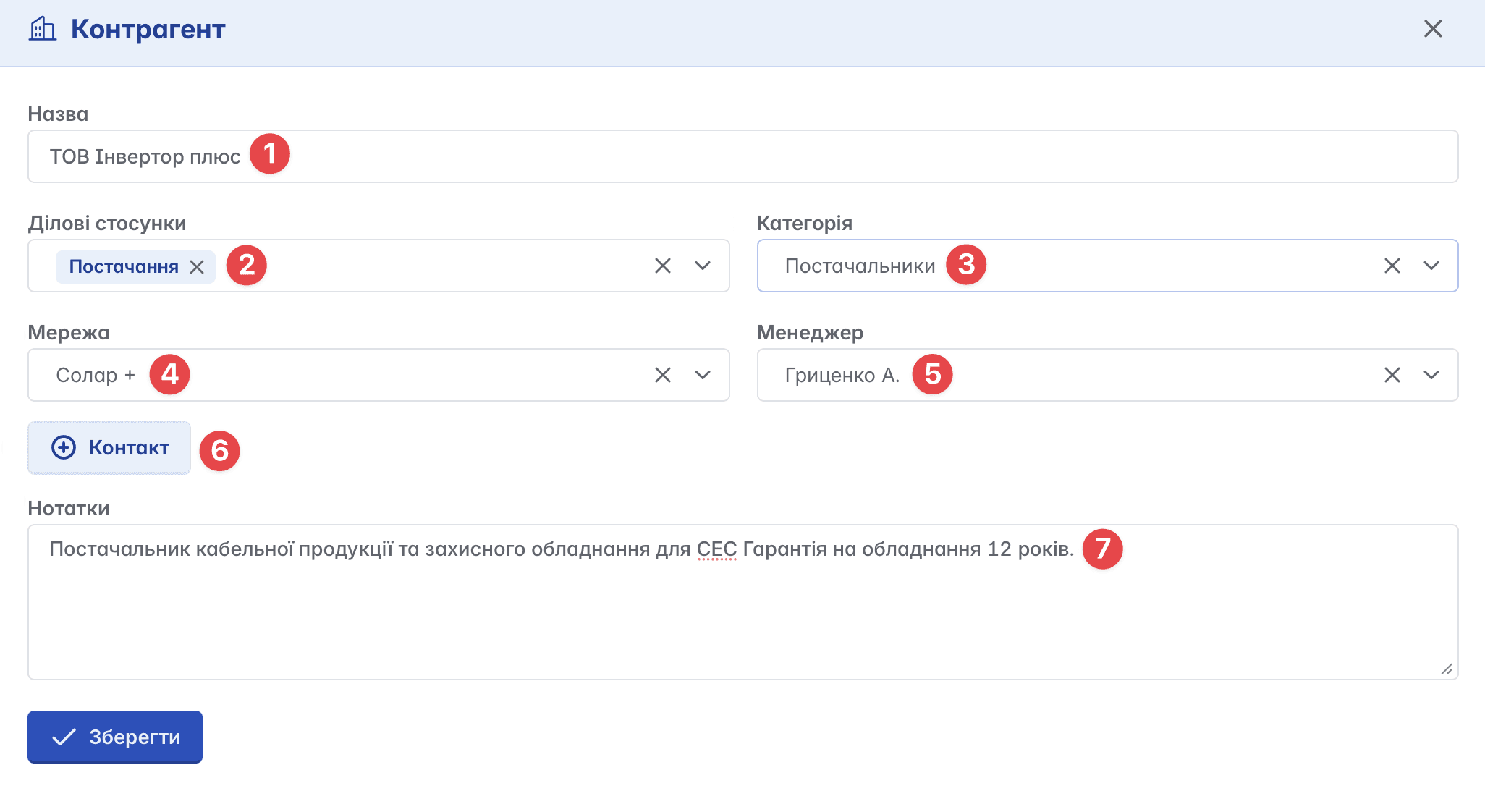
Counterparty creation form:
Name - the name of the company, organization, or individual
Business relations - the type of interaction between your company and the counterparty. This can be: supply, sale, taxes, employees
Category - the counterparty type based on business processes (e.g., shopping mall, educational institution, construction company)
Network - additional categorization of the counterparty by networks (optional field)
Manager - the employee in charge (optional field)
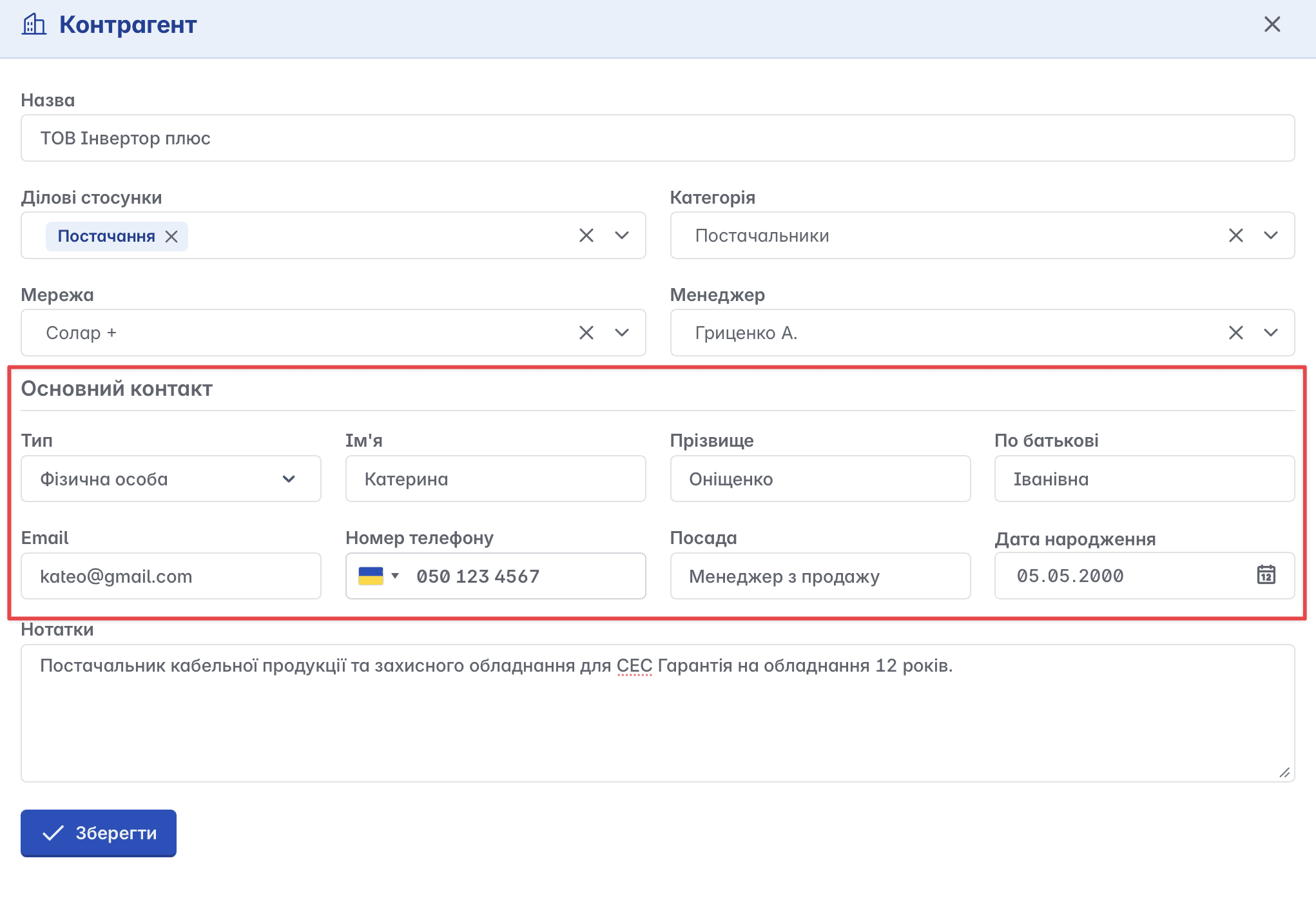
Contact - personal details of the counterparty or their representative, added as "Primary contact"
Notes - a field for entering additional information about the counterparty
Counterparty Card
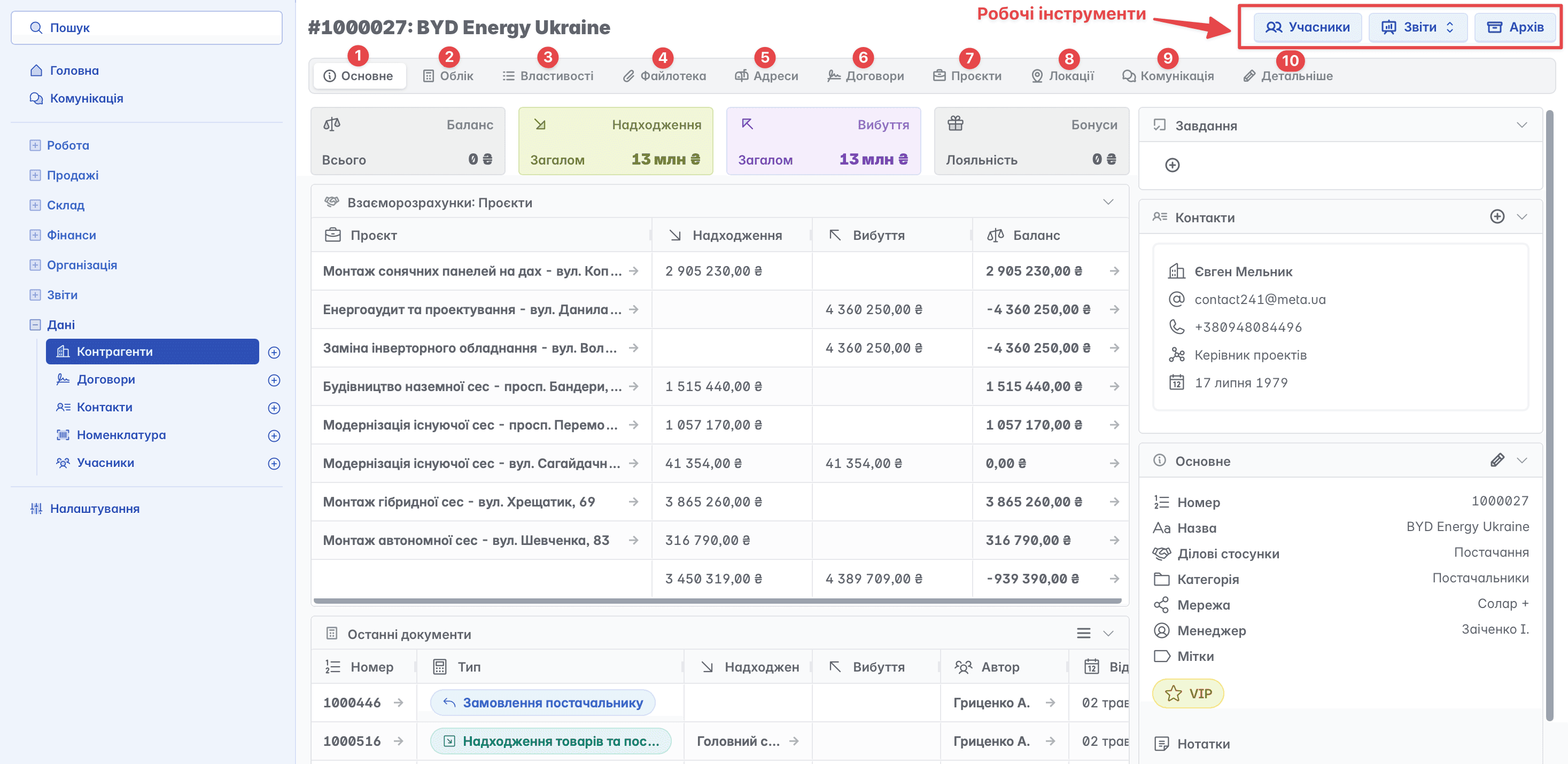
The counterparty card contains a set of tabs located in the top menu and working tools in the upper right part of the page
Please note, that the appearance of the counterparty card and the set of active tabs can be customized by the user in "Settings" of their Keruj space, under the "Features" block
Here you can enable or disable the required tabs, choose the desired document types for working with counterparties, and set default properties
General
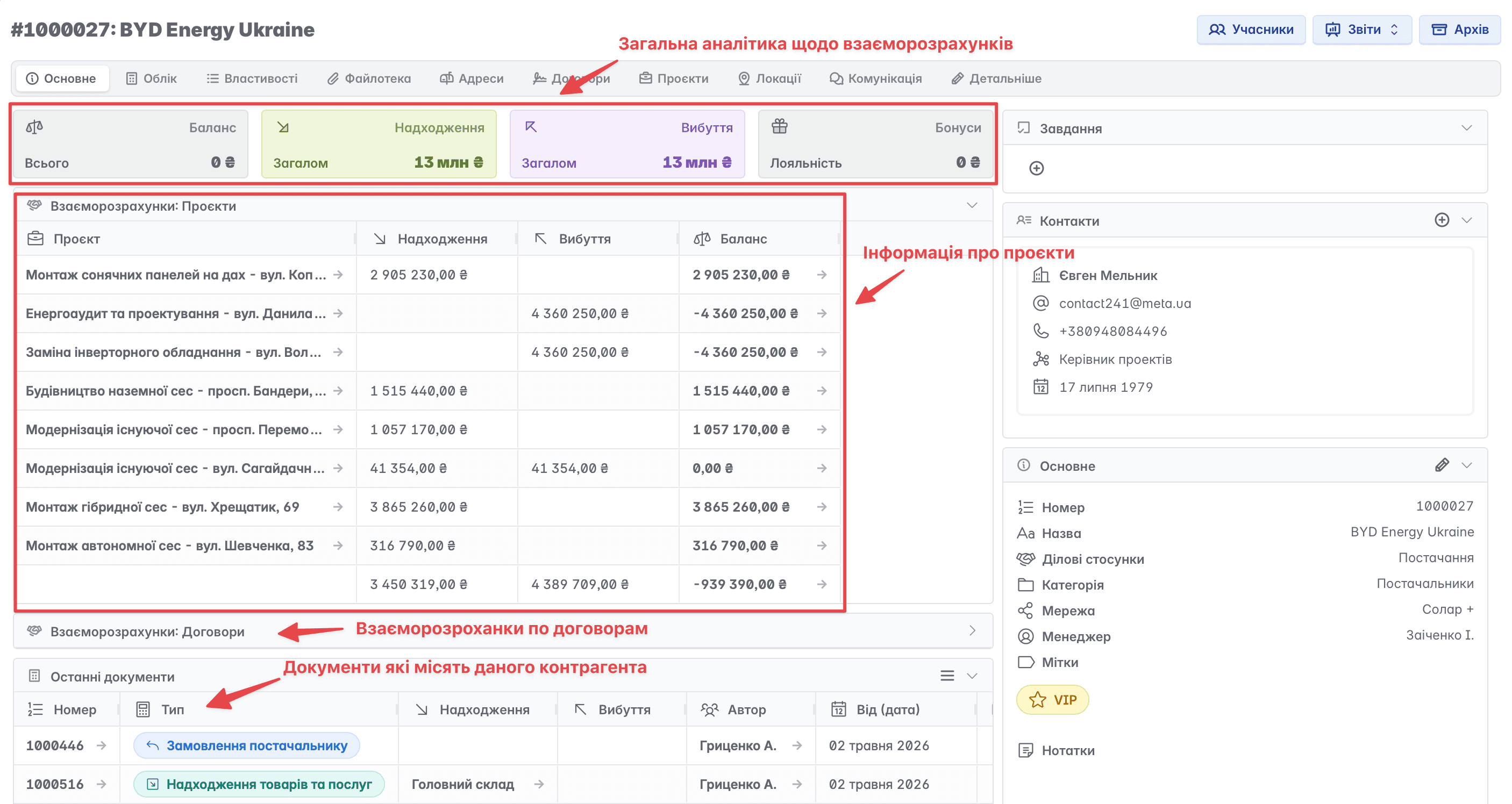
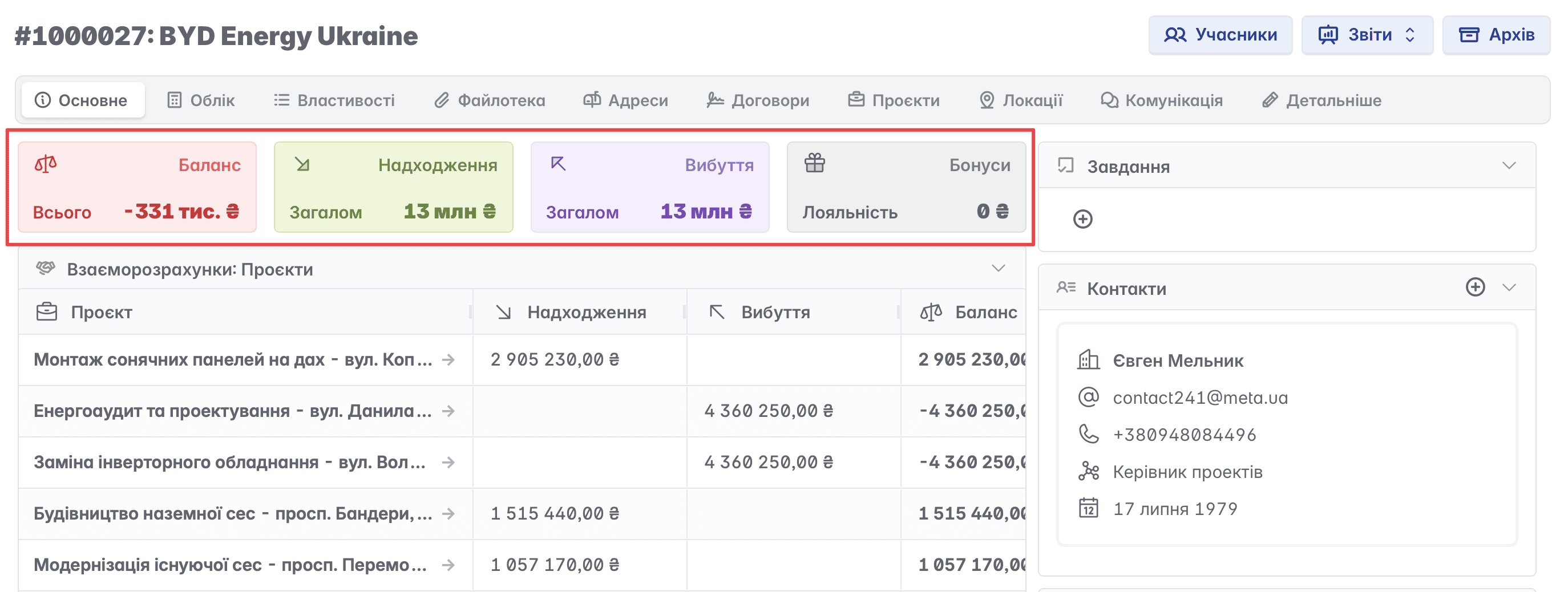
The home page of the counterparty card contains general information about the counterparty, contacts, a brief overview of projects and documents related to the selected counterparty, and analytics on mutual settlements
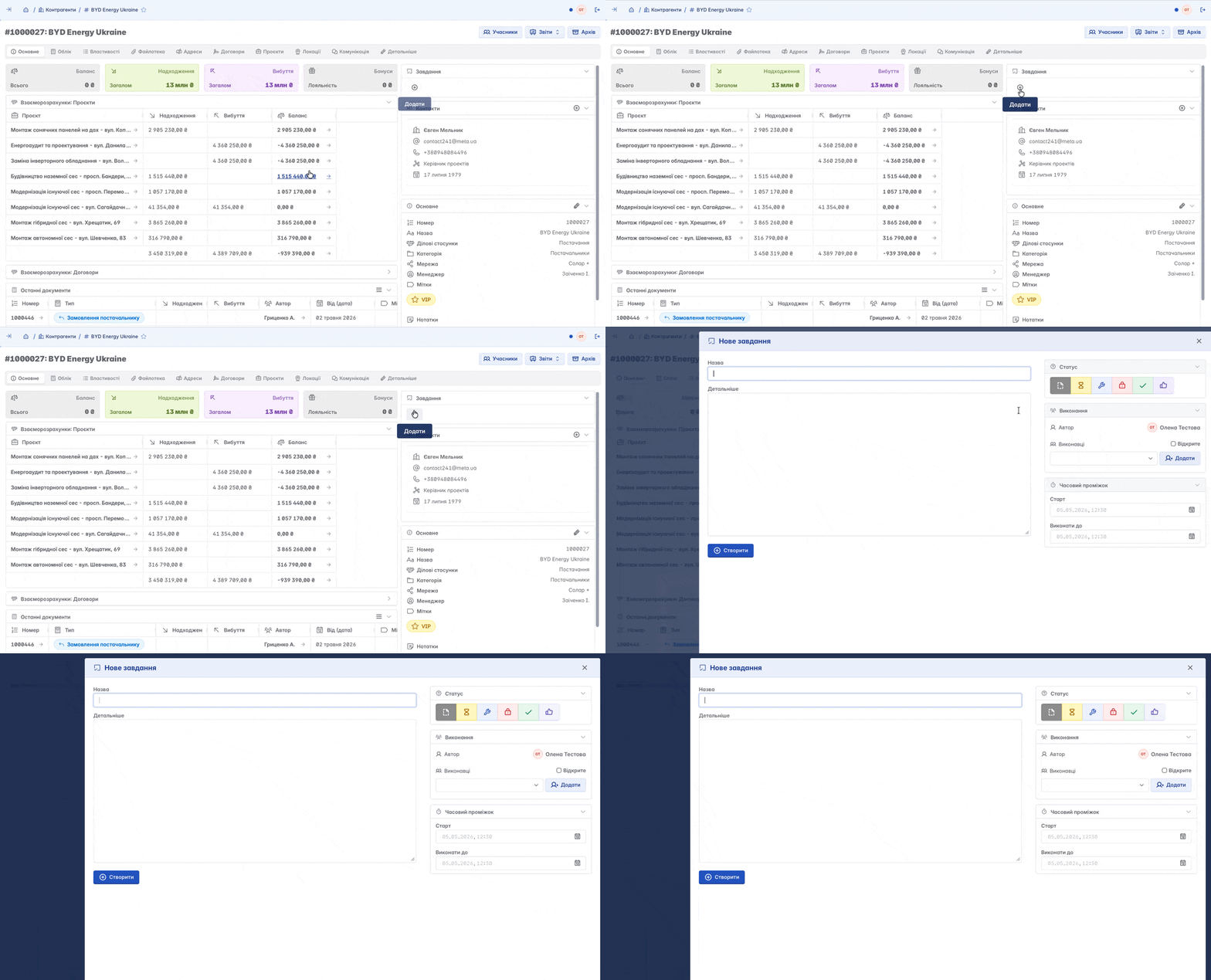
You can create a task within the counterparty card
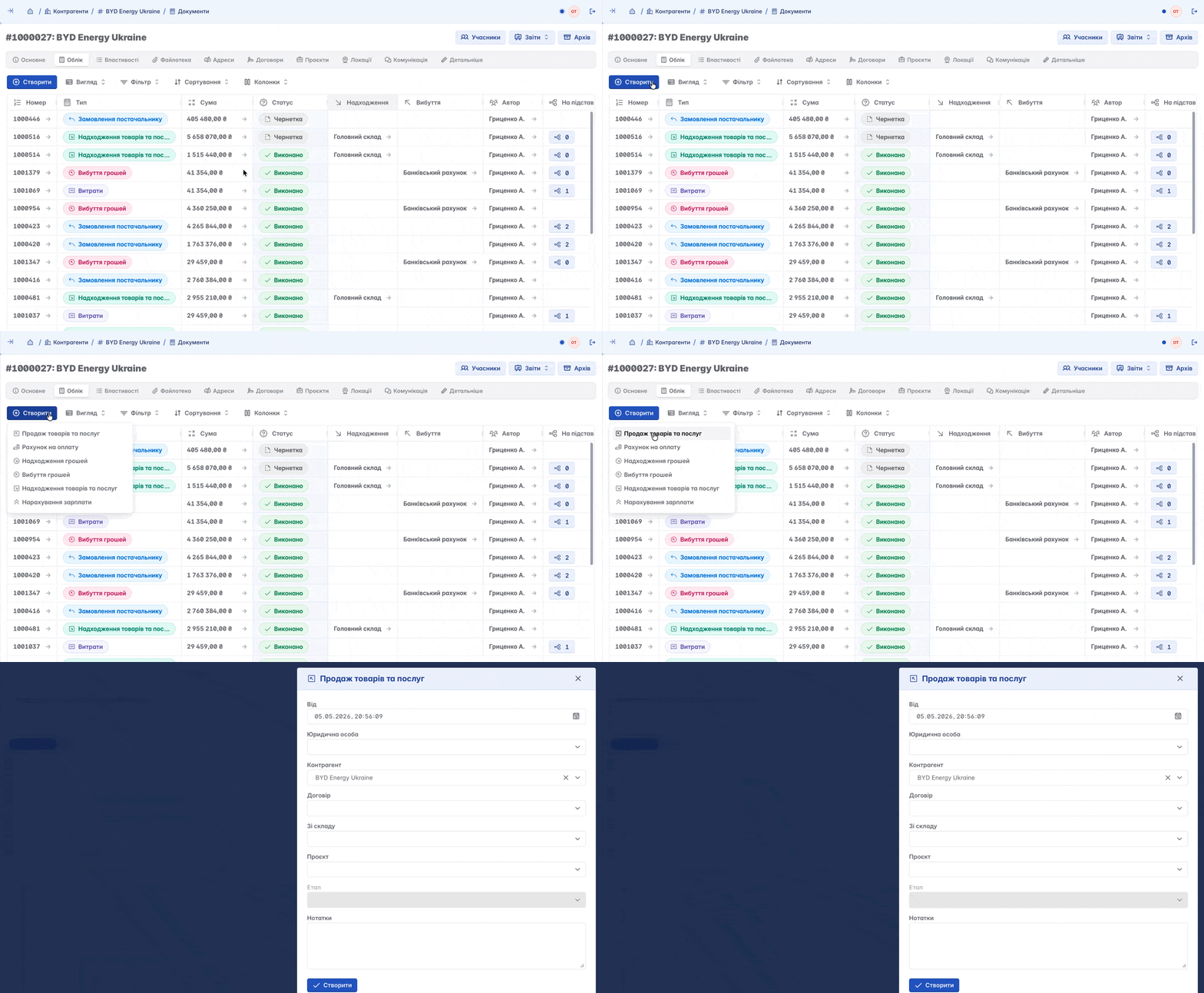
Accounting
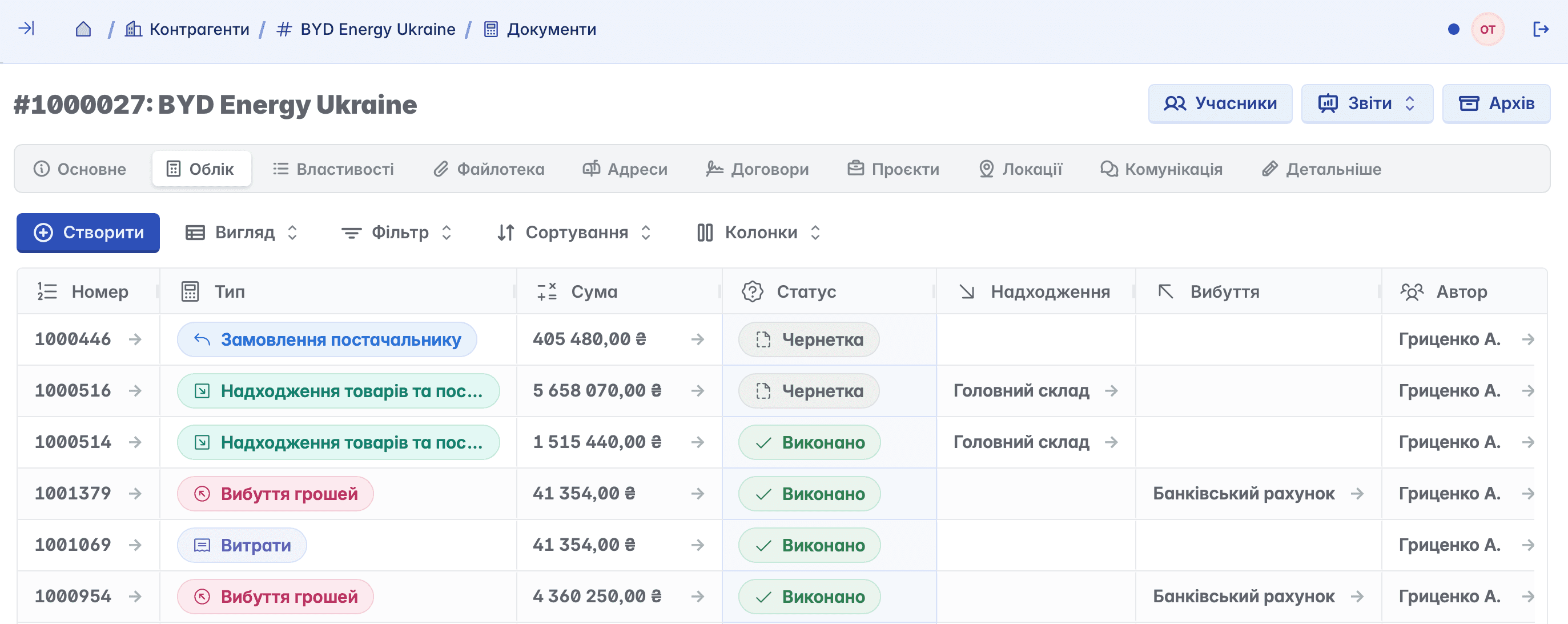
Operating transaction data. You can view all transactions carried out in relation to the selected counterparty (orders, sales, incoming payments, etc.). In simple terms, view all documents where the selected counterparty is present
Existing documents are displayed in table format. In addition to viewing, you can create a new document by clicking the "+Create" button
Properties
Additional features, custom fields determined by the user depending on their needs (e.g., product delivery terms, etc.)
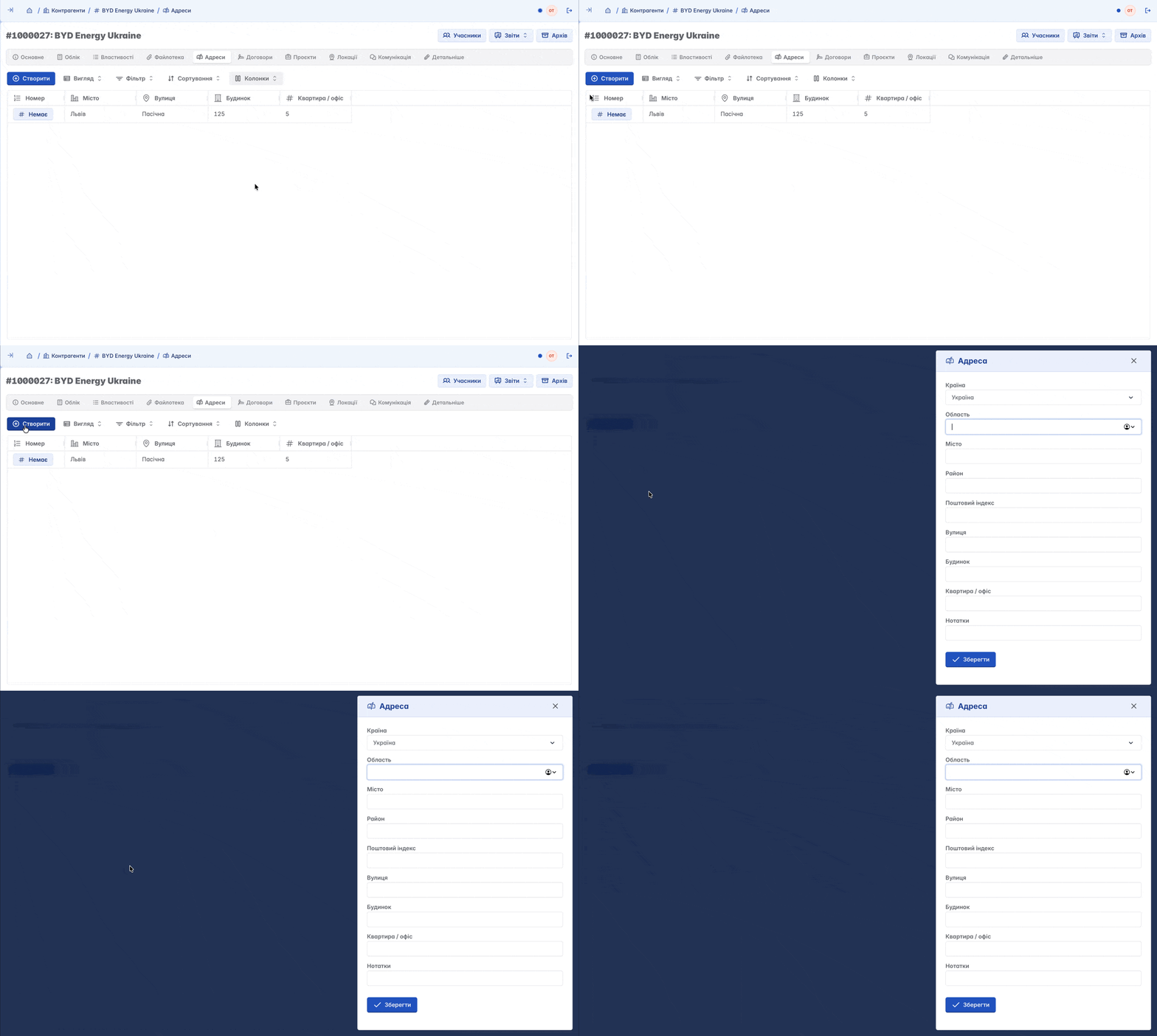
The physical location of the counterparty. There can be several addresses, depending on the specifics of interaction
For example, if the counterparty is a chain of stores, you can enter all actual addresses where trade is conducted and add notes or comments as needed
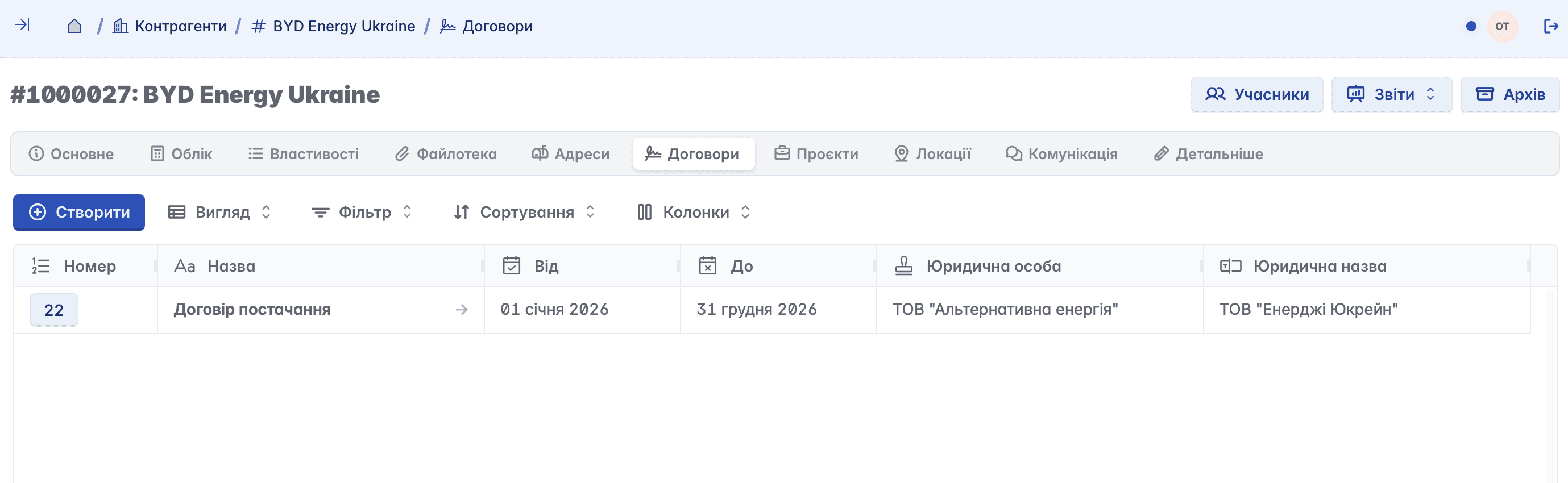
Contracts
Legal information regarding interaction with the counterparty. The "Contracts" tab is used to register signed contracts
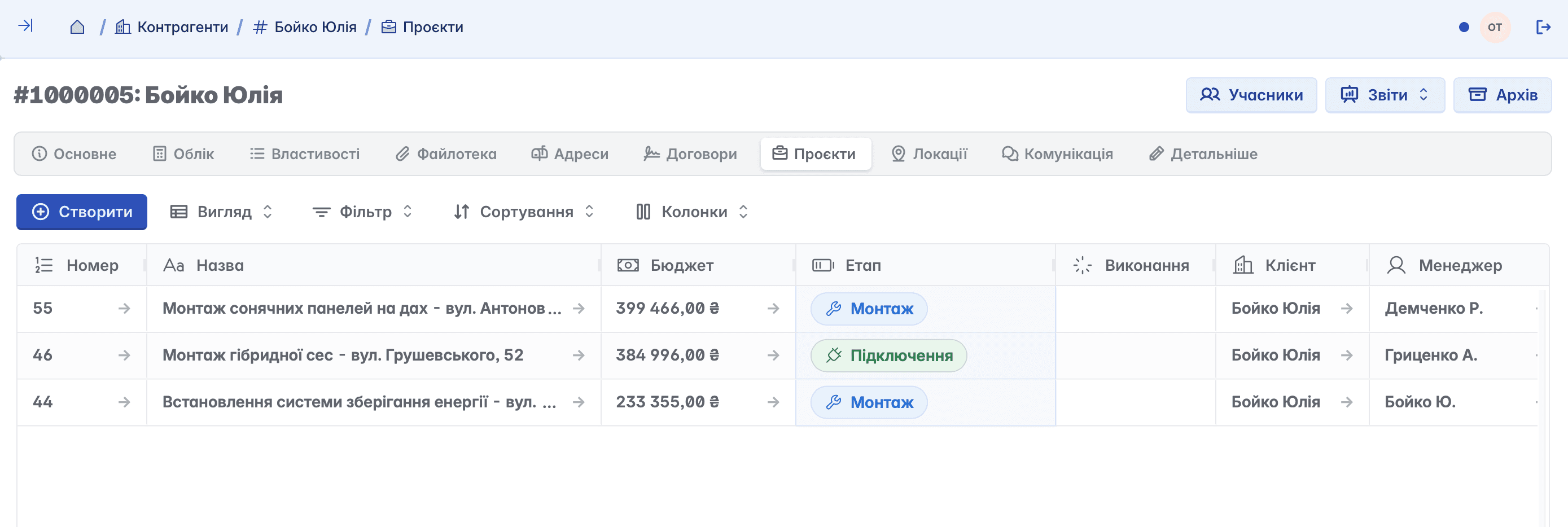
Projects
A list of projects containing the selected counterparty
Locations
Additional warehouses of your company. An employee can be assigned as responsible for a specific location. For example, if you have a chain of stores, you can assign an employee-counterparty to the respective store
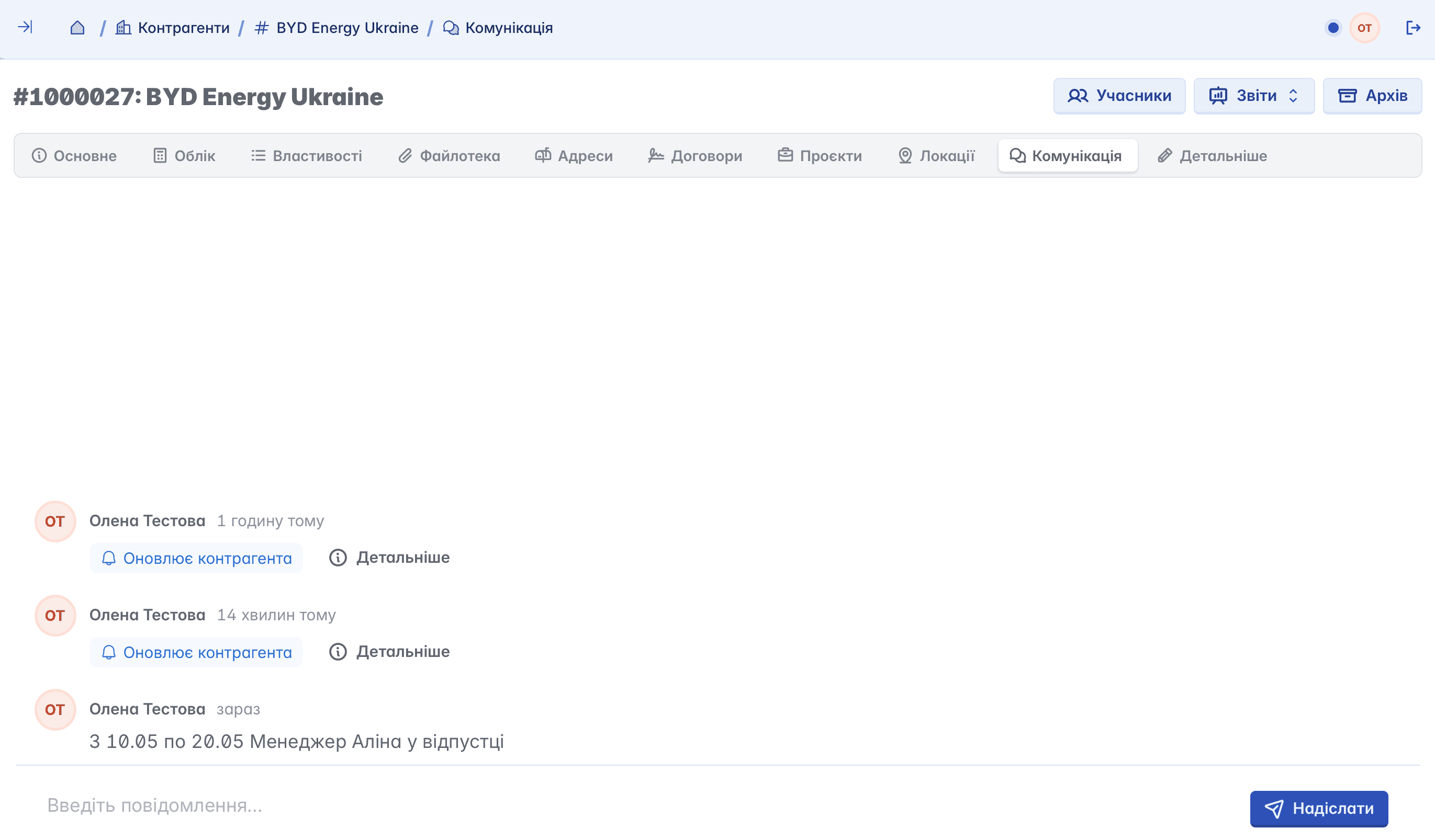
Communication
An internal chat regarding relations with the counterparty. The history of actions is saved here, and we can also leave comments to discuss details and coordinate work
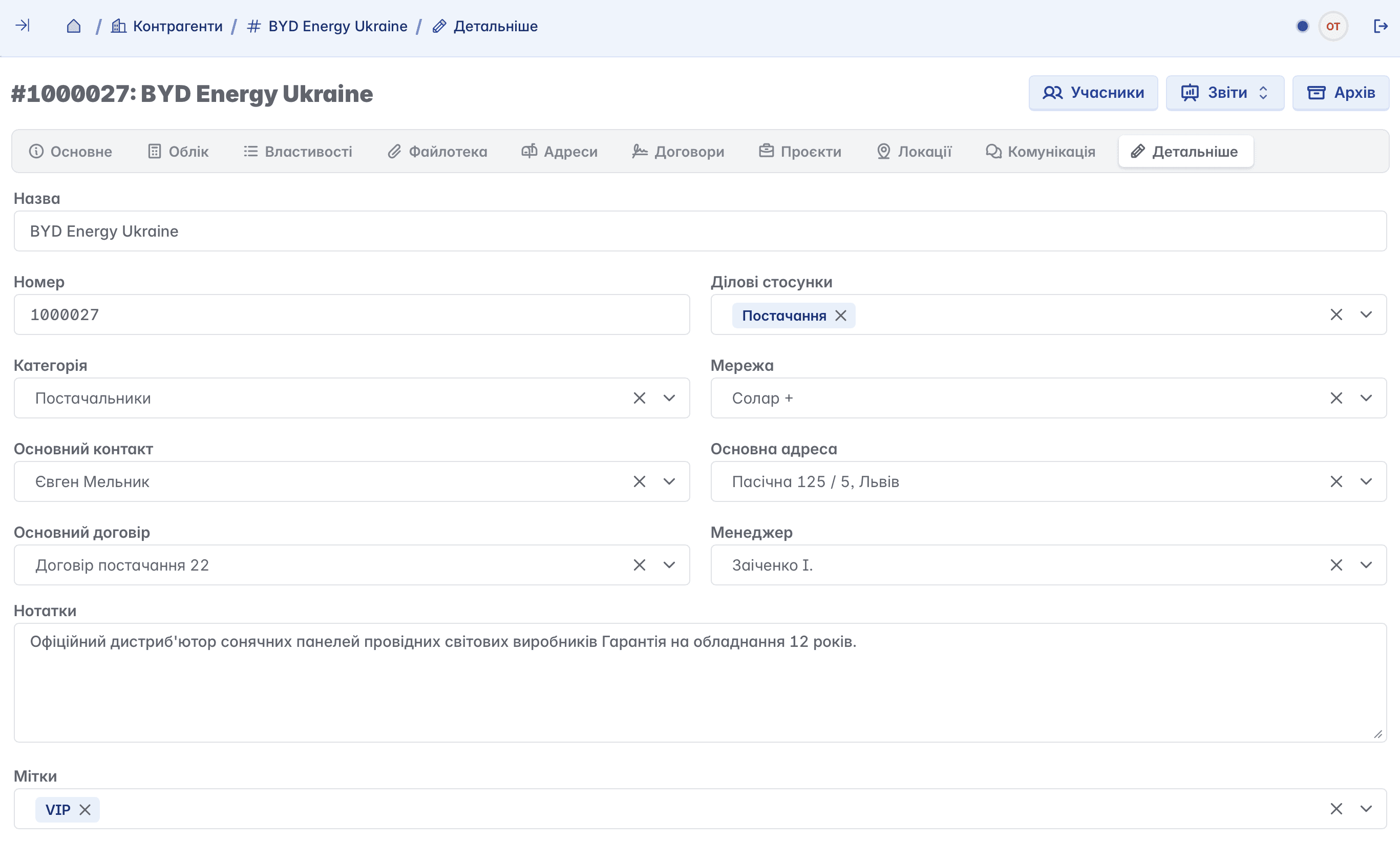
. Details
Functionality for editing or adding general information about the counterparty. Here you can change the name, manager, category, add notes, etc.
You can also add tags for counterparties here, which helps structure the customer base and quickly segment it (VIP, new, problematic)
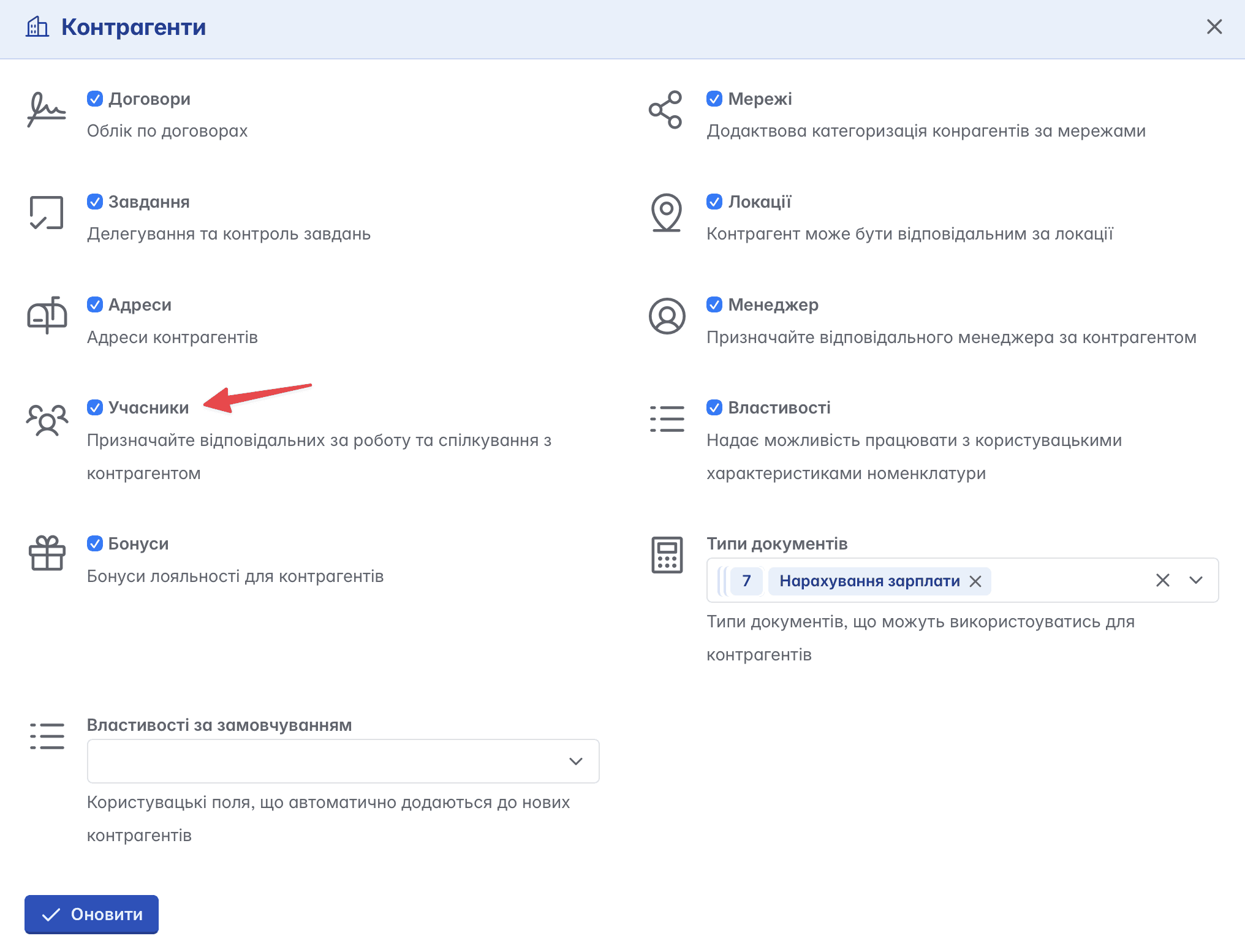
Adding members
Members are company employees who are granted access rights to specific information. Unlike a manager, you can assign several members to a counterparty
When members are assigned to a counterparty, their initials will be displayed in the upper right part of the page
The option to add members to a counterparty is also configured in the "Features" tab of the service
Counterparty Reports
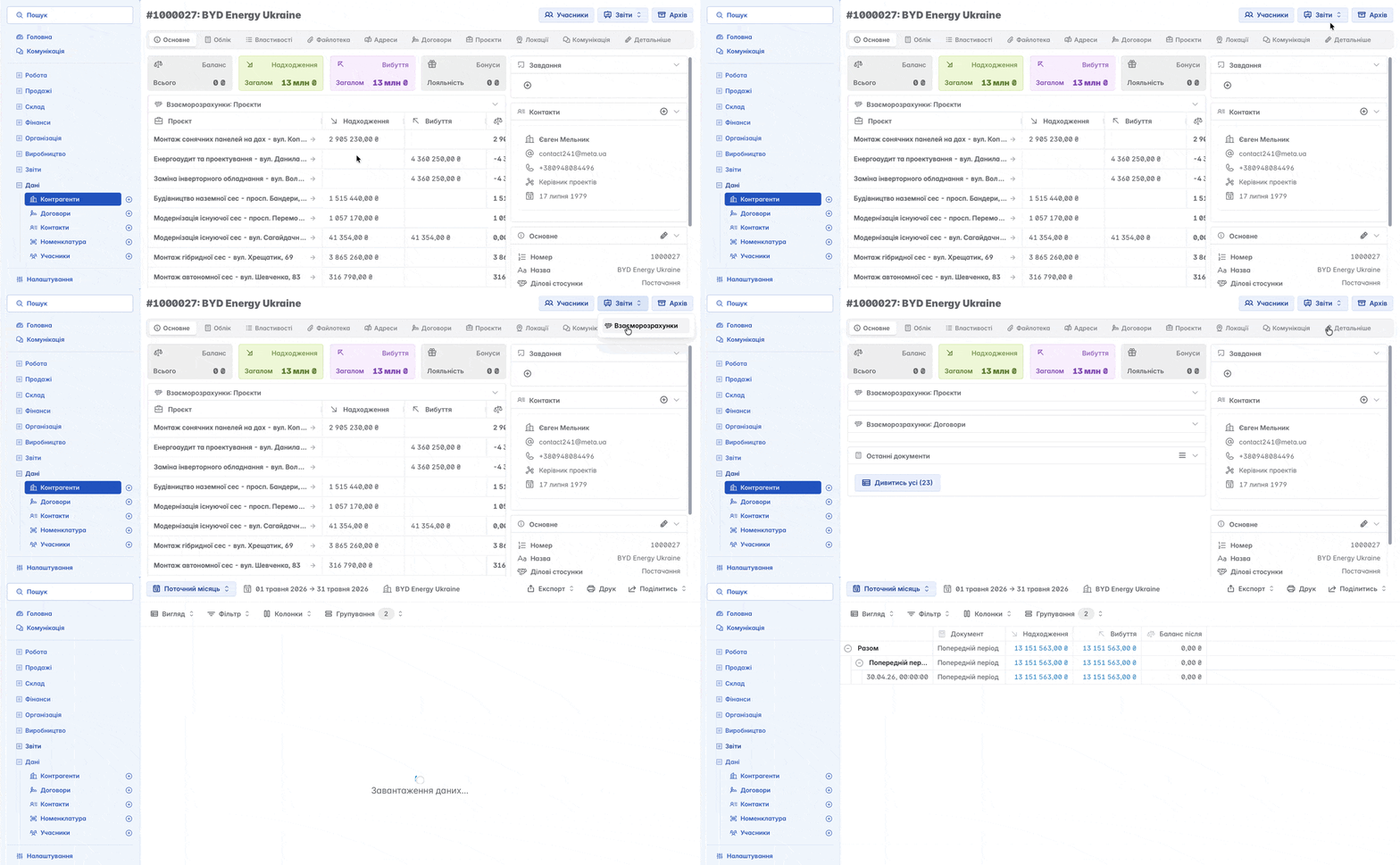
The "Reports" tool allows you to view detailed analytics on counterparties
General analytics can be viewed not only through the "Reports" tool, but also directly on the main counterparty page
Balance - the difference between inflows and outflows. For example, a negative balance means that the counterparty has not paid the full amount according to the created documents
Inflows - the sum of payments received from the counterparty to the company according to the created documents
Outflows - the total sum of documents for goods or services issued by the company to the counterparty
Bonuses - the amount of accrued discounts, bonuses, loyalty programs, etc.
By clicking on any of these blocks, you will automatically be redirected to the "Reports" section
Deleting a counterparty
A counterparty cannot be deleted - it can only be moved to the archive