Adjustment
Document settings
A document is one of the main tools in Keruj, it is a specific action, an accounting element that records a business transaction: financial, trade, organizational, etc. A document belongs to a certain type, and it is the document type that determines the functionality and behavior
Their purpose:
Recording transactions: cash outflow, cash inflow, receipt of goods, returns, etc.
Process automation: warehouse accounting, inventory
Reporting on sales, expenses, profits, balances, etc., is generated based on documents
Location
Documents are an integral part of each Keruj module. The tool for configuring document types is located on the left navigation panel, in the "Settings" section, "Accounting" block
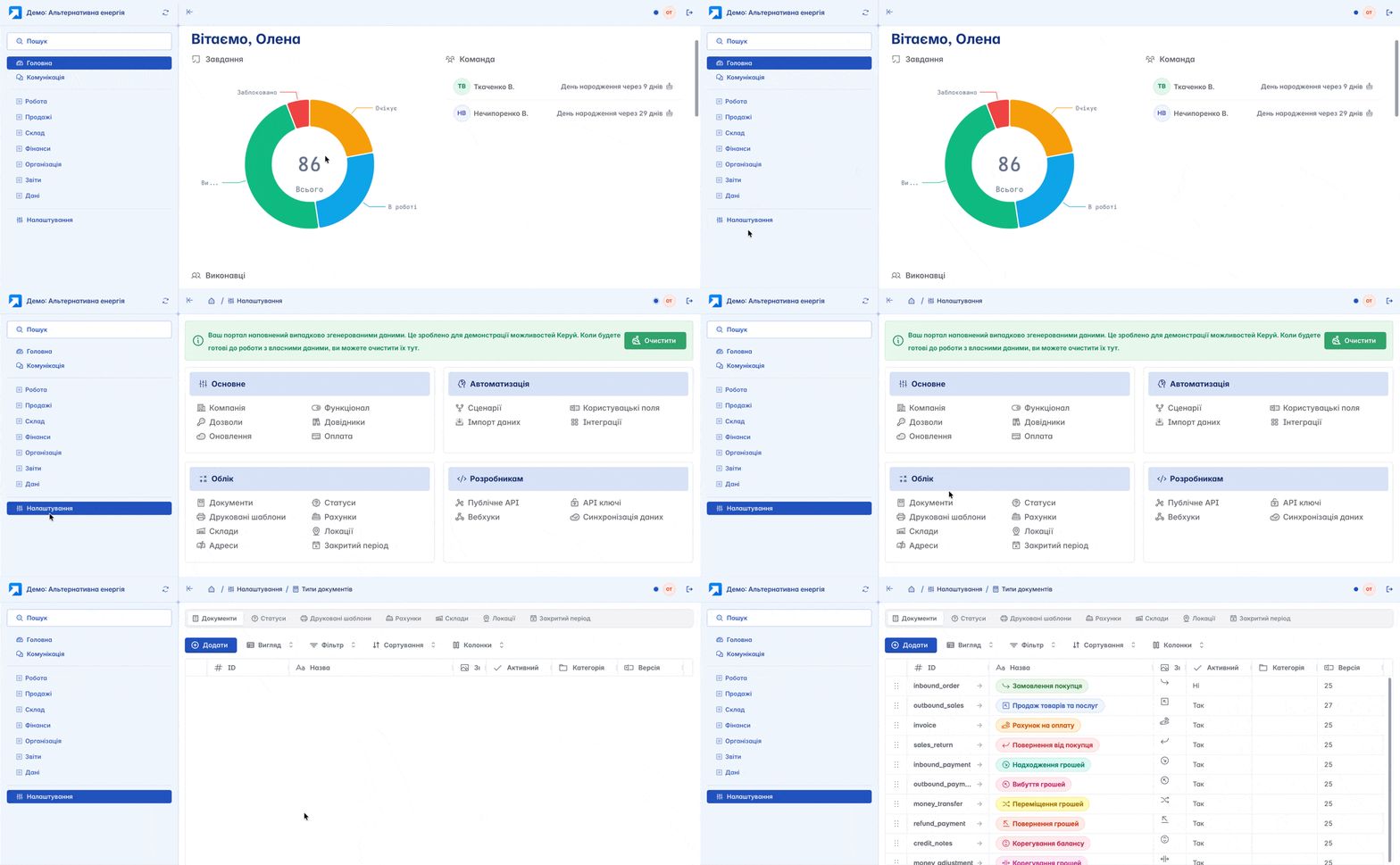
This is where you have the opportunity not only to view and adjust existing documents but also to create an completely new document type according to your company's needs
Adding
You can create a new document type by clicking the "+Add" button on the main page
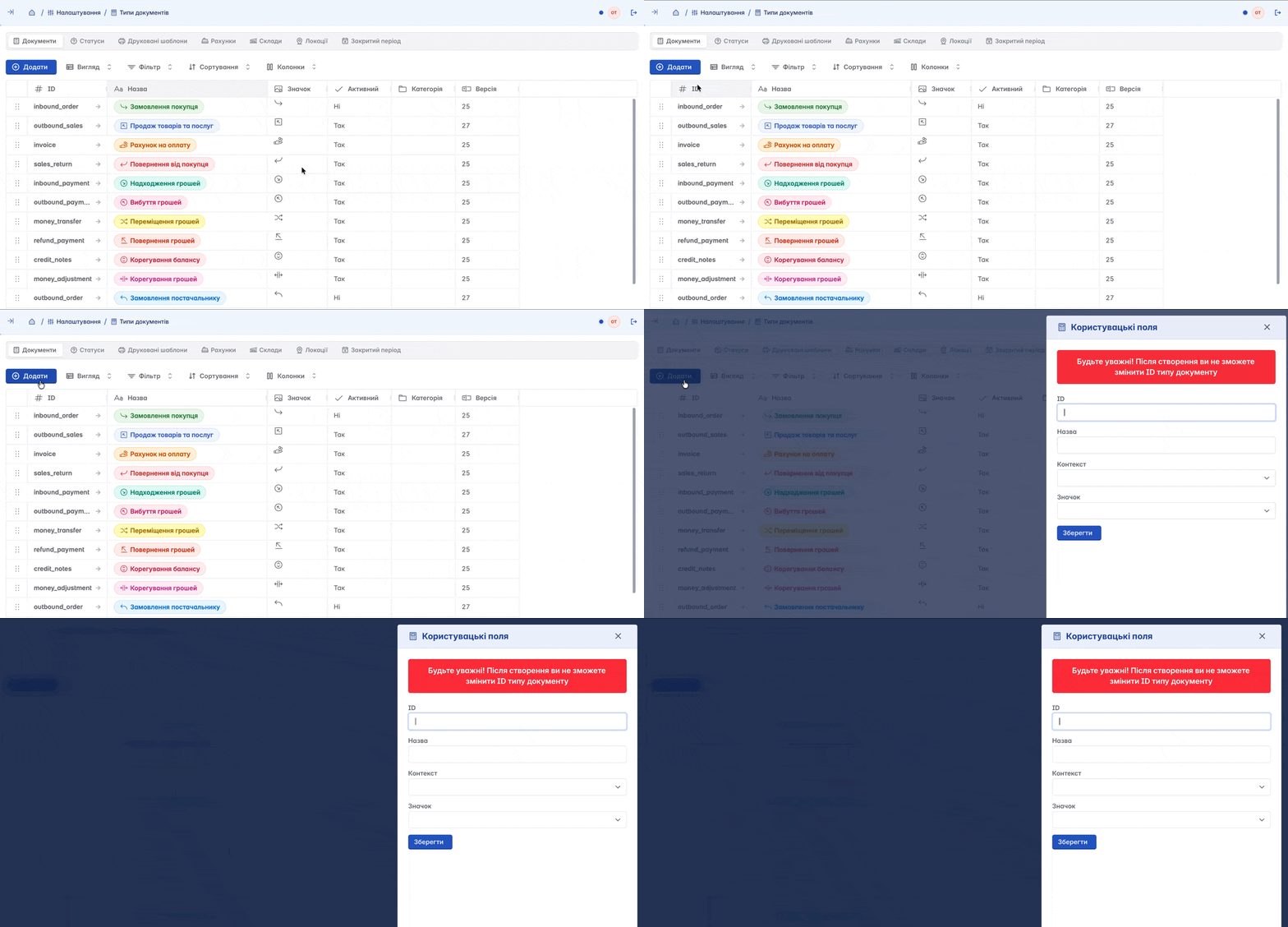
Form for creating a new document type:
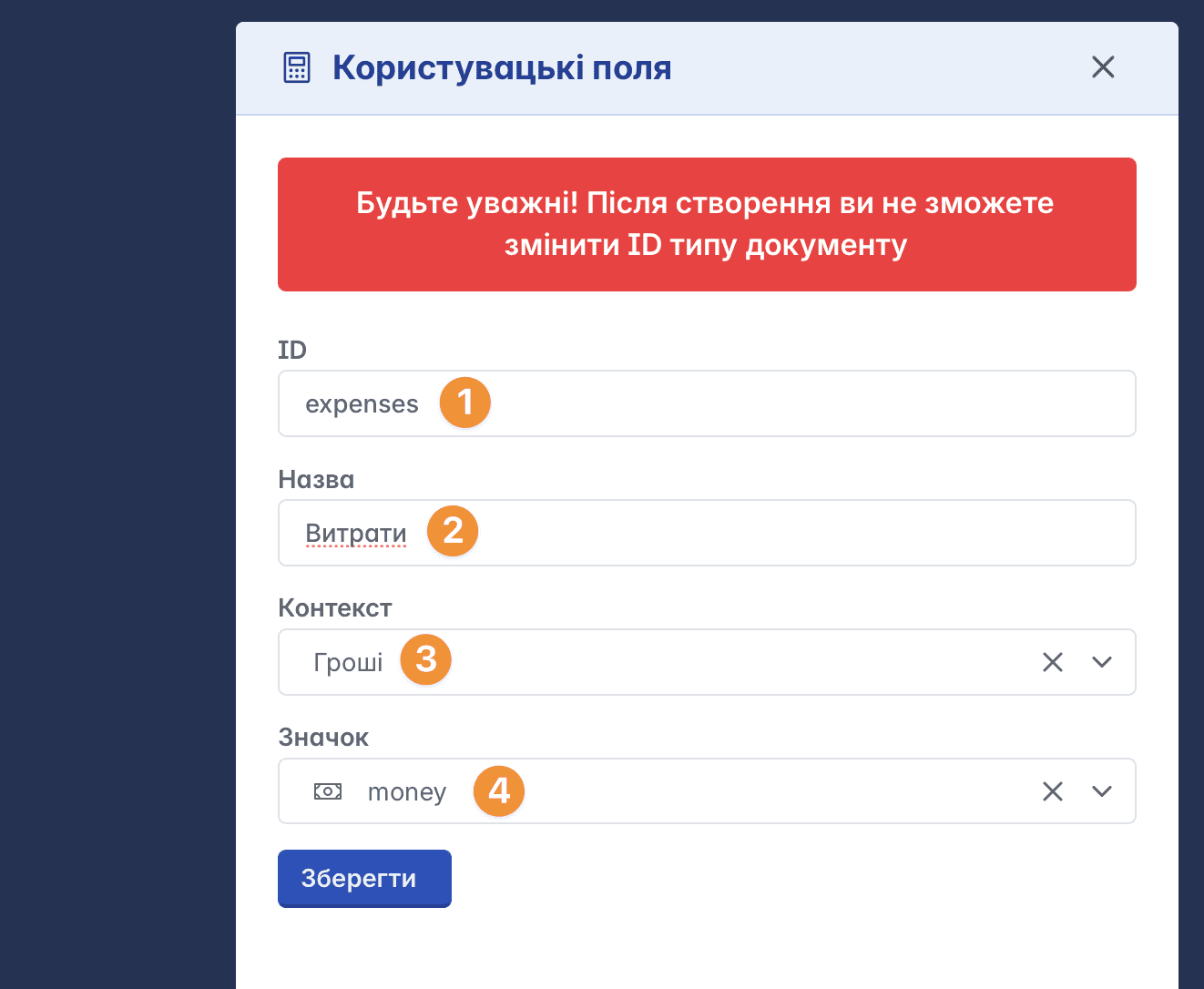
ID - document identifier, this is an entry in English corresponding to the command that the document will execute. For example: expenses - expenses, sales_return - return from customer, etc. Be careful, because this value cannot be changed after the document type is created
Name - directly, the name of the document. Actually, this is the identifier translated into Ukrainian (Expenses, Return from customer, etc.)
Context - this is the condition (environment) for which this document will be applied (Money, Nomenclature, etc.)
Icon - an icon/image preceding the document name and representing its graphic image
Document settings
The functionality for setting up the document contains a number of tabs located in the top menu
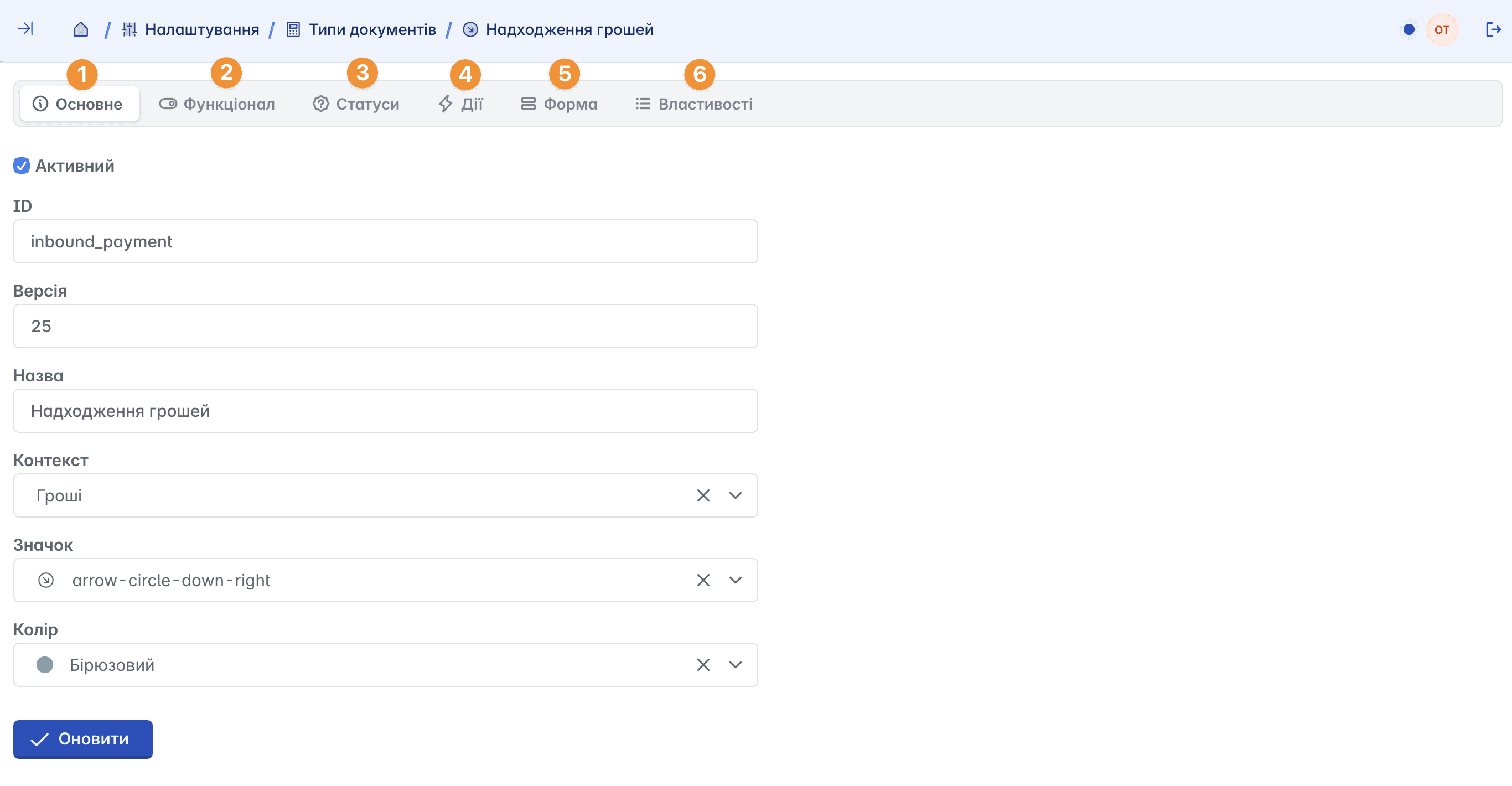
Main
A tool for editing general information about a document. Here you can change the name, context, icon, and add a color
Functionality
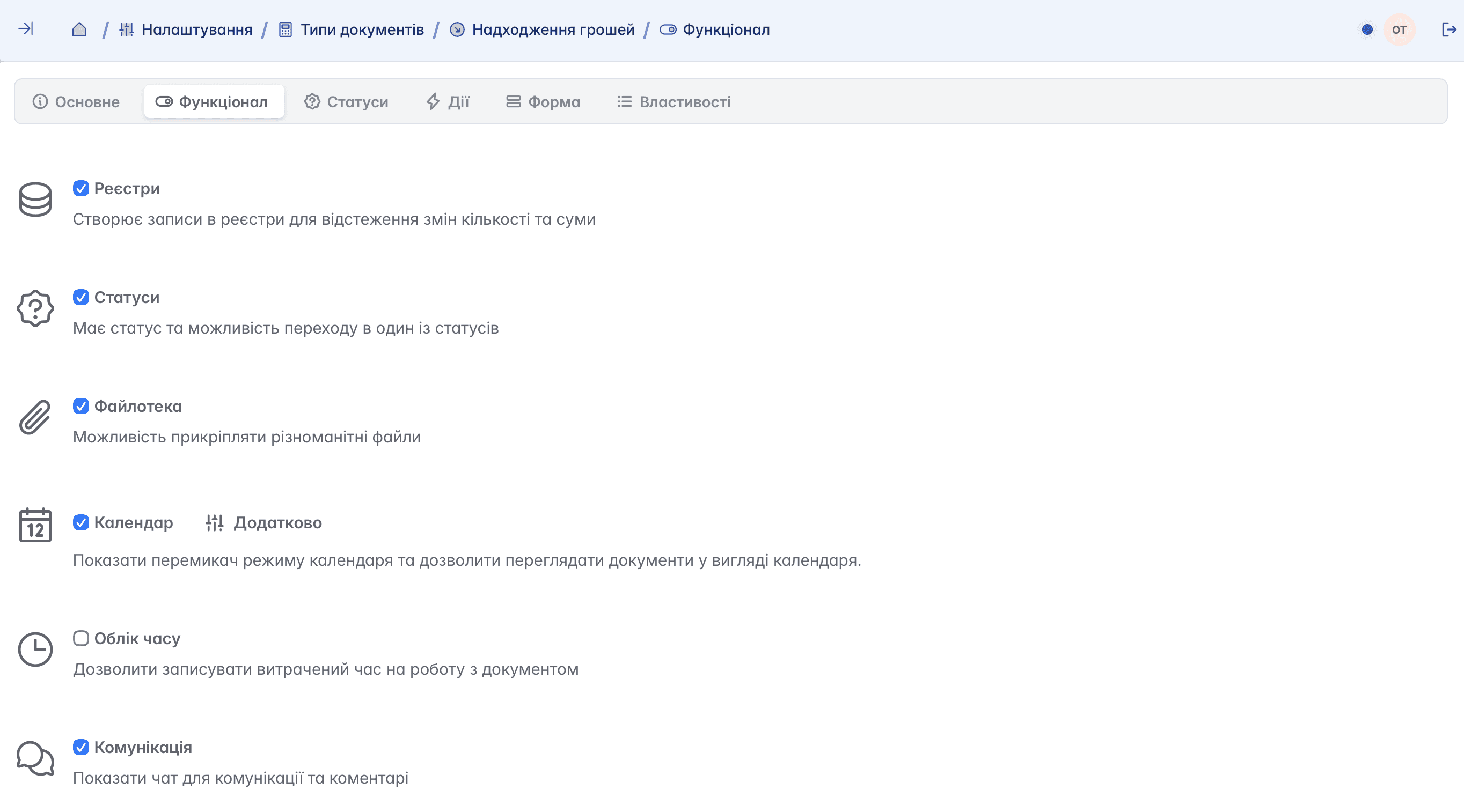
Using this tool, you define certain additional functions for the document (for example: file library, ability to assign participants, communication, display of statuses, etc.)
Statuses
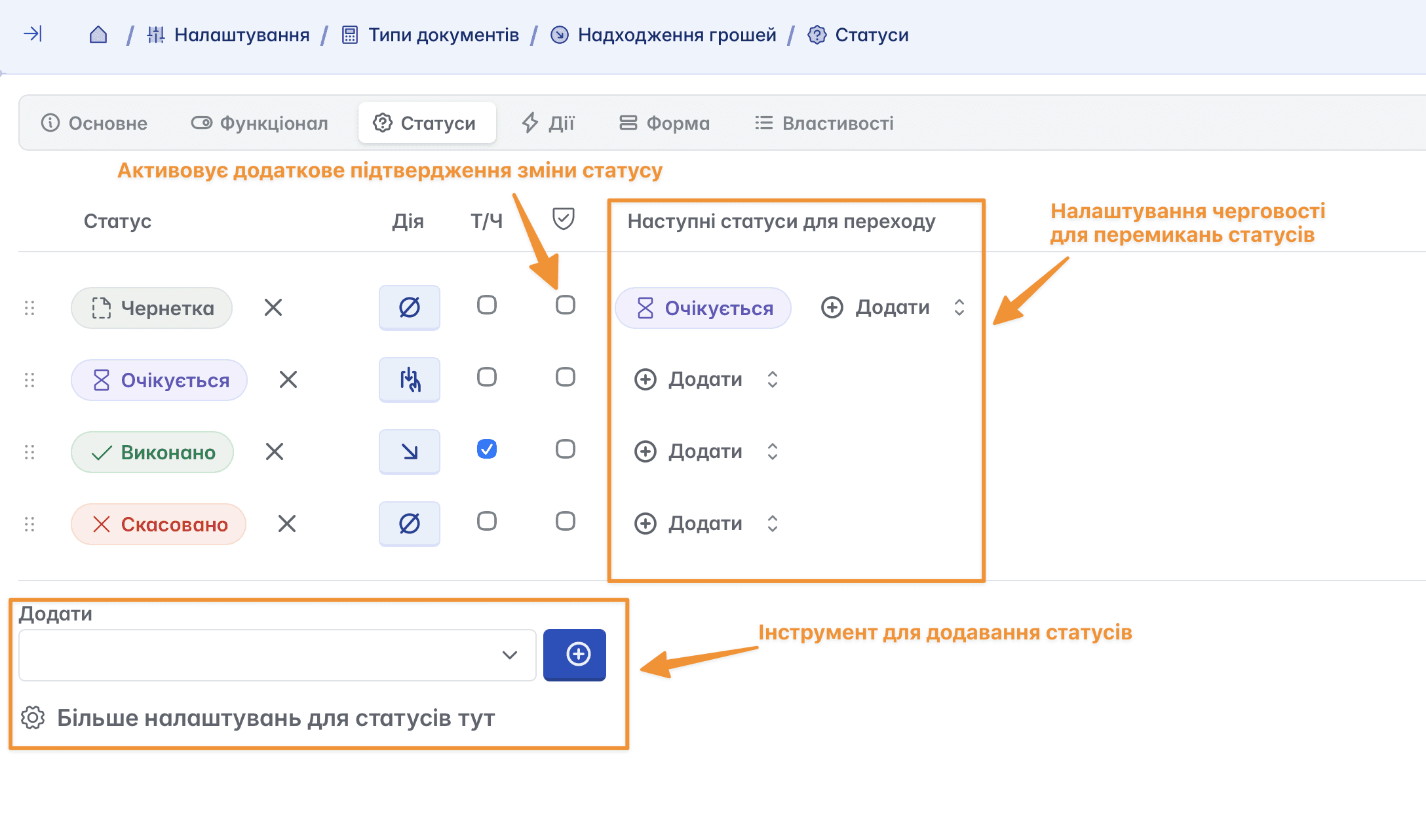
A tool for linking specific statuses to a document type. You can add any status from the suggested list by selecting it and clicking the "+" symbol or Create a new status by going to the Settings section
Actions
Functionality that defines the capabilities of the document. Here you can:
add a field for entering an amount
provide the ability to create new documents based on the current one (for example: create an invoice based on a customer's order, etc.).
define fields to be filled out when creating a document (for example: category, responsible person, counterparty, etc.)

Form
A tool used to design the appearance of the document's main page
Here you can:
choose fields to be displayed in the document form
configure additional parameters for individual fields
add fields for working with subdivisions, legal entities, counterparties, contracts, locations, accounts, equipment, etc.
create a convenient structure for the form according to the specifics of the company's work

Properties
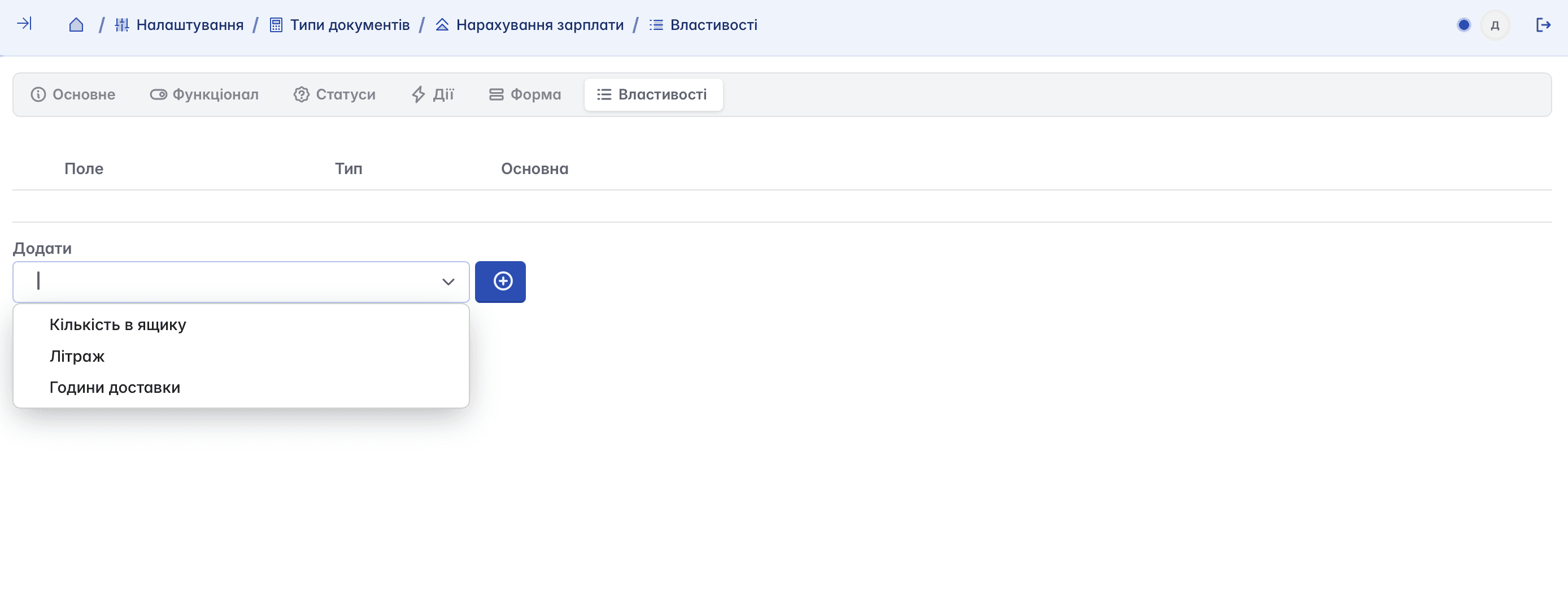
These are additional custom fields that you create independently if the general scope of tools is not enough to configure the document. For example, you can add a "Delivery Hour" field, which will be relevant for generating customer orders, etc.
Document card
According to their purpose, documents are divided into warehouse and financial. Warehouse documents contain the nomenclature, while financial documents record the financial processes of the company, including receipts, outflows, and transfers of funds
Some fields and tools may differ depending on the type of document, in accordance with its functionality and purpose
Main
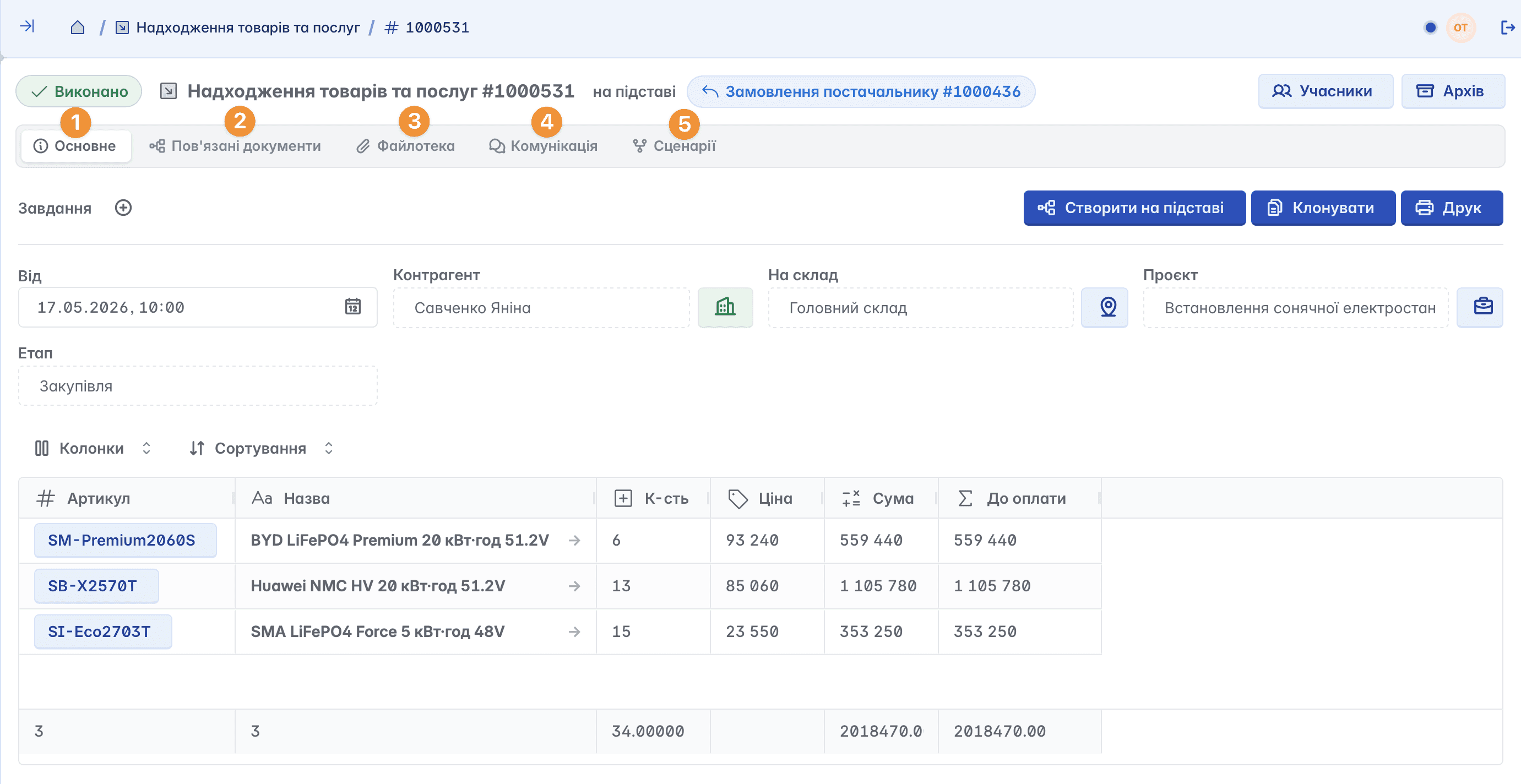
The main page of the document. In terms of its structure, the document card consists of a header with details, a functional panel, a tabular section (for warehouse documents), and working tools
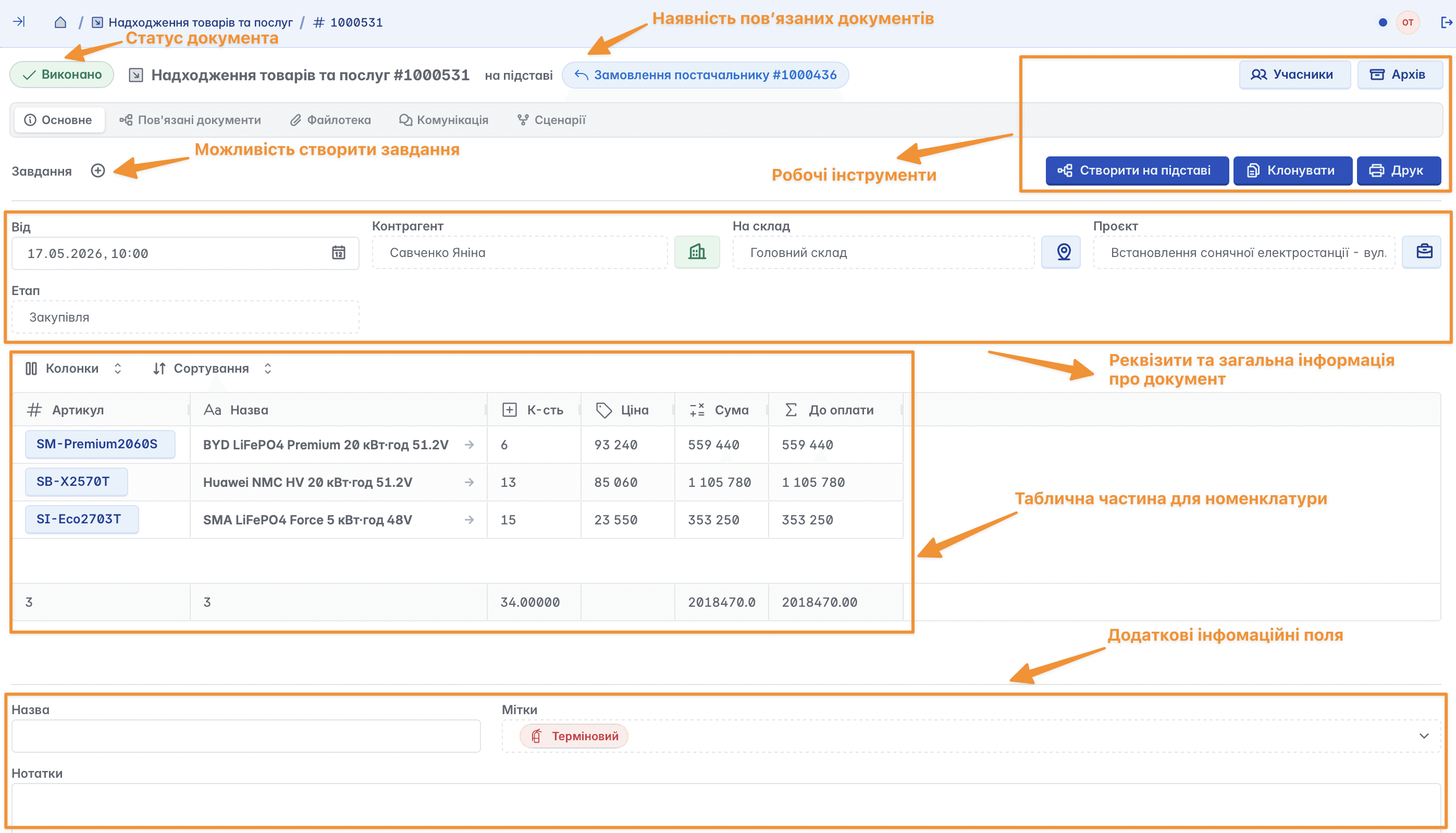
Here you can add nomenclature, create tasks, change amounts, warehouses, accounts, counterparties, project affiliation, add participants, as well as print the document
Related documents
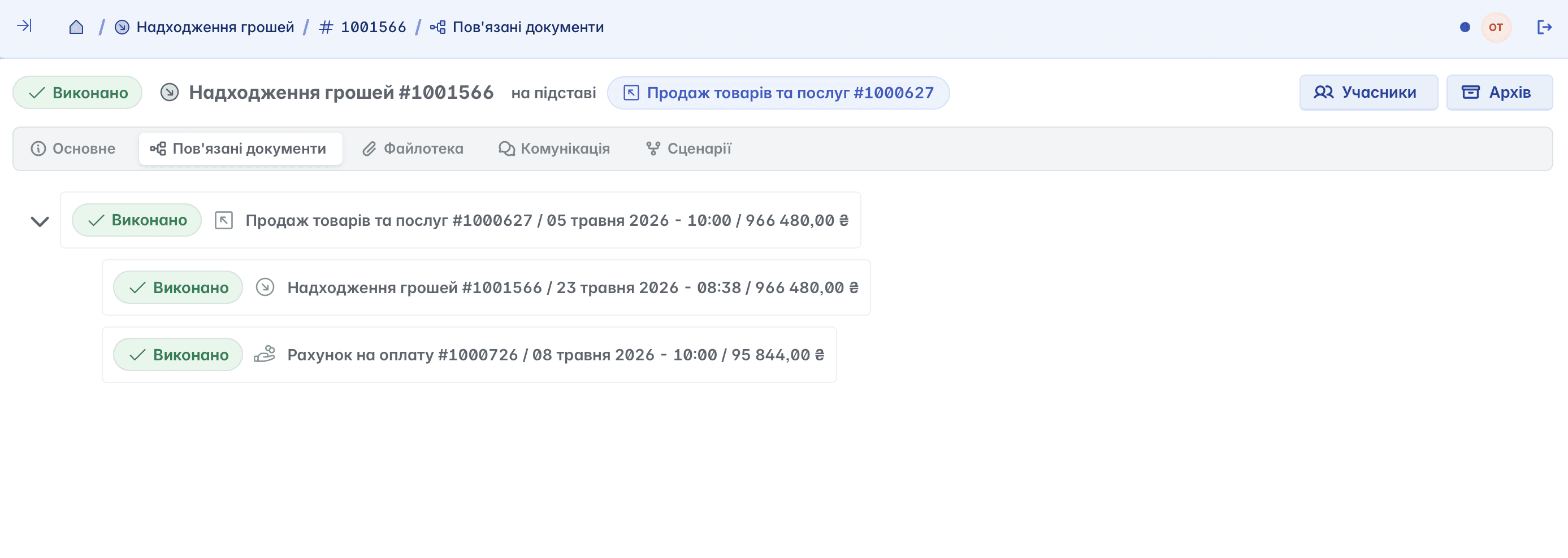
A tool with which you can analyze all documents created based on the current document, as well as view and analyze the entire chain of related actions and processes
File library
Archive of uploaded files or images, used for storing scans of documents, warranty cards, or quality certificates, etc.
Communication
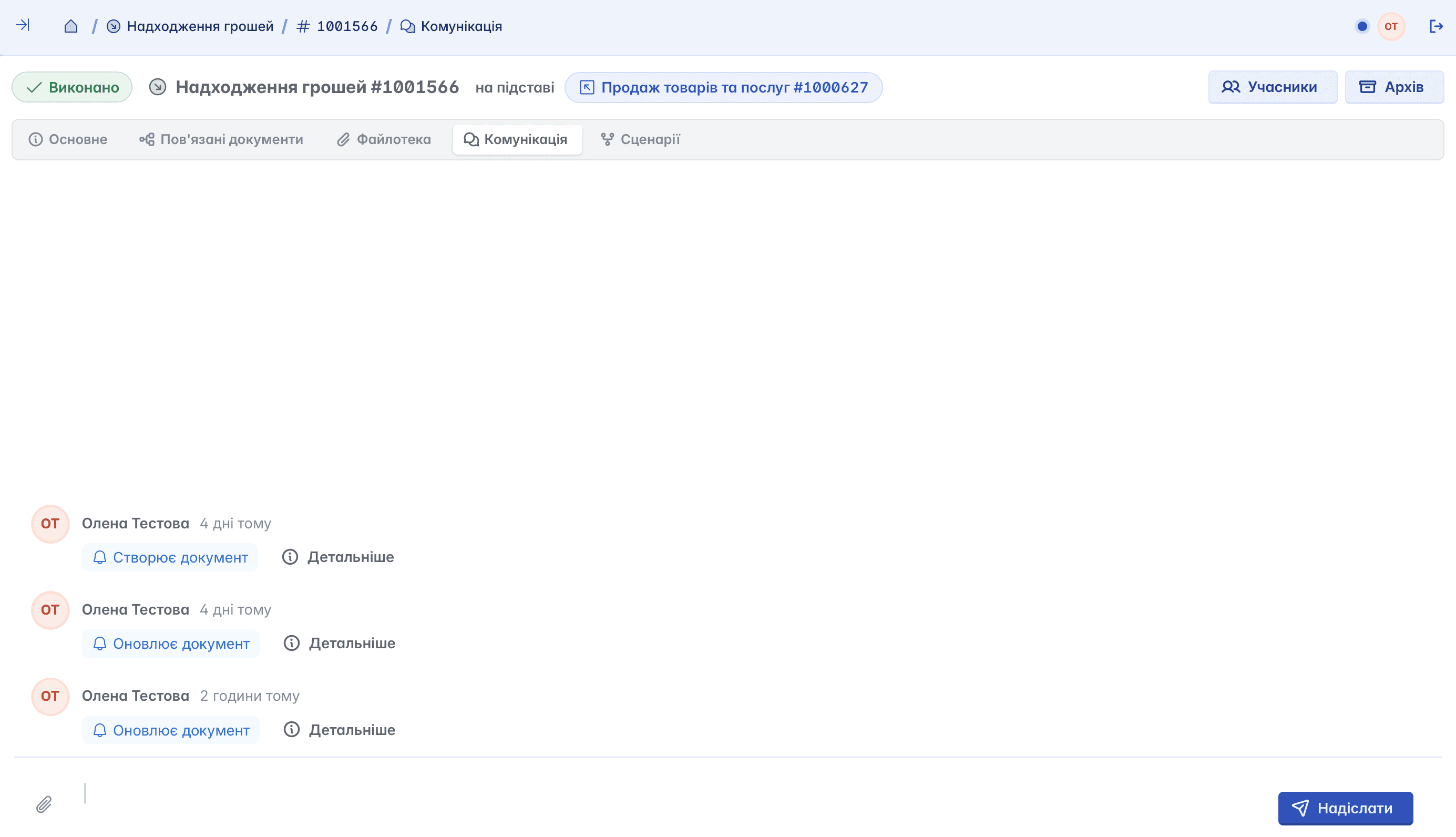
Internal chat regarding actions within the document. This is where the history of actions is saved, and you can also leave comments to discuss details and coordinate work
Scenarios
A tool that allows you to configure automatic processes inside the document, for example, automatic status change, execution of actions under certain conditions, launching related processes, etc.
Creation based on
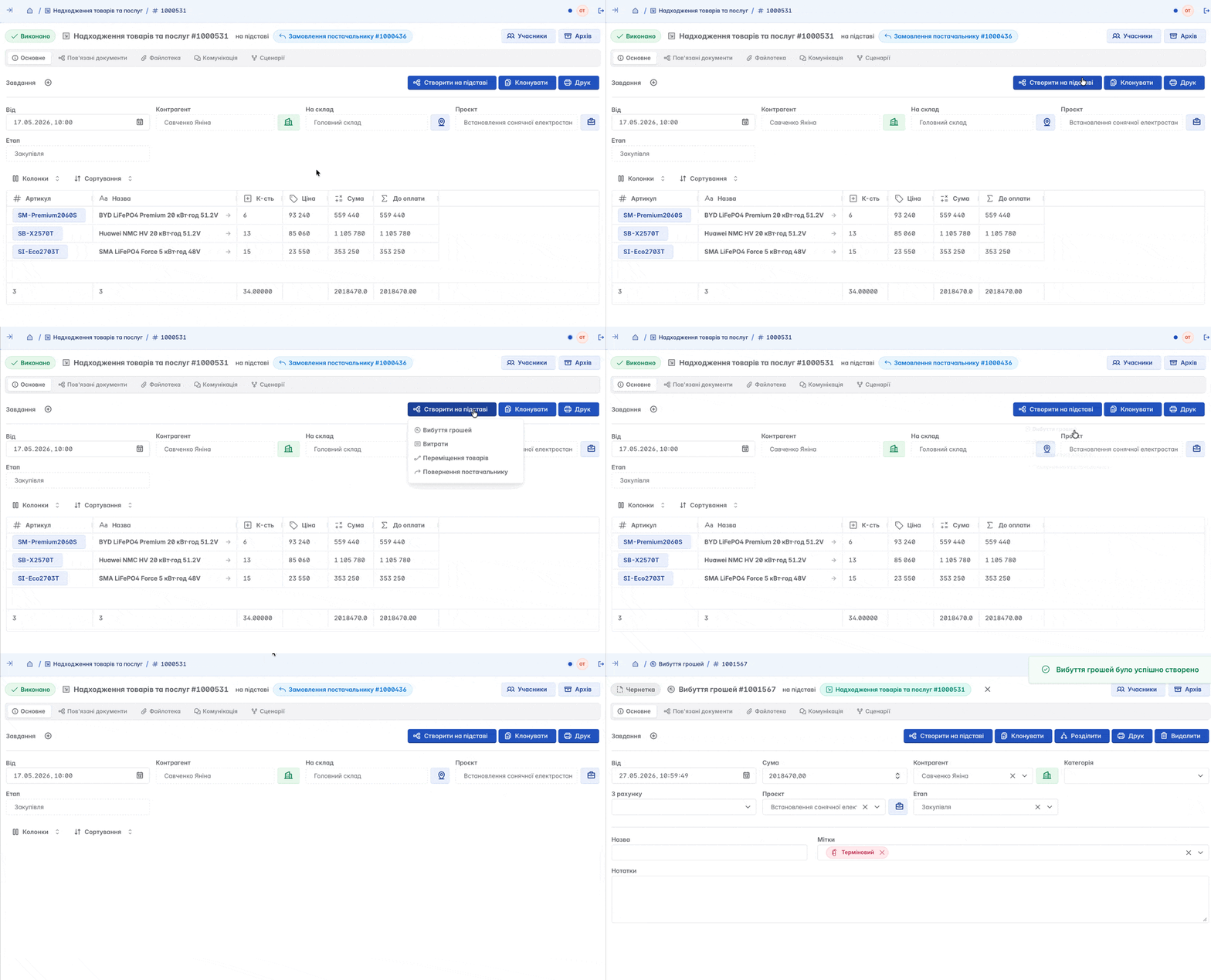
If the corresponding settings are present in the "Actions" section, it is possible to create documents of other types based on the current document. In this case, part of the information is transferred to the new document automatically, which speeds up the work and reduces manual data entry
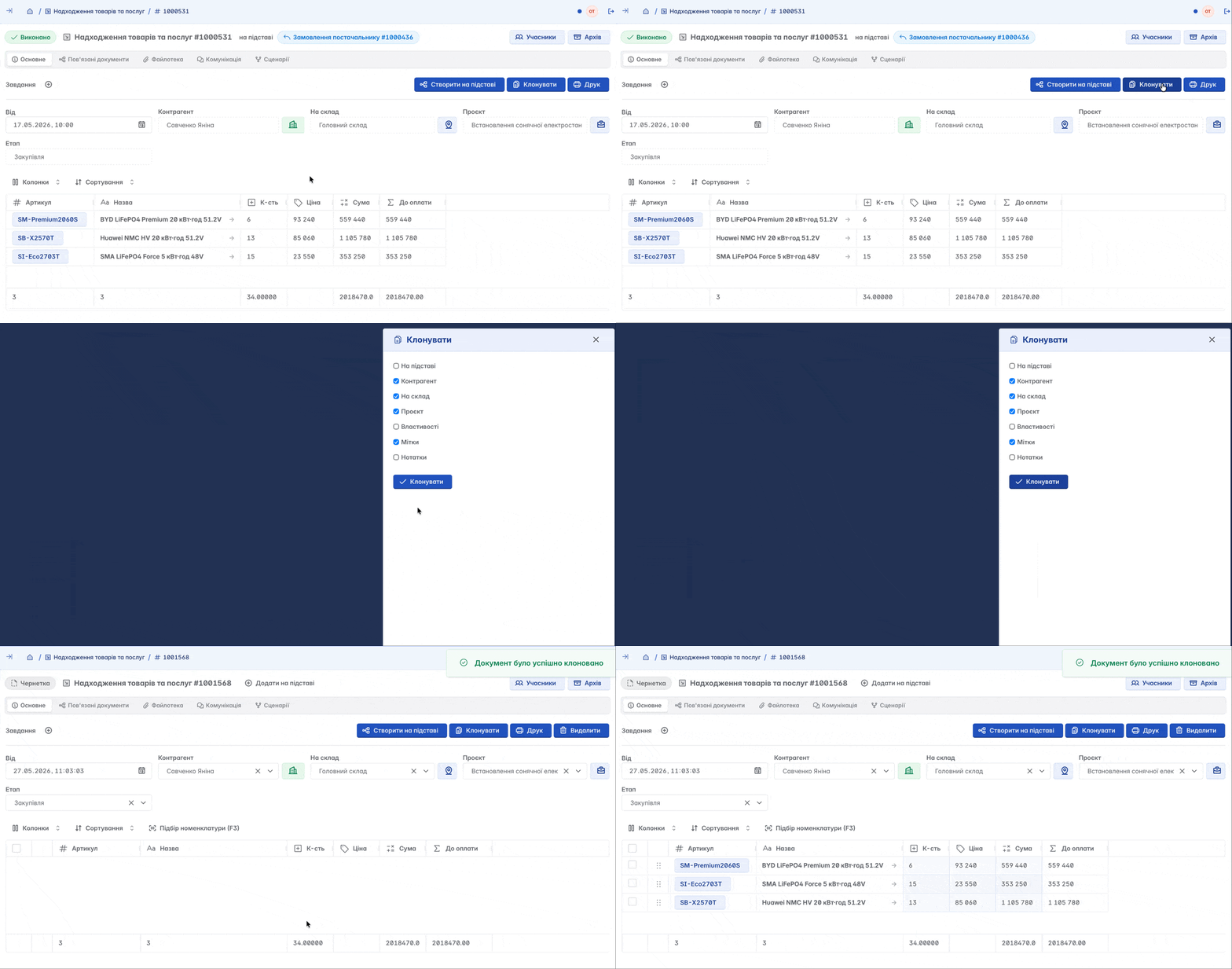
Document cloning
If necessary, you can clone an existing document, selecting which fields will be duplicated in the copy. This allows you to quickly create similar documents without re-entering data
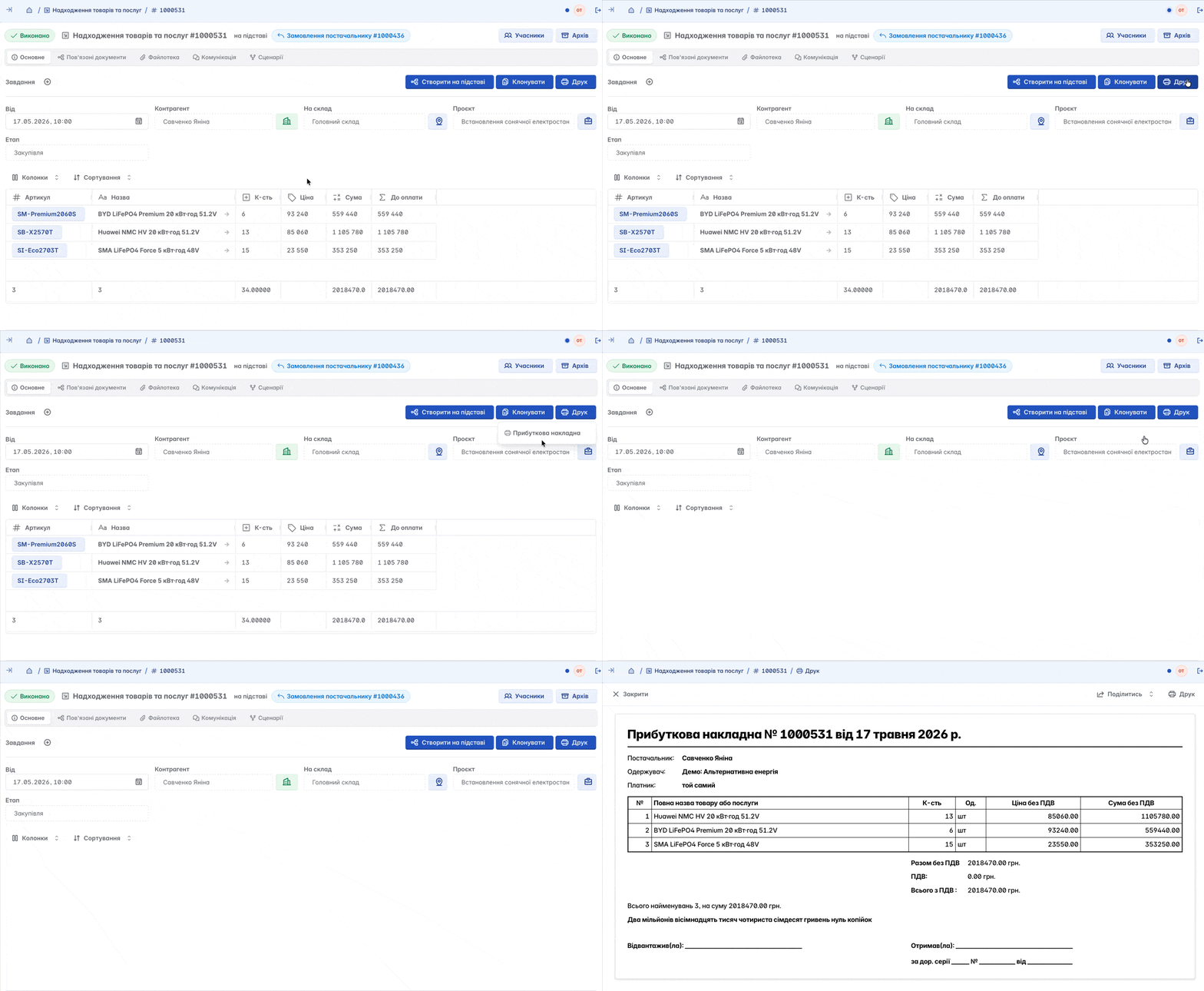
Printing
In Keruj, it is possible to create print templates. You can customize print forms yourself in your space, assign them to specific document types, and, if necessary, make changes at any time without using third-party software
Nomenclature selection
When the document status does not have the value "Completed", the special "Nomenclature selection" function remains active. Doing so allows quick addition of products and services to the document

In the nomenclature selection window, you immediately see the current quantity of items in the warehouse, the reserve volume, expected receipts, and the price. Simply indicate the required quantity in the corresponding field - and the nomenclature will automatically be added to the document
Nomenclature import
In Keruj, there is a convenient function for importing nomenclature from Excel files. It allows you to quickly add large volumes of data to the system and significantly saves time when working with products and services
Simply prepare the file in the required format and upload it to the system - the nomenclature will be automatically added or updated according to the entered data
Nomenclature import is carried out in a few steps:
Select file

Map columns

Review and import

All new items that are not in the existing nomenclature list can be created by Keruj automatically during import. This allows you to quickly add new products or services to the system without manually creating each item separately
Splitting and merging documents
The "Splitting" and "Merging" documents functions deserve special attention. They allow for flexible data processing and simplify accounting in various work situations
The splitting function allows you to divide one document into several separate ones, for example, to distribute goods among different warehouses, counterparties, or projects

Merging, on the contrary, allows you to form one document from several existing ones, gathering all the necessary information into a single document card

Adding participants
Participants are company employees who are granted access rights to certain information. You can assign several participants to a document

When participants are assigned to a document, their initials will be displayed in the upper right part of the page.
Archiving
If necessary, documents in Keruj can be moved to the archive. This allows you to hide outdated or completed documents from the main workspace without deleting them from the system

Deleting a document
If the document status does not have the value "Completed", the user has the appropriate access rights, and the document has no dependent records (for example, documents created based on it), it can be deleted from the system.

Related articles