Settings
Roles and access permissions
A role is a set of access permissions and functional capabilities that determine what a user can see and do in Keruj
Roles allow you to control user permissions regarding:
Reading data
Creating new records
Updating existing records
Deleting records
Archiving
Location
The tool for configuring roles and permissions is located on the left navigation panel, in the "Settings" section, "General" block
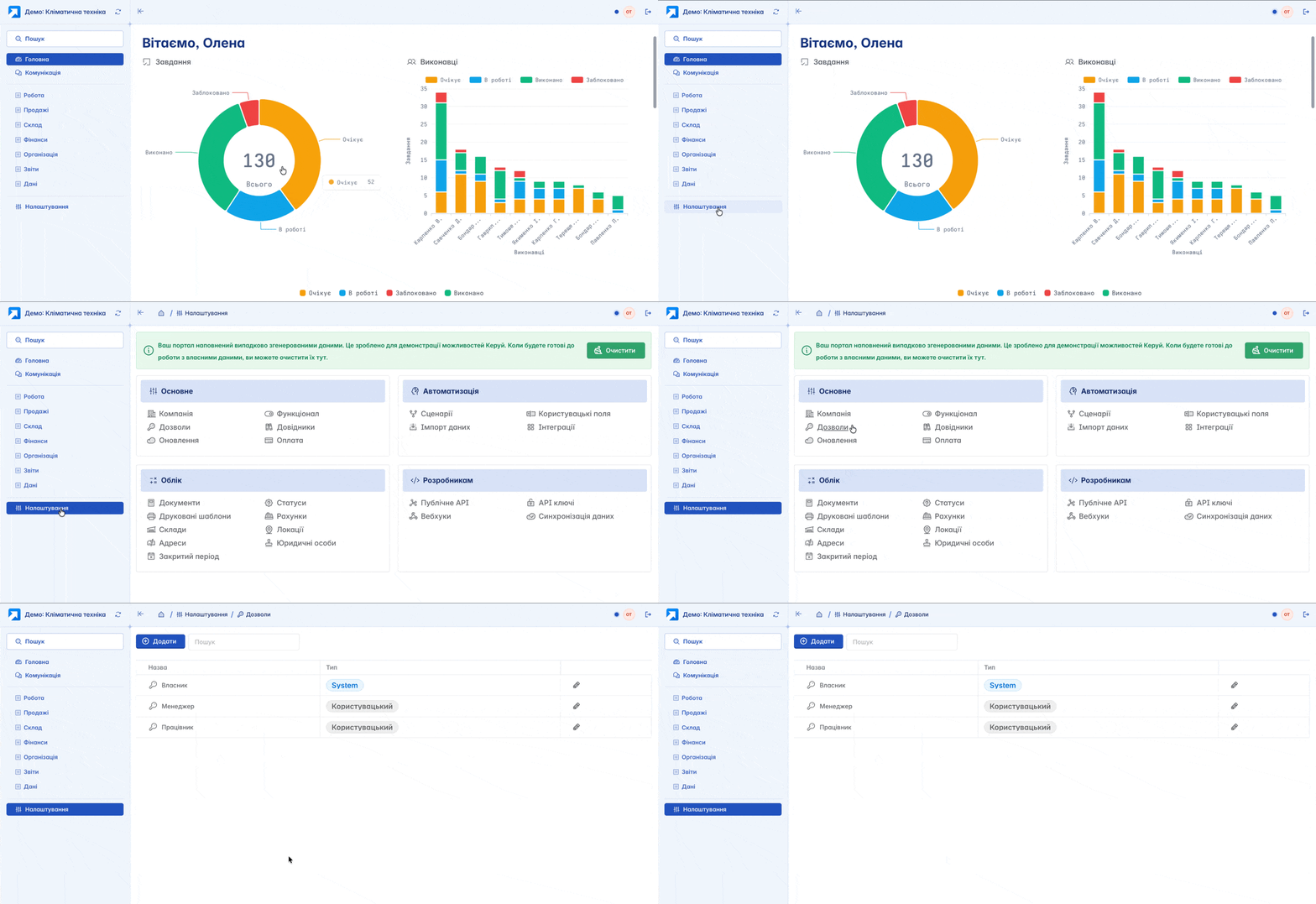
Here you can create new roles, edit existing ones, configure access permissions and available capabilities for users, as well as delete roles if necessary. Only the "Owner" role cannot be deleted or modified - this is a system role with unlimited permissions
Adding
You can add a new role by clicking the "+Add" button on the main page. In the form, you need to specify the Role Name (Warehouse Manager, Administrator, etc.). This is a descriptive name for convenient reference

Permisions Configuration
To configure permissions, click on the corresponding role. You will see a page with main settings categories where you can select the permission status from the proposed items

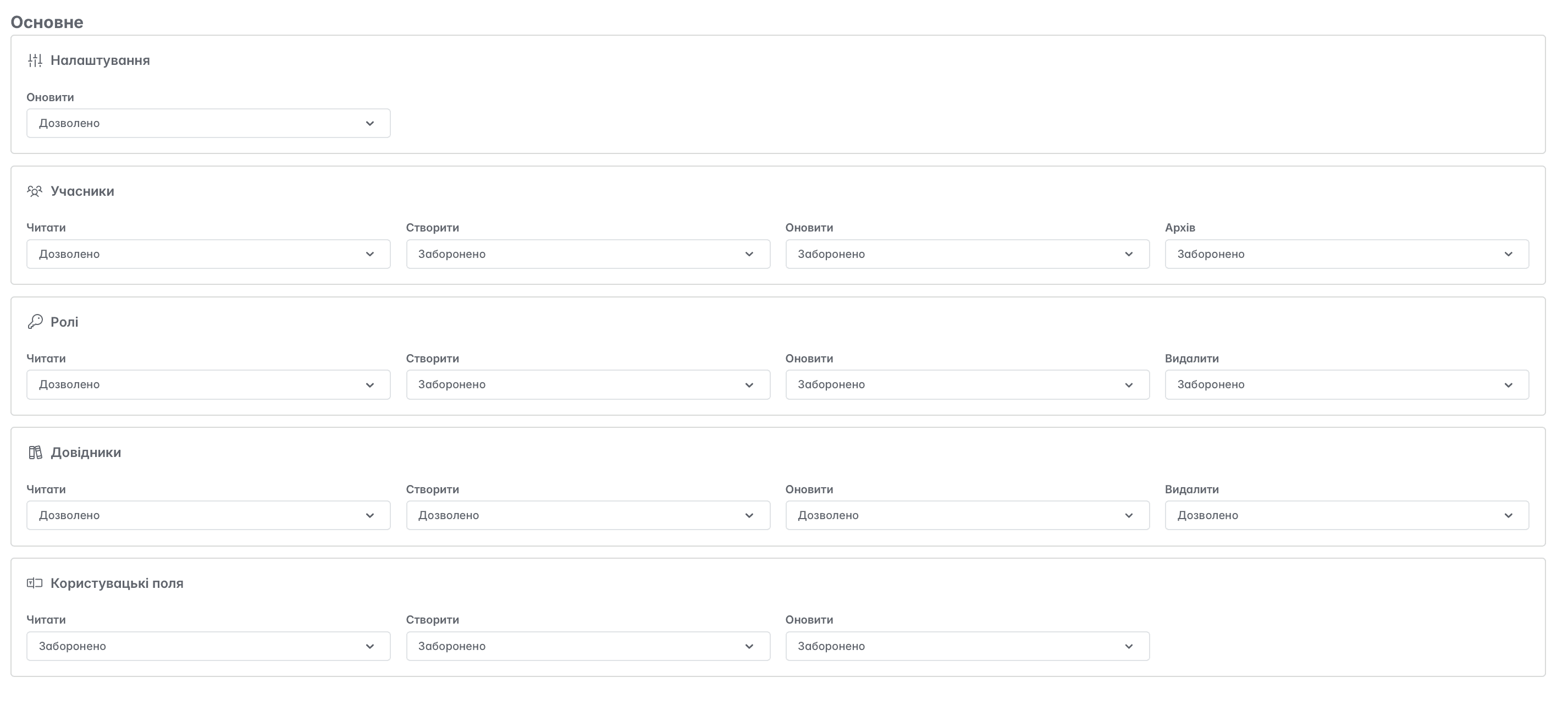
General
A category that defines access to viewing, creating, and editing specific settings items, such as Members, Roles, Templates, Reference books, and Custom fields. That is, you determine whether the employee will have access to the settings of your Keruj workspace
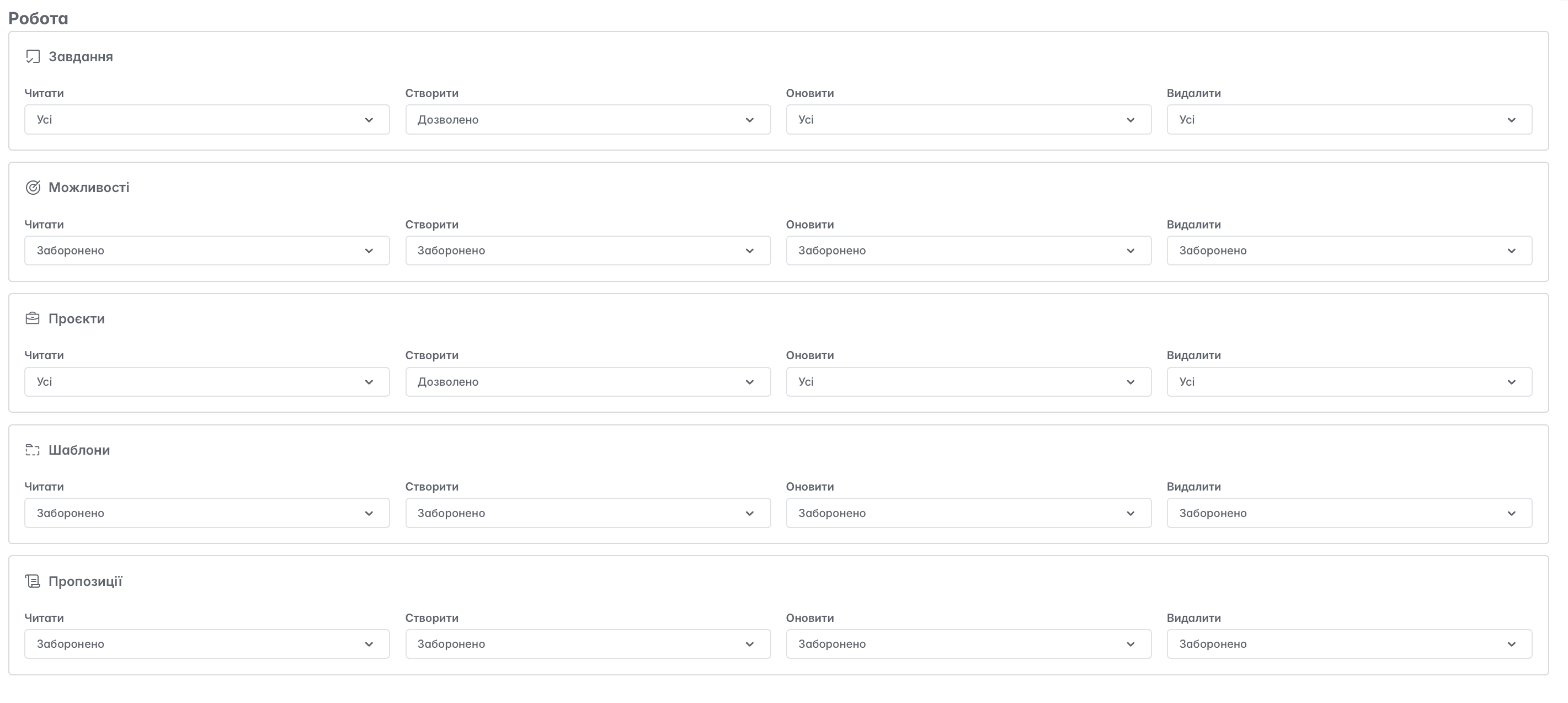
Work
Permissions related to the Tasks, Leads, Projects, and Proposals modules
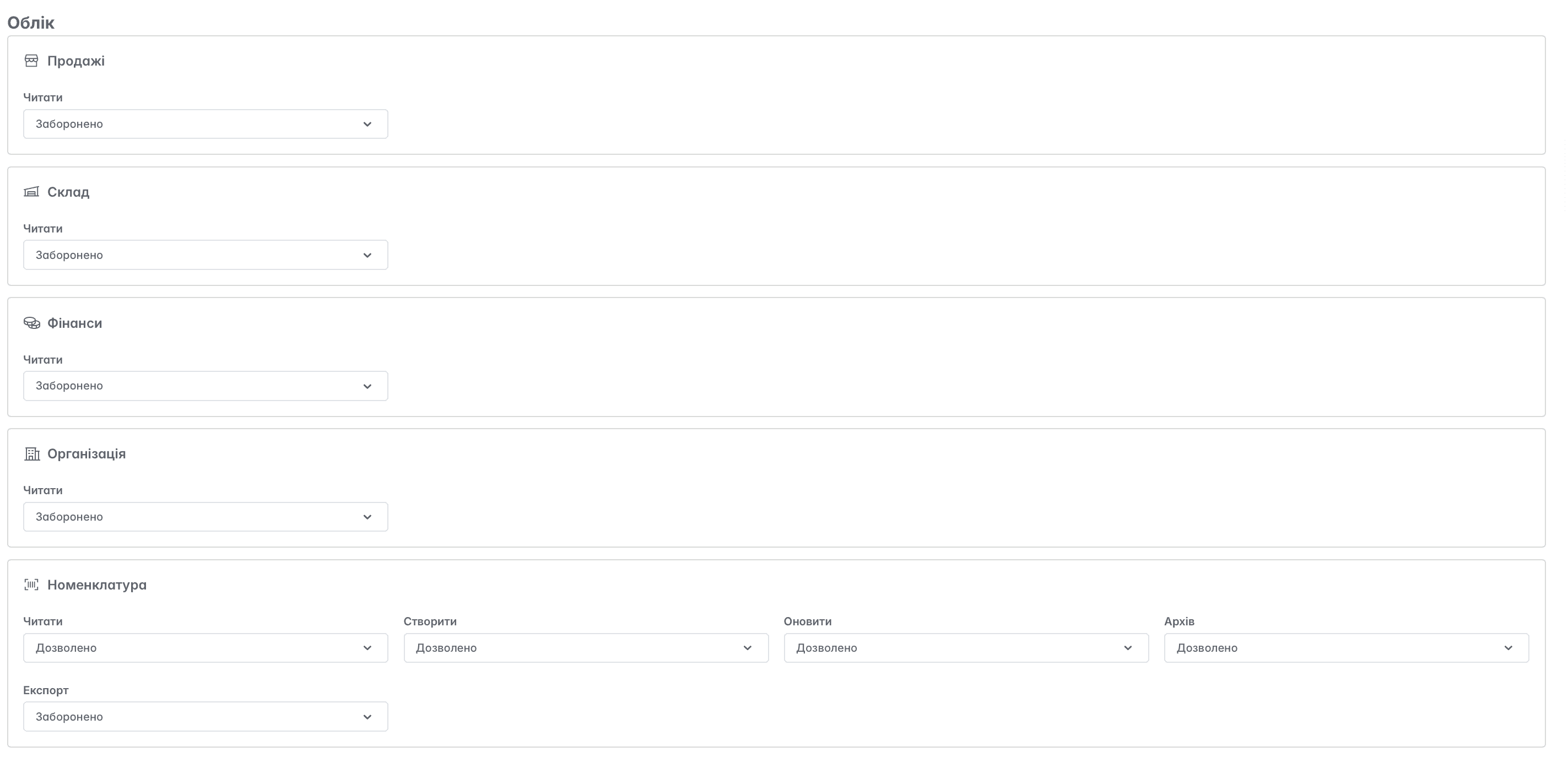
Accounting
Configuring permissions regarding other modules of Keruj (finance, warehouse, nomenclature, counterparties, locations, contracts, etc.). For example, if you are creating access rights for a warehouse manager, the Finance, Organization, and Invoices sections will not be relevant for this role, unlike the Warehouse and Locations sections
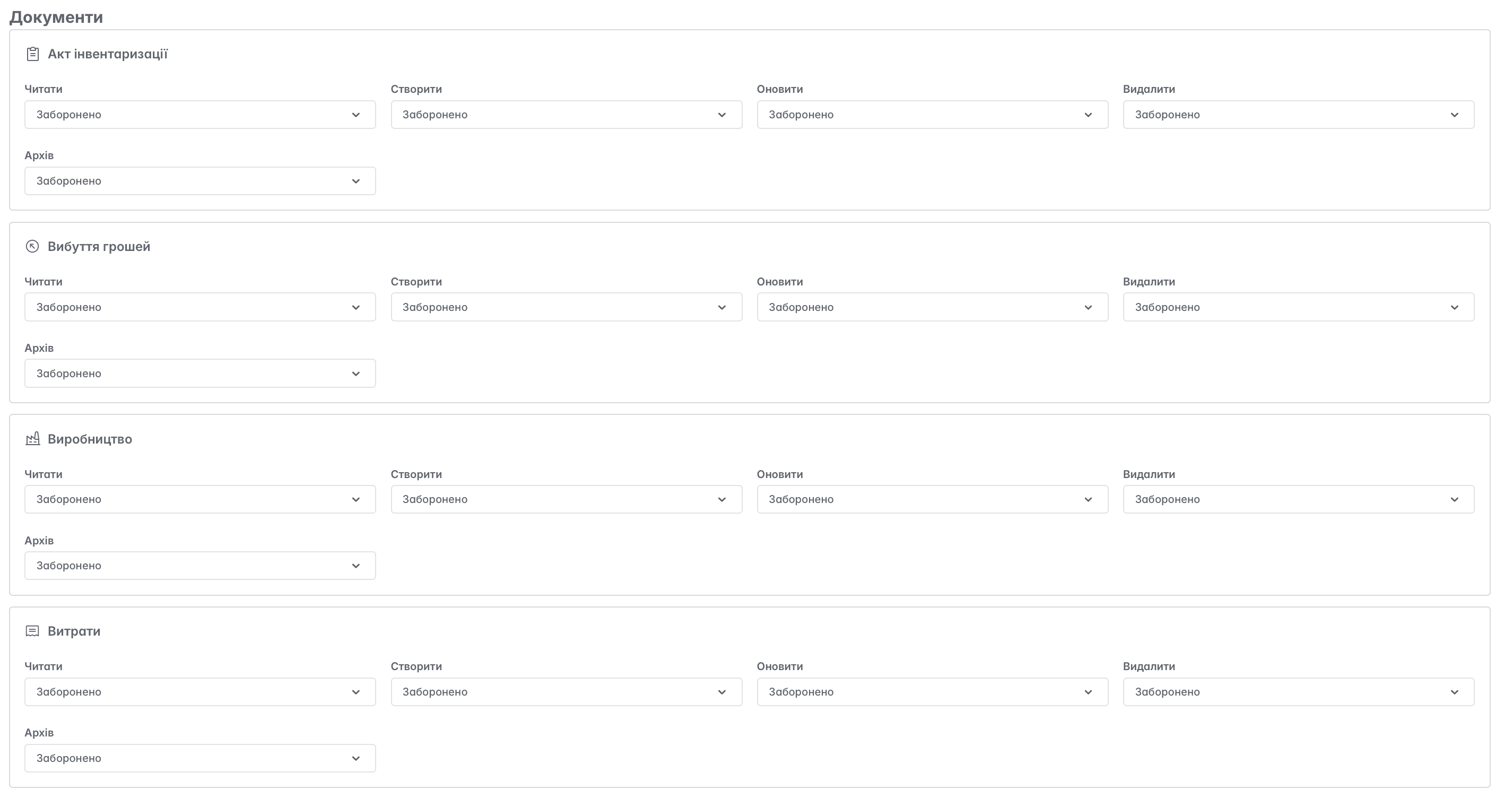
Documents
You can determine which document types will be available for the role, or provide the ability to view them, but without the right to edit. Access rights are configured for each document type separately
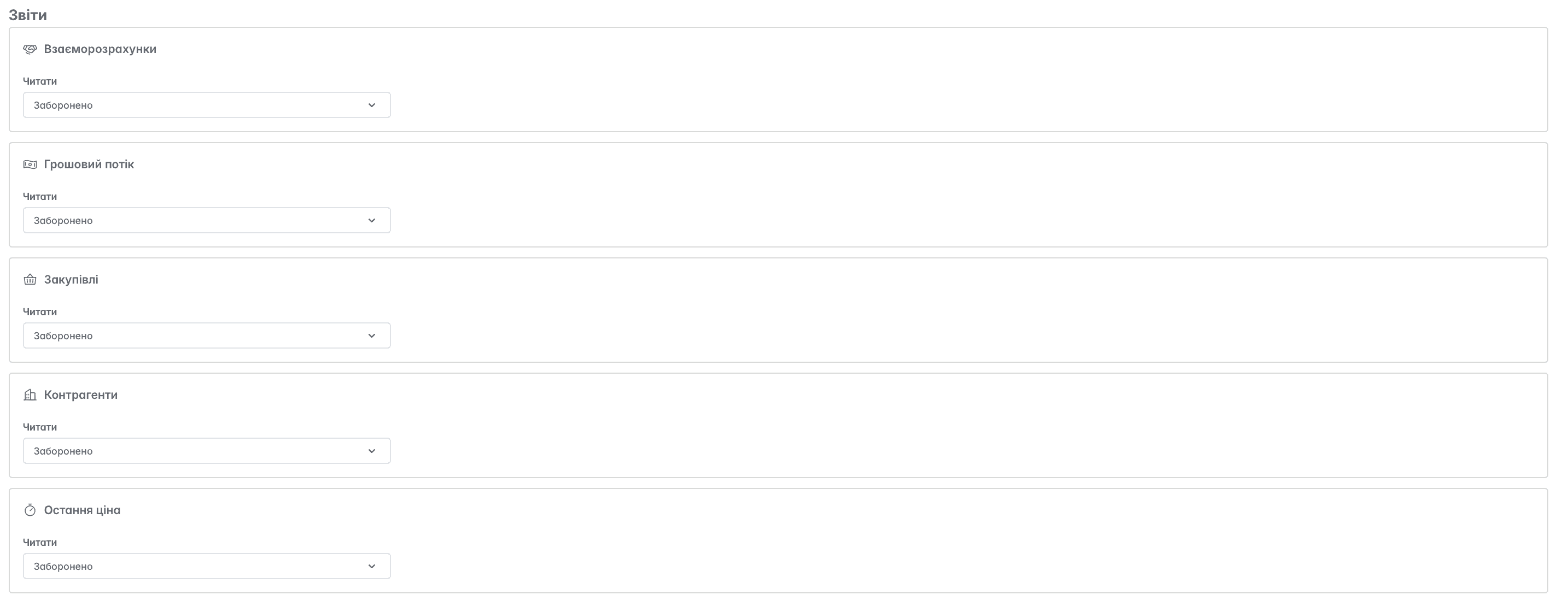
Reports
Configuring access to specific types of reports. For example, if you are creating access rights for a warehouse manager, from the general list, the warehouse and inventory movement reports will be relevant for this role
Related articles